Purpose of Knowledge article
- This is a guide for how to sign in and sign out to Microsoft Office
- This guide provides instructions for both Windows and Mac
Resolution
- You must have a Microsoft Office license subscription. If you do not have one, go to https://software.lbl.gov/ to purchase one
- You must wait for your approver (usually your supervisor to approve) and then the Software and License team will assign you a license. Once completed, you will be notified via email
- Contacting the Lab IT Support Services team does not help speed up the process as we are not part of the process
| 1 | Open up Microsoft Office Word | no image |
| 2 | Select File |
|
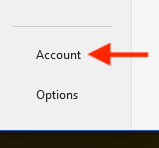
| 3 | Select Account or (Office Account) |
|
| 4 | Select Sign In and sign in using your LBNL account credential |
|
| 5 | Exit all Microsoft Office software and reopen it Note: sometimes restarting the computer is required |
no image |

| 1 | Open up Microsoft Office Word | no image |
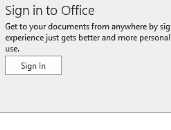
| 2 | Select Sign In in the top left corner |
|
| 3 | Select Sign In and sign in using your LBNL account credential |
|
| 4 | Exit all Microsoft Office software and reopen it Note: sometimes restarting the computer is required |
no image |


| 1 | Open up Microsoft Office Word | |
| 2 | Select File |
|
| 3 | Select Account or (Office Account) |
|
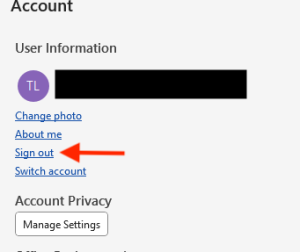
| 4 | Select Sign Out |
|
| 5 | Exit all Microsoft Office software Note: if you are troubleshooting, restart the computer as well |
no image |
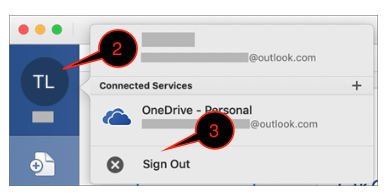
| 1 | Open up Microsoft Office Word | no image |
| 2 | Select the icon with your name initial in the top left corner |
|
| 3 | Select Sign Out | |
| 4 | Exit all Microsoft Office software (make sure the software is not running on the dock) Note: if you are troubleshooting, restart the computer as well |
no image |