Purpose of Knowledge Article:
This is a guide to check if CrowdStrike is running correctly on your system.
Resolution:
Step |
Description |
Image |
1 |
Expand the system tray by clicking the small arrow icon next to the clock and/or weather display |
|
2 |
Find the CrowdStrike Falcon icon ( |
|
| 3 |
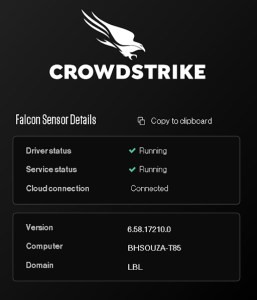
If you left-click the CrowdStrike icon in the system tray, it will bring up a status menu with more detail - if the Falcon Sensor Details show running, then the app and services are working properly. |
|



Step |
Description |
Image |
1 |
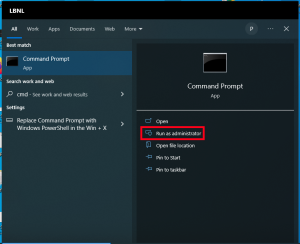
Use the search bar to search for 'cmd' and launch Command Prompt as an administrator |
|
2 |
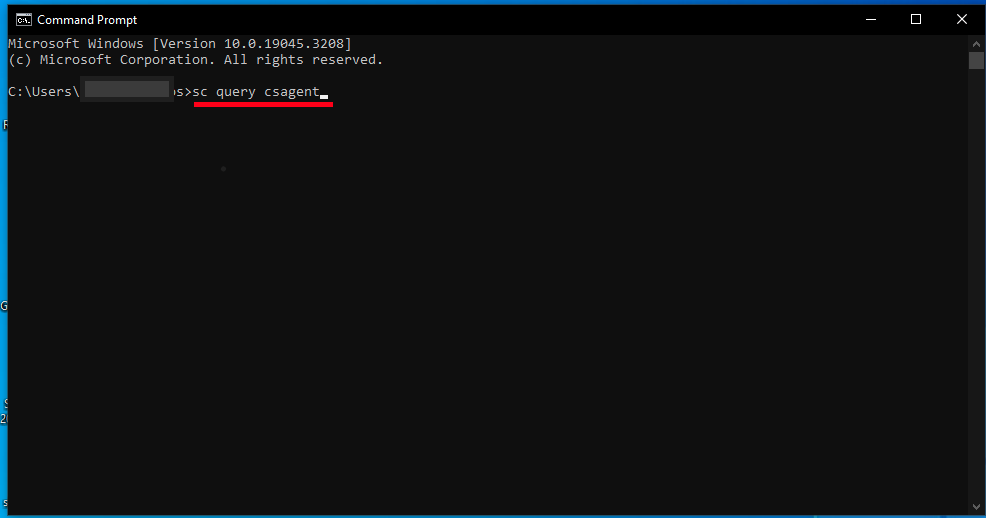
Run the command sc query csagent |
|
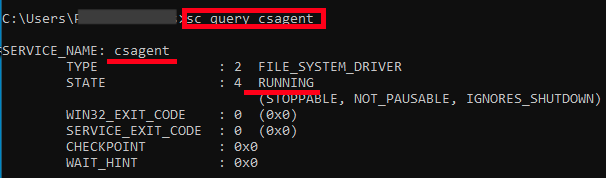
| 3 | Ensure the result shows “STATE” is “RUNNING” |
|
Step |
Description |
Image |
1 |
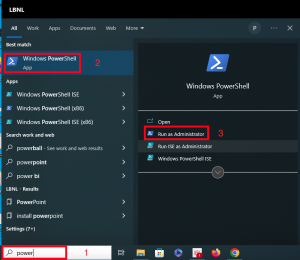
Use the search bar to search for 'power' and run a Windows PowerShell terminal as administrator |
|
2 |
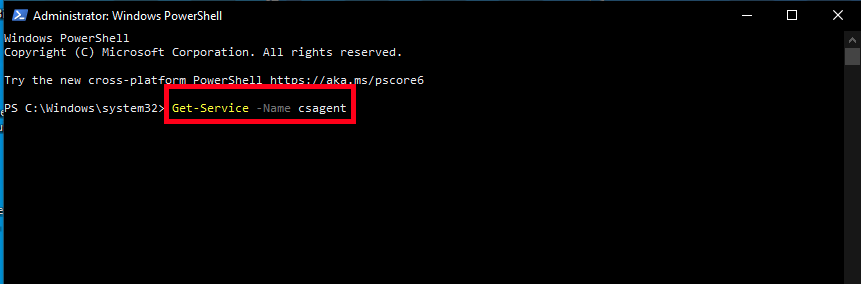
In the PowerShell terminal type the following command: Get-Service -Name csagent |
|
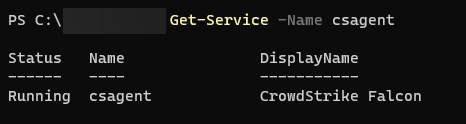
| 3 | You should see the status of the CrowdStrike Falcon agent |
|
Advanced: the following command can get the Agent ID from the client
powershell.exe -command "[System.BitConverter]::ToString( ((Get-ItemProperty 'HKLM:\SYSTEM\CrowdStrike\{9b03c1d9-3138-44ed-9fae-d9f4c034b88d}\{16e0423f-7058-48c9-a204-725362b67639}\Default' -Name AG).AG)).ToLower() -replace '-',''"
- macOS 11 and later
- Launch the Terminal application from the Utilities folder (You can access the Utilities folder under the Go menu in the Finder menu bar)
- In the terminal, run systemextensionsctl list
- When asked for the password, type in your computer password
- The result should look like this:
1 extension(s)
--- com.apple.system_extension.endpoint_security
enabled active teamID bundleID (version) name [state]
* * X9E956P446 com.crowdstrike.falcon.Agent (5.38/119.57) Agent [activated enabled]
- Using CrowdStrike Falcon Client v6.x or higher
- In the terminal, run sudo /Applications/Falcon.app/Contents/Resources/falconctl stats | head -n 6
- When asked for the password, type in your computer password
- The result should show at the beginning:
Host: ts01-laggar-gcw.cloudsink.net
Port: 443
State: connected
Advanced: the following command can get the Agent ID from the client
sudo /Applications/Falcon.app/Contents/Resources/falconctl stats agent_info

