This is a guide to check if CrowdStrike is running correctly on your system.
Resolution:
Step
Description
Image
1
Expand the system tray by clicking the small arrow icon next to the clock and/or weather display
2
Find the CrowdStrike Falcon icon () - it will display the current state in a small context box if hovered over for a moment
3
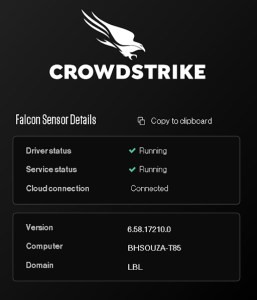
If you left-click the CrowdStrike icon in the system tray, it will bring up a status menu with more detail - if the Falcon Sensor Details show running, then the app and services are working properly.
Step
Description
Image
1
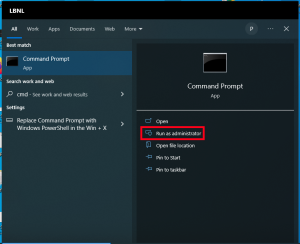
Use the search bar to search for 'cmd' and launch Command Prompt as an administrator
2
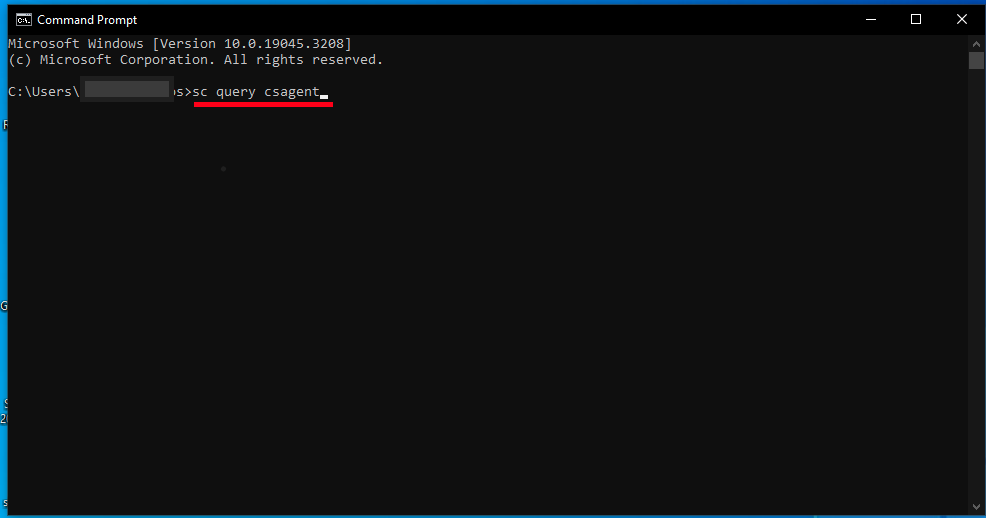
Run the command sc query csagent
3
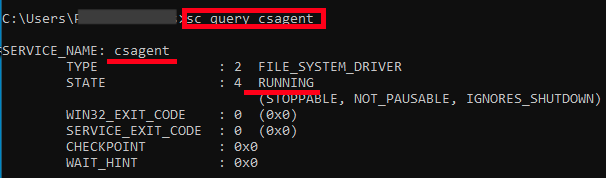
Ensure the result shows “STATE” is “RUNNING”
Step
Description
Image
1
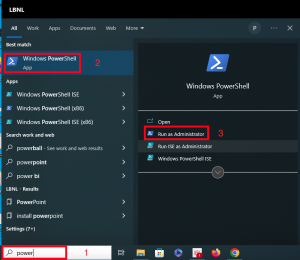
Use the search bar to search for 'power' and run a Windows PowerShell terminal as administrator
2
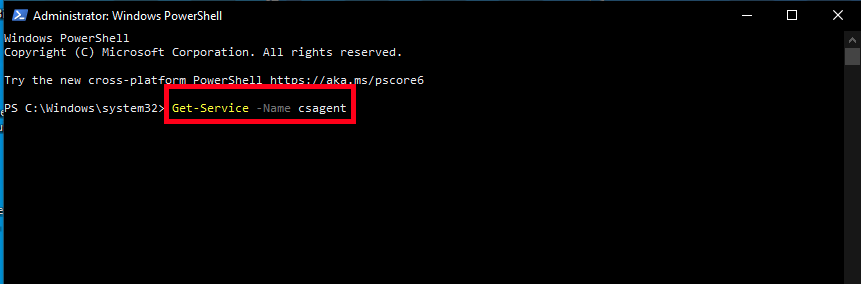
In the PowerShell terminal type the following command:
Get-Service -Name csagent
3
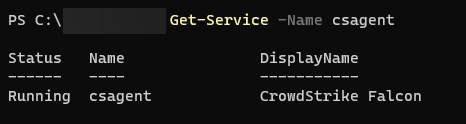
You should see the status of the CrowdStrike Falcon agent
Advanced: the following command can get the Agent ID from the client
Launch the Terminal application from the Utilities folder (You can access the Utilities folder under the Go menu in the Finder menu bar)
In the terminal, run systemextensionsctl list
When asked for the password, type in your computer password
The result should look like this: 1 extension(s) --- com.apple.system_extension.endpoint_security enabled active teamID bundleID (version) name [state] * * X9E956P446 com.crowdstrike.falcon.Agent (5.38/119.57) Agent [activated enabled]
Using CrowdStrike Falcon Client v6.x or higher
In the terminal, run sudo /Applications/Falcon.app/Contents/Resources/falconctl stats | head -n 6
When asked for the password, type in your computer password

 ) - it will display the current state in a small context box if hovered over for a moment