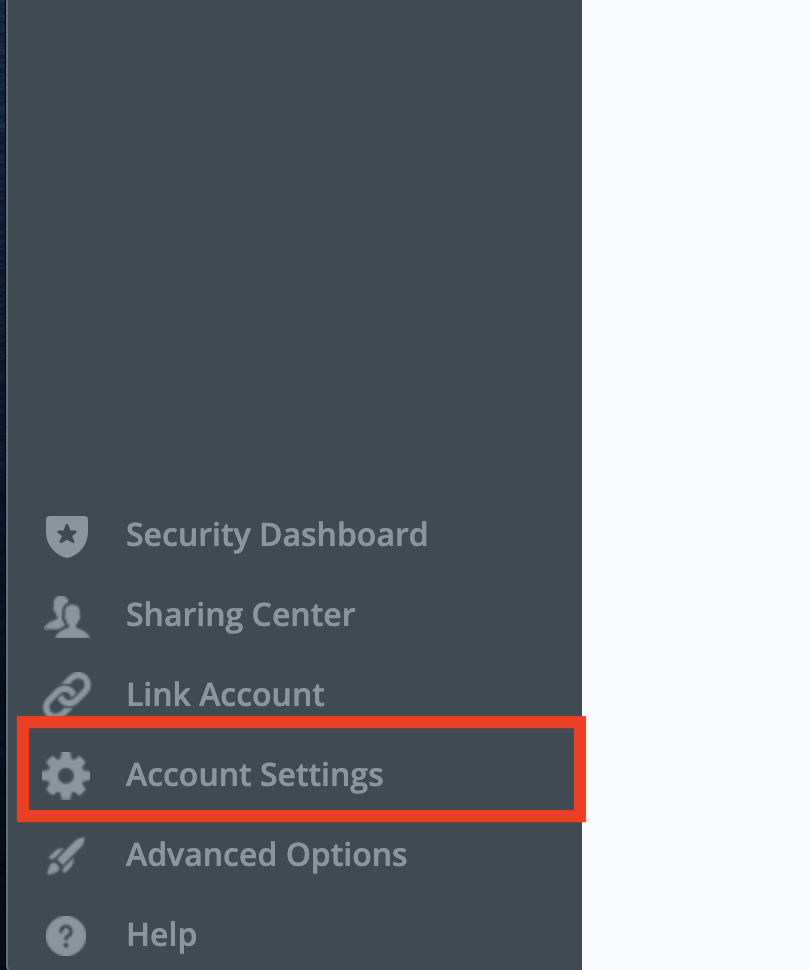
| 1 | Log in to your lab LastPass account at https://lastpass.com and click on Account Settings on the bottom left corner |
|
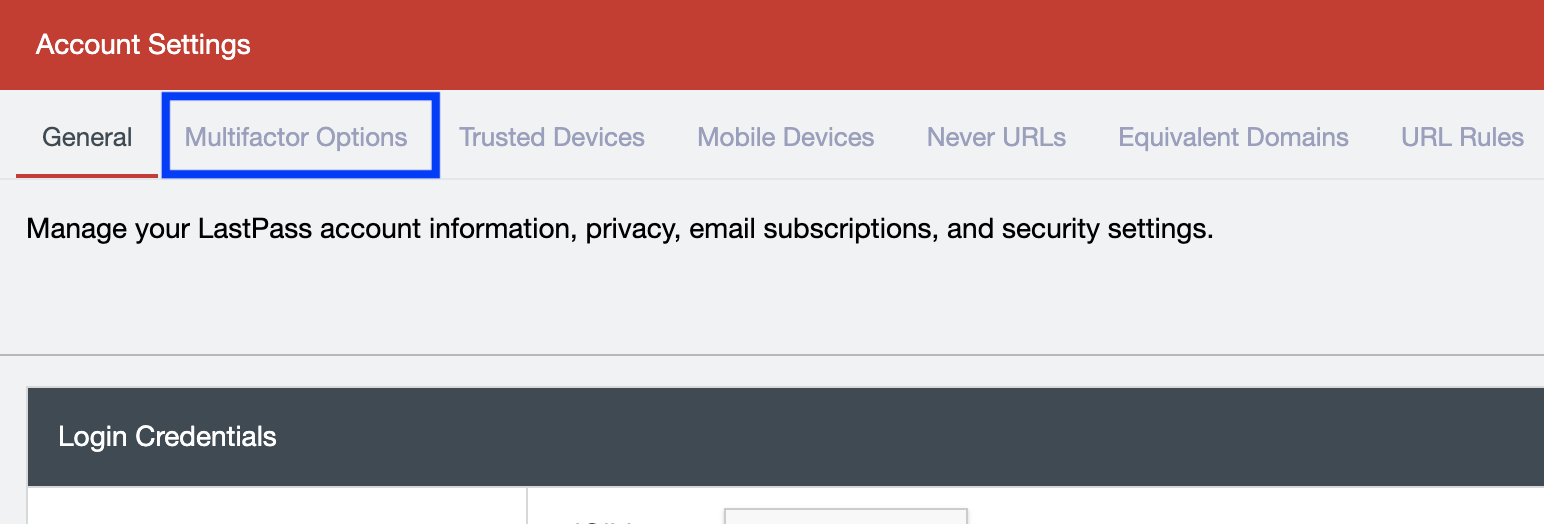
| 2 | Click on Multifactor Options |
|
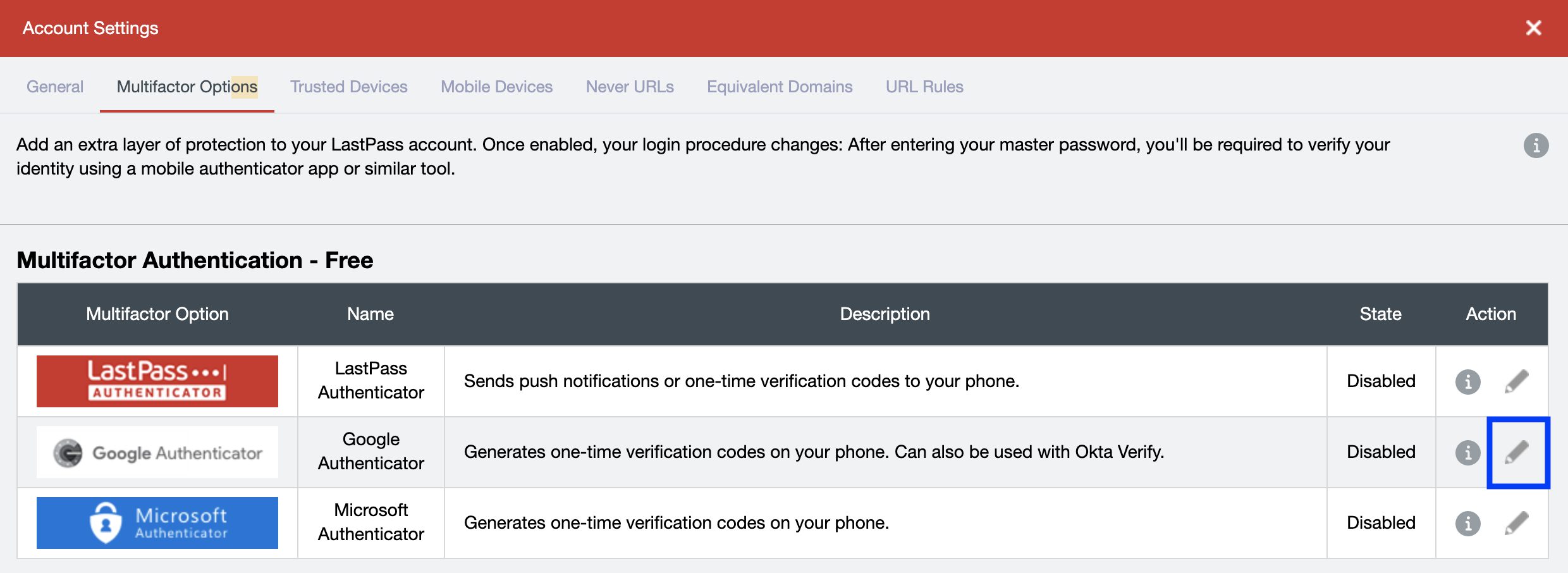
| 3 | Click on the |
|
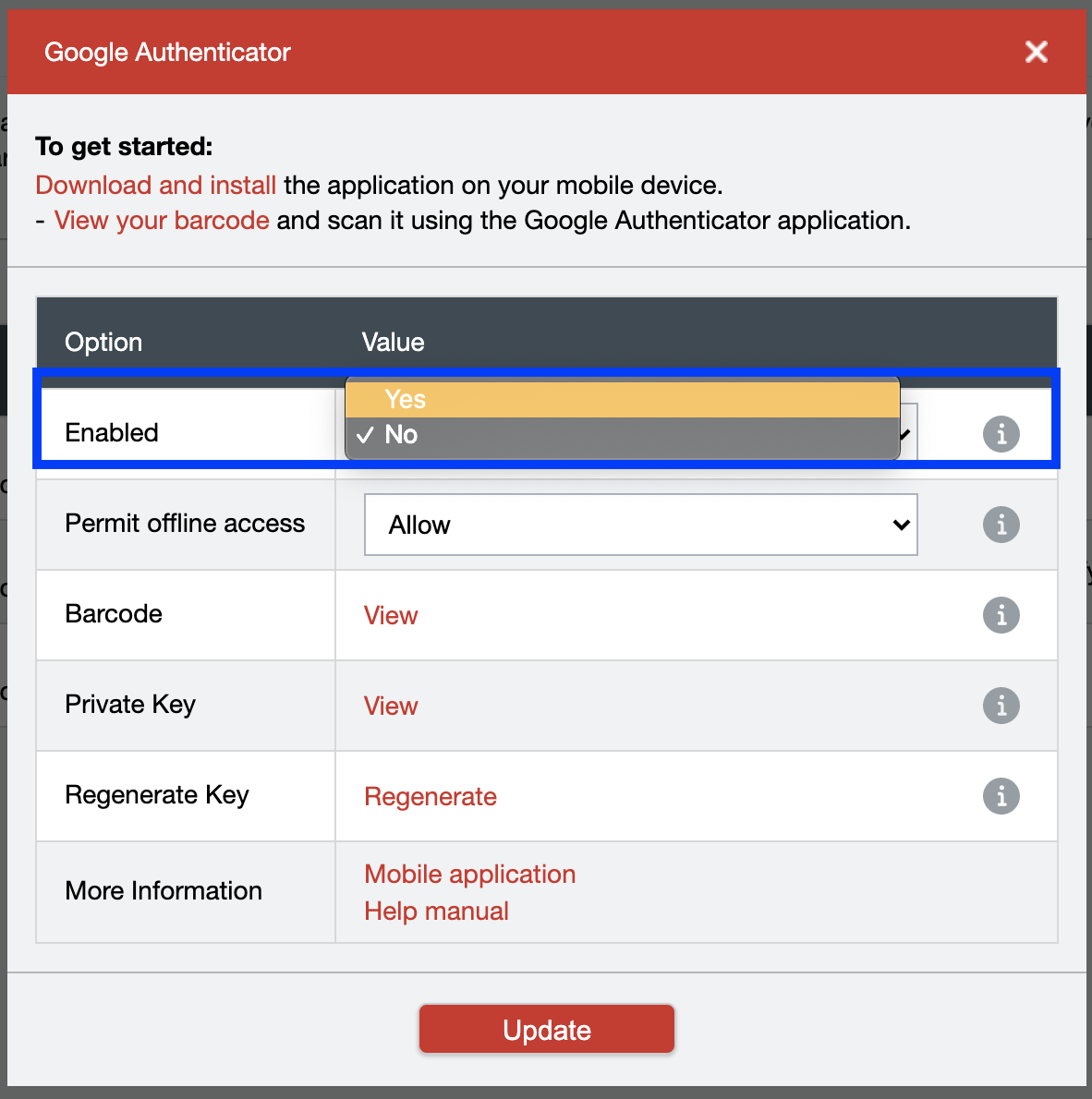
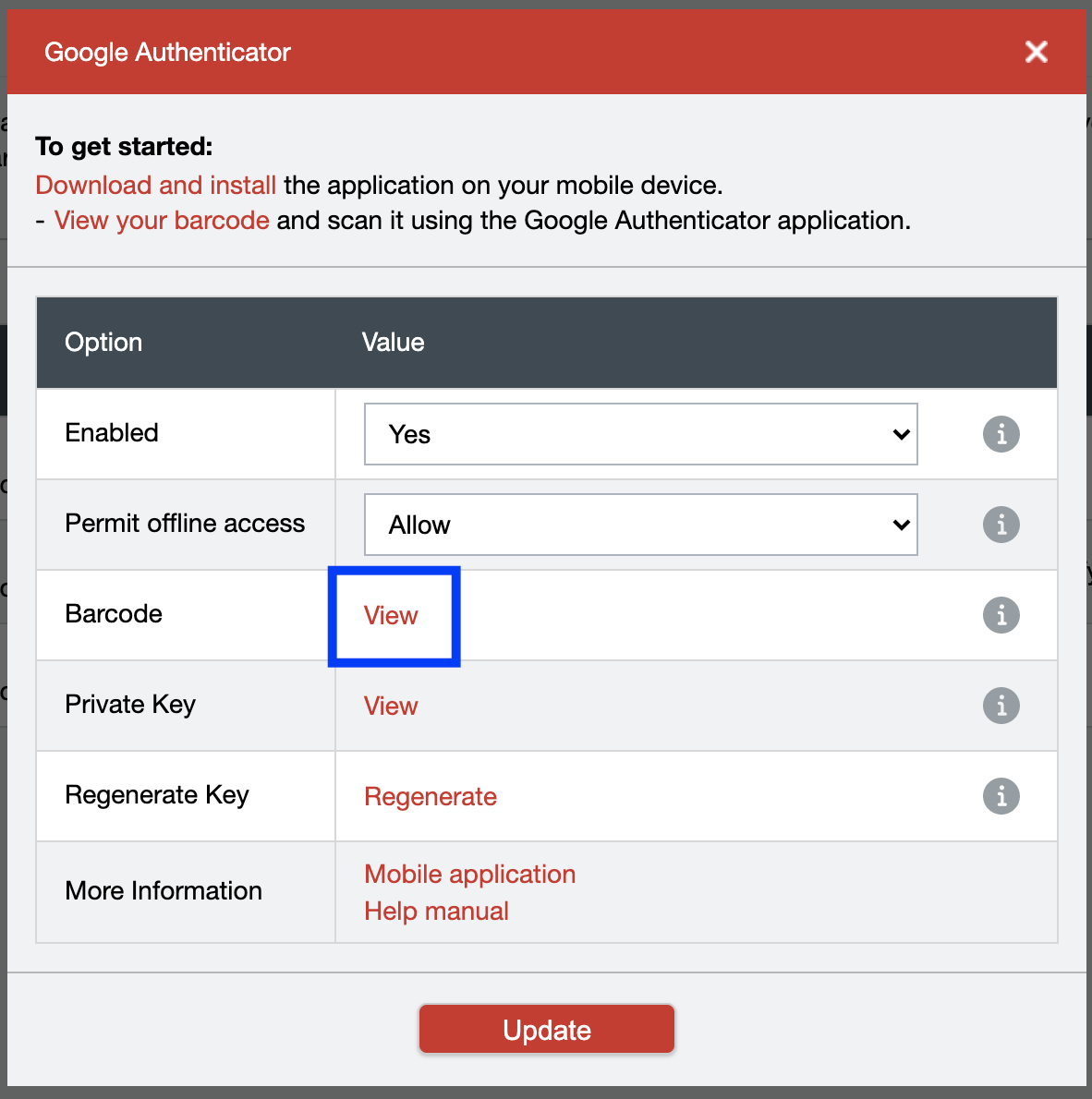
| 4 | In the Enabled field, select the drop-down menu and select Yes |
|
| 5 | In the Barcode field, click on View |
|
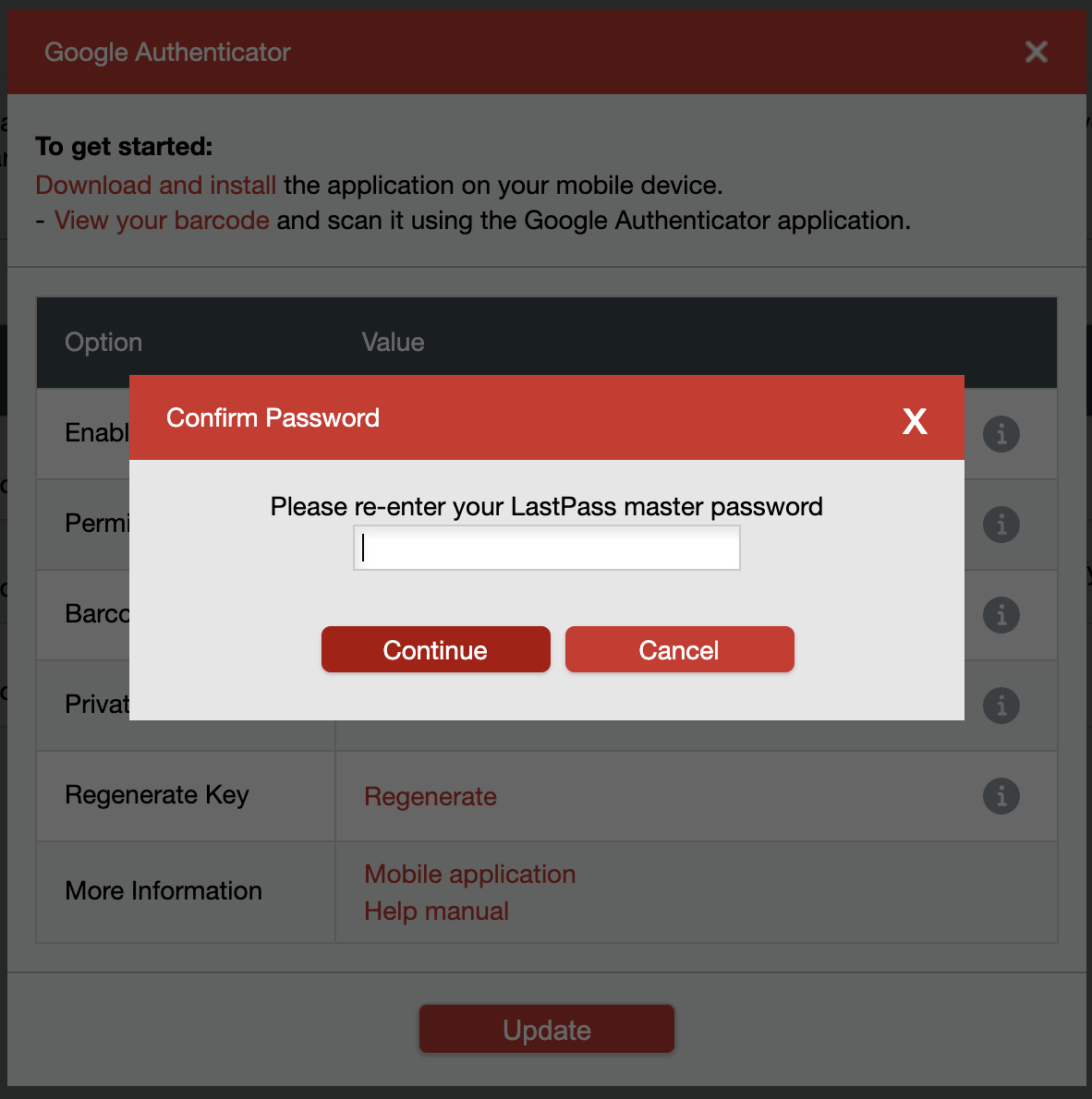
| 6 | Enter your LastPass Master password and click Continue |
|
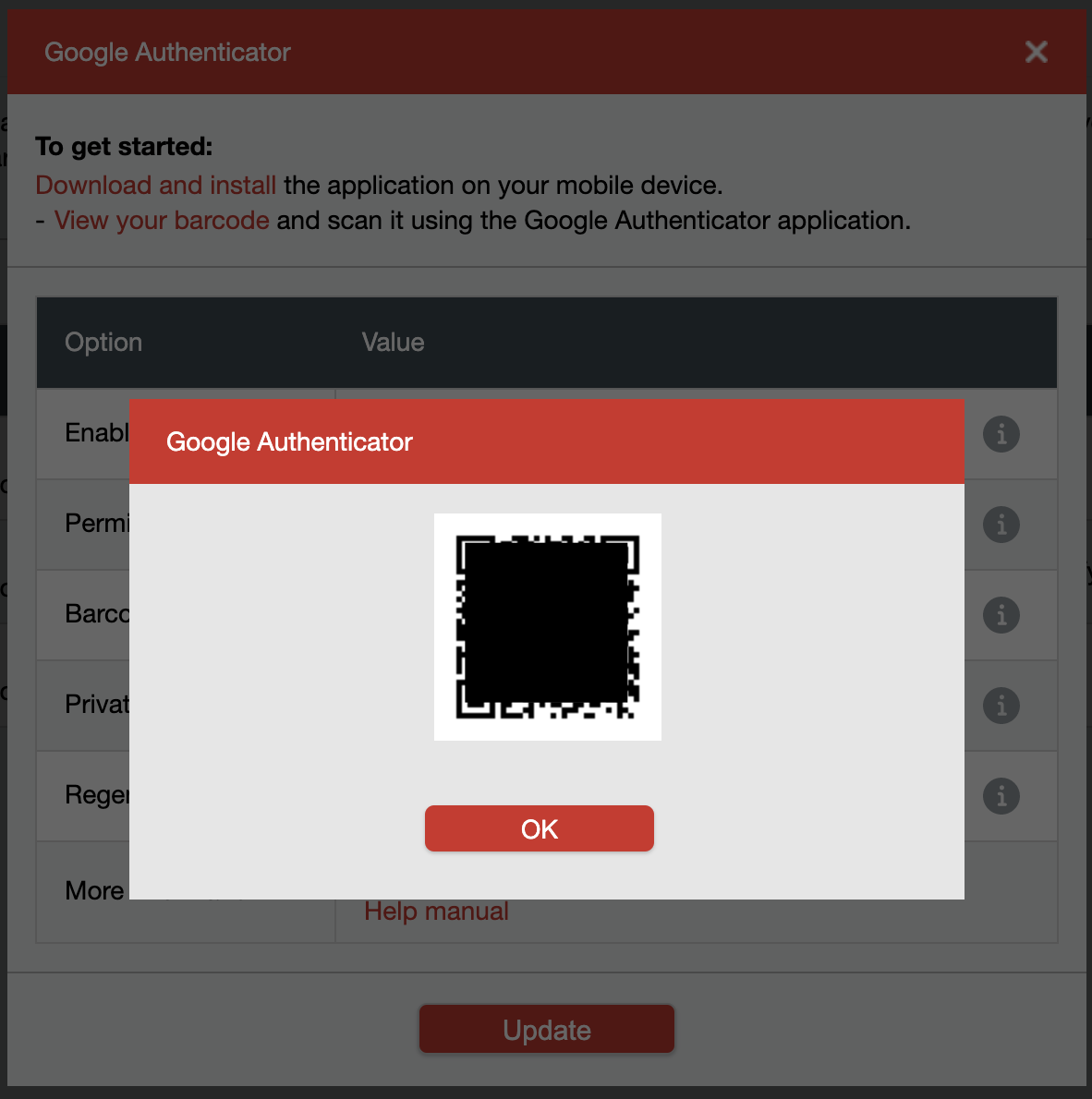
| 7 | You will see the QR code. Open up the Google Authenticator app on your phone and scan the QR code Once scanned, you will see a new set of 6-digit numbers generated for LastPass on your phone Back to the computer, click OK |
|
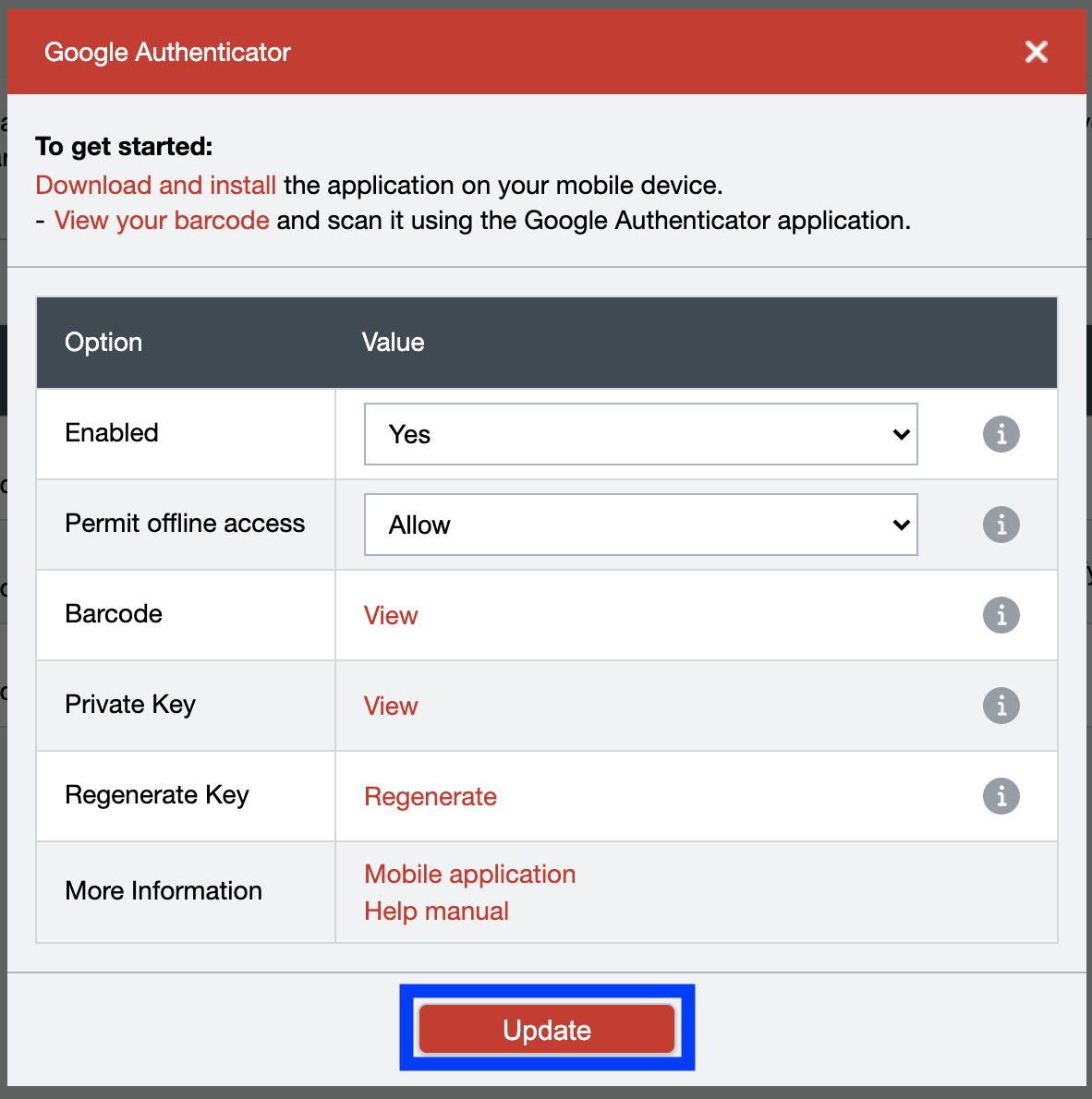
| 8 | Click Update |
|
| 9 | Enter your LastPass Master password and click Continue |
|
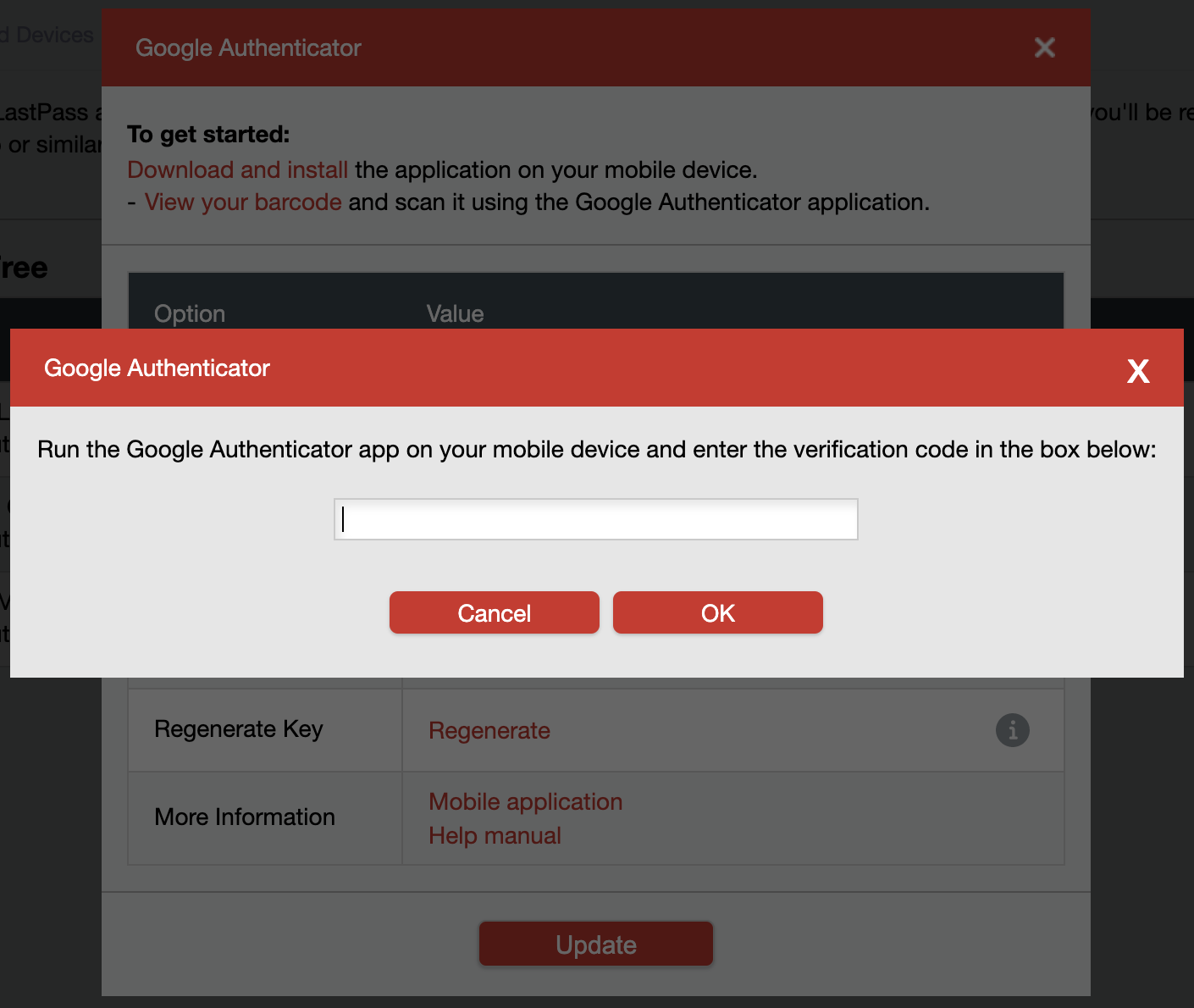
| 10 | Enter the 6-digit number from Google Authenticator for LastPass from your phone and click OK |
|
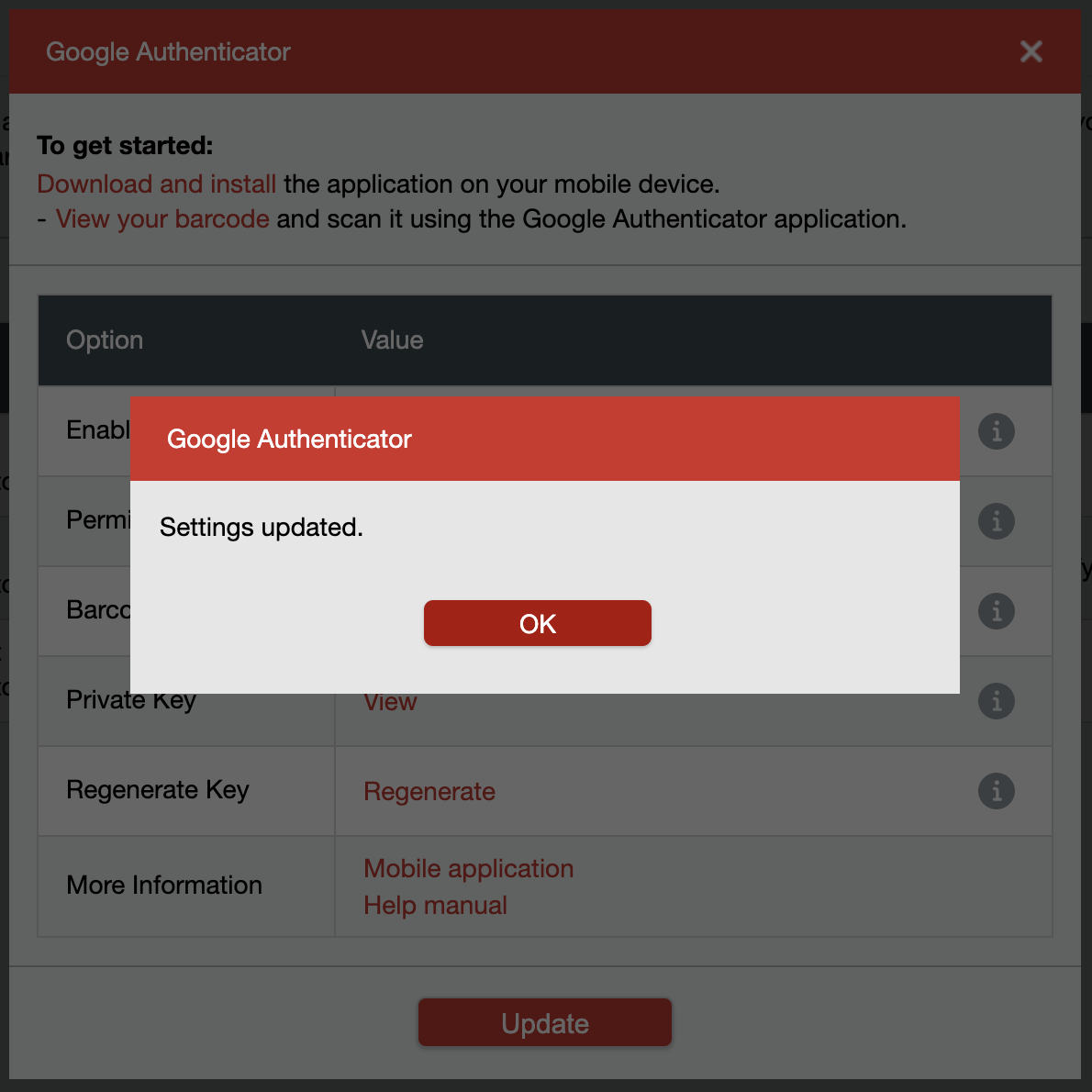
| 11 | You will see the message Settings Updated Click OK |
|
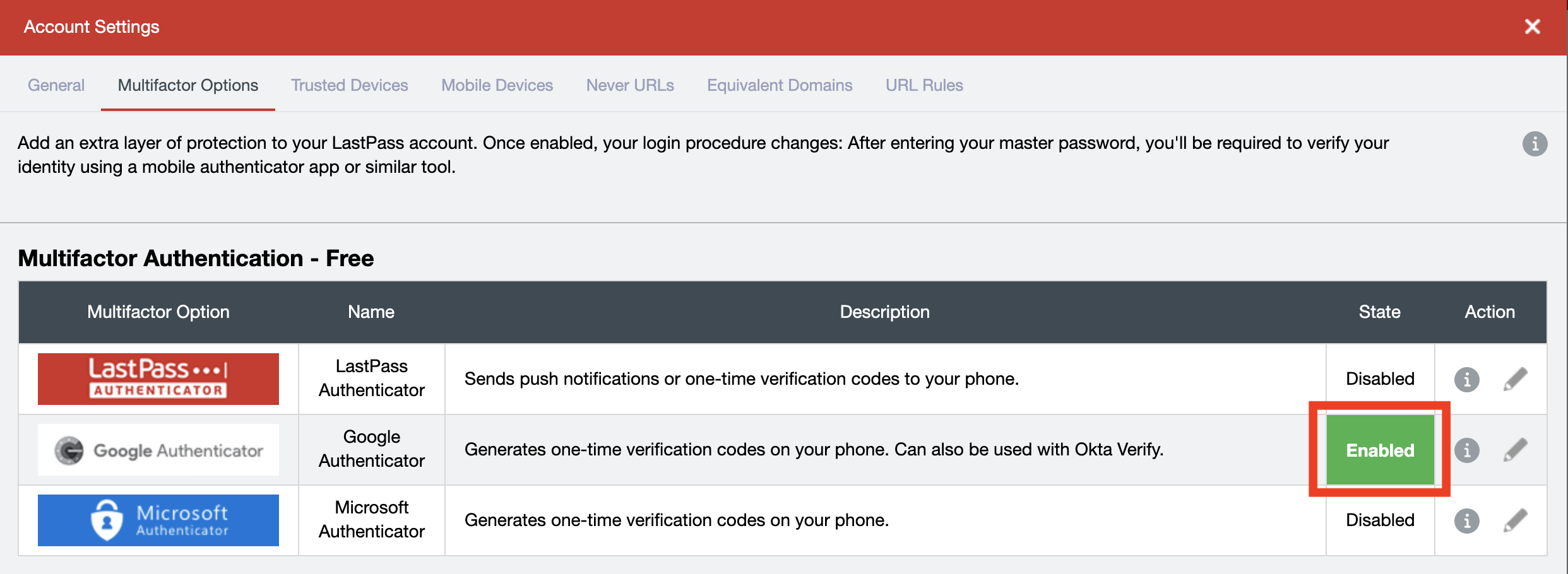
| 12 | You will see the text Enabled with a green background for Google Authenticator You're done |
|

Overview
Community Forums
Content Tools
Was this site useful for you? Do you have any feedback or suggestions? Please click here to send your comments about this FAQ to IT.
