Purchase a license for Druva from the software page.
How to install Druva on Windows
Note: Make sure to read the entire instruction before starting.
| 1 | Go to https://cloud.druva.com/home/ and only type in your Berkeley lab email address and click "Login". Note: Leave the password box empty. |
|
| 2 | You will be redirect to a Berkeley Lab login page (unless you're already logged in with your LDAP account). Login with your Berkeley Lab identity. |
|
| 3 | On the Druva user homepage, look at the bottom left corner and you will see a small laptop icon. Click on it. |
|
| 4 | On the Druva Downloads page, select the latest Druva version and click the blue Download button Windows. Once the download is complete, launch the file to install Druva |
|
| 5 | Install Druva and agree to the Software license agreement. |
5a. Click 'Next'
5b. Click 'Continue'
5c. Click 'Yes'
5d. Click 'Install'
5e. Click 'Yes'
5f. Click 'Finish'
|
| 6 | Launch Druva and begin your backup. Note:
|
6a. in the Backup Cloud option, leave it at inSync Cloud. Type in Berkeley Lab email and click continue
6b. The browser will launch and ask you if you want to "Open inSyncAgent", click "Open inSyncAgent" Note: it may ask you to login in with your Berkeley lab Identity first before you see this page.
6c. This window will disappear on its own, give it a moment.
|
| 7 | If you've activated Druva on another device, you may see this prompt. If not, skip to step 8. |
7a. Select "Replace and existing Device".
7b. Select the device that you are replacing and click "Replace".
7C.Select "Maybe Later". 
|
| 8 | You will see the screen display "Initializing Backup". You are done. |
|


How to install Druva inSync on macOS
Note: Make sure to read the entire instruction before starting.
| 1 | Go to https://cloud.druva.com/home/ and only type in your Berkeley lab email address and click "Login". Note: Leave the password box empty. |
|
| 2 | You will be redirect to a Berkeley Lab login page (unless you're already logged in with your LDAP account). Login with your Berkeley Lab identity. |
|
| 3 | On the Druva user homepage, look at the bottom left corner and you will see a small laptop icon. Click on it. |
|
| 4 | On the Druva InSync Downloads page, select the latest Druva inSync and click the blue Download button for macOS. Once the download is complete, launch the file to install Druva Insync. |
|
| 5 | Install Druva Insync and agree to the Software license agreement. |
5a. Double click the file.
5b. Click 'Continue' 
5c. Click 'Continue' 
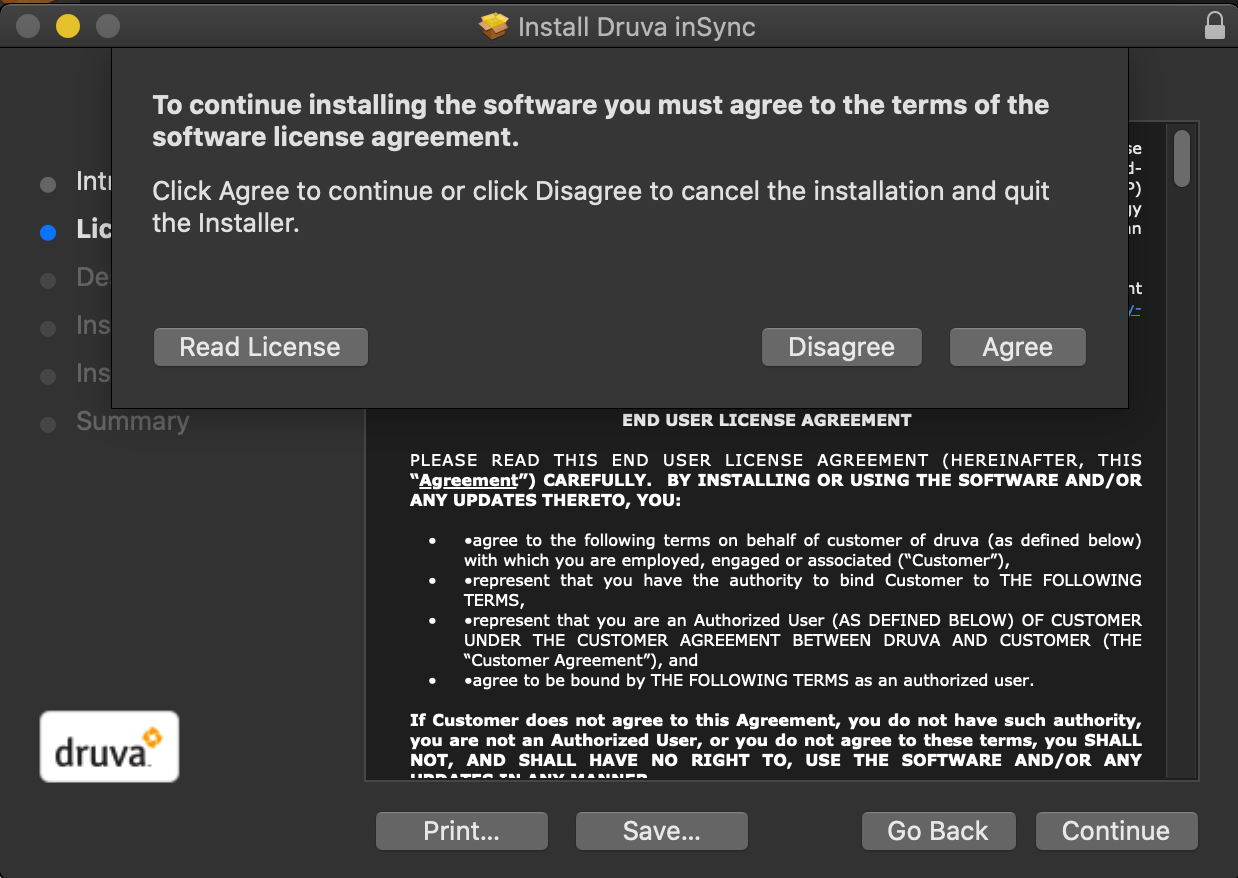
5d. Click 'Agree'
5e. Click 'Install'
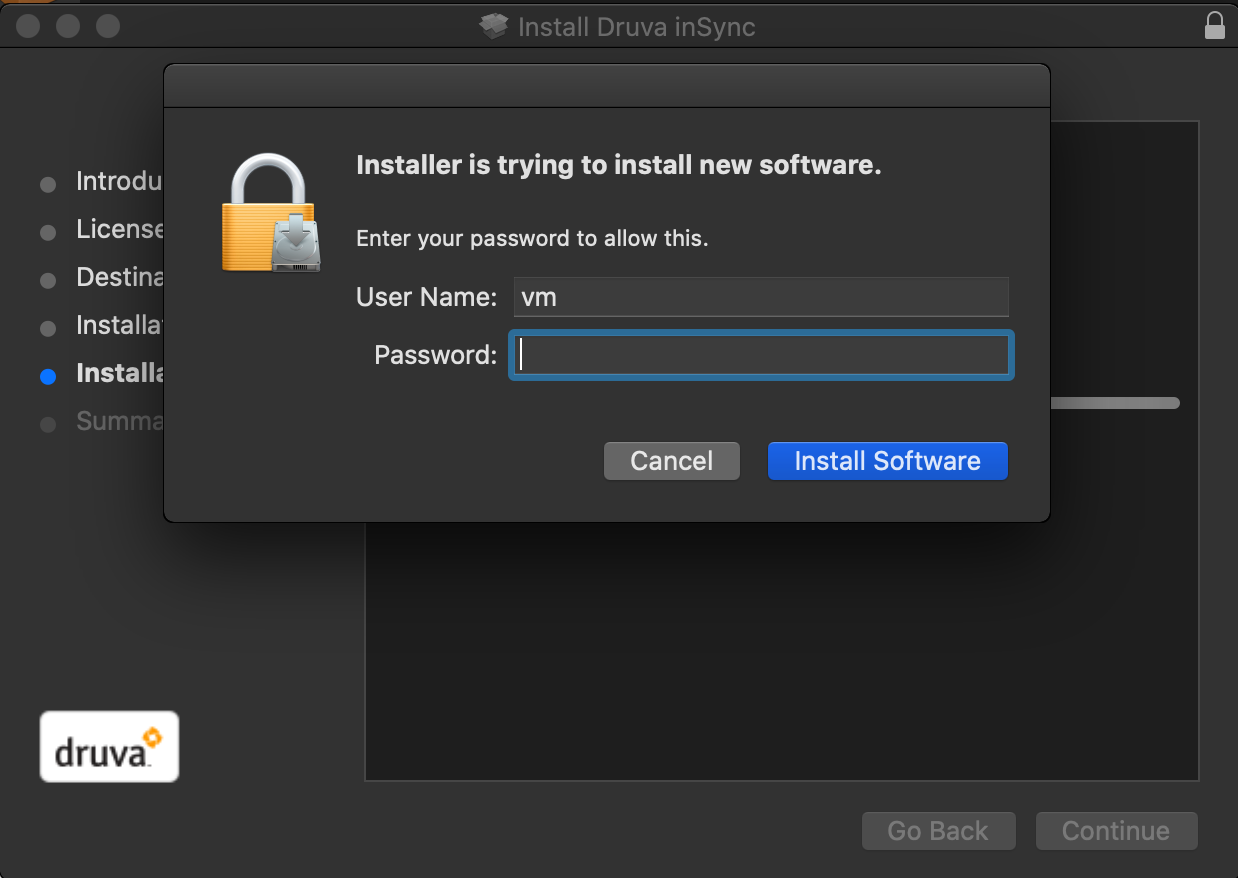
5f. Type in your computer password and click 'Install Software'
5g. Once installation finish, click 'Close'
5h. Click 'Move to Trash'
|
| 6 | Launch Druva inSync and begin your backup.
Note:
|
6a. in the Backup Cloud option, leave it at inSync Cloud. Type in Berkeley Lab email and click continue
6b. The browser will launch and ask you if you want to "Open inSyncAgent", click "Open inSyncAgent" Note: it may ask you to login in with your Berkeley lab Identity first before you see this page.
6c. This windows will disappear on its own, give it a moment.
|
| 7 | If you've activated Druva on another device, you may see this prompt. If not, skip to step 8. |
7a. Select "Replace and existing Device".
7b. Select the device that you are replacing and click "Replace".
7C.Select "Maybe Later".
|
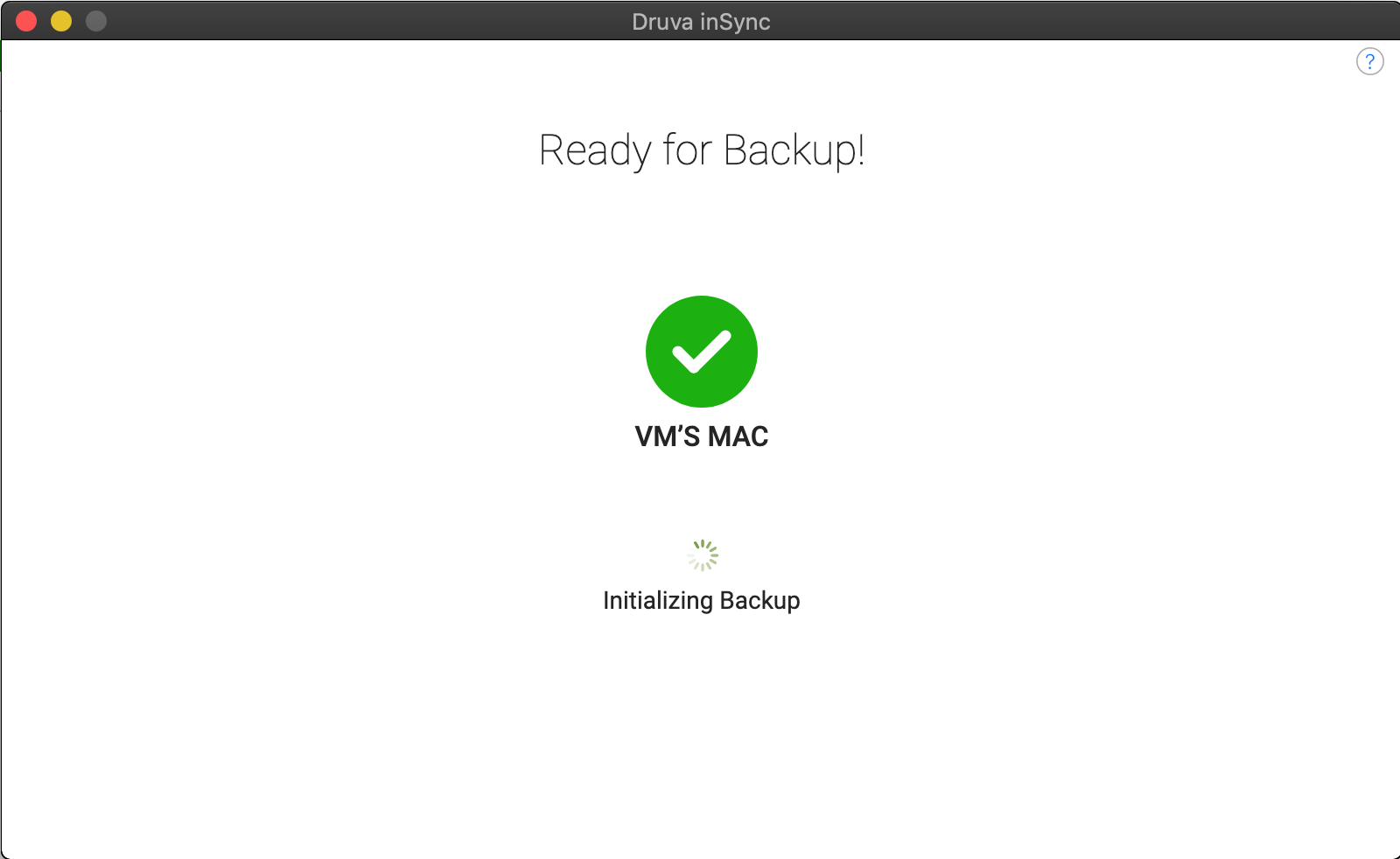
| 8 | You will see the screen display "Initializing Backup". |
|
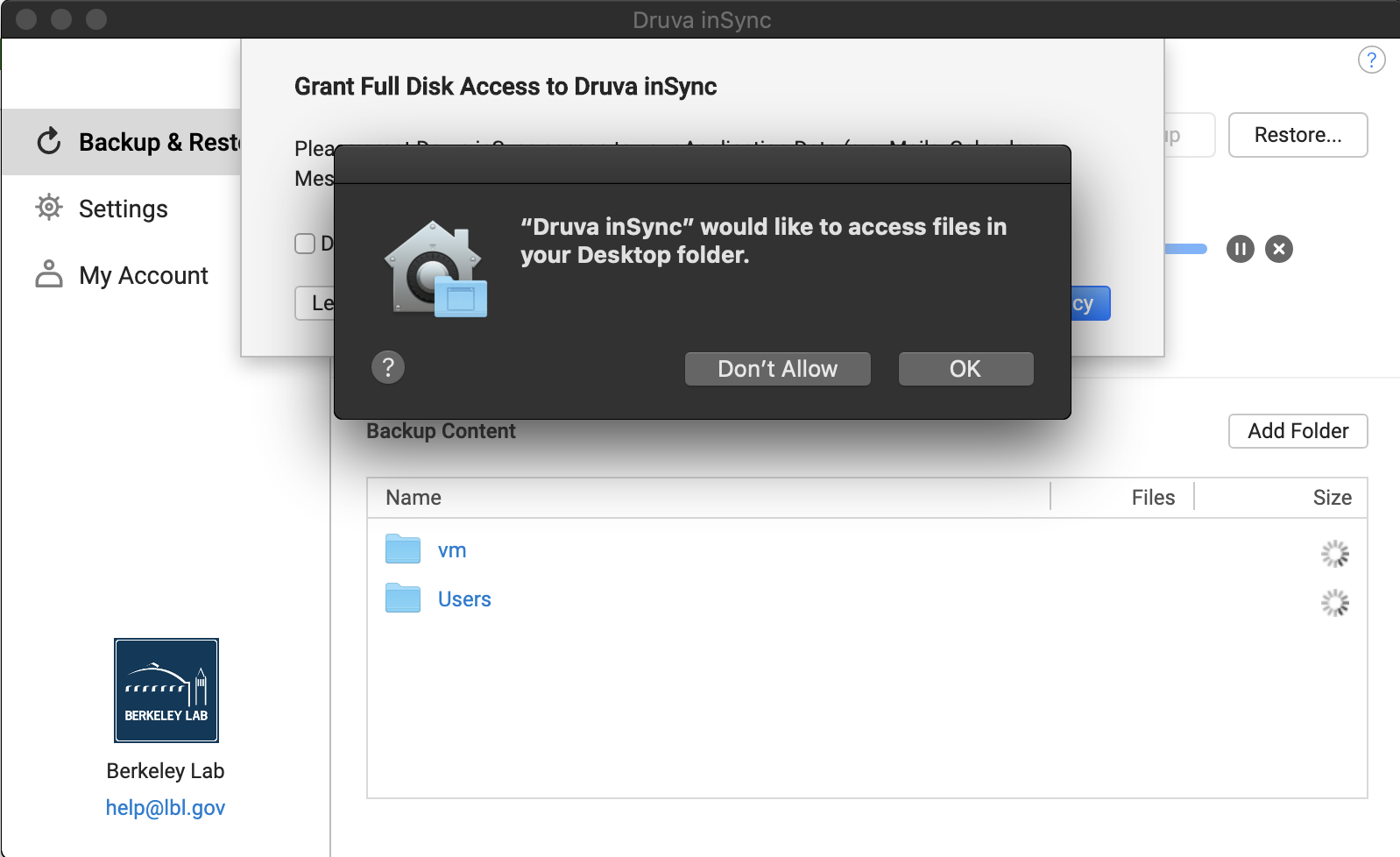
| 9 | Once your Druva Insync starts running, you will see a few popup windows. |
9a. You will see these three popup windows and click 'OK' to all three.
9b. For this popup, click 'OK'
9c. For this popup, check the box 'Don't remind me again' and click 'Not now' |
| 10. |
10a. For this popup, it is optional:
Note: user email and calendar are on Google Server and if user access them through a web browser, there is no reason to back them up on Druva inSync.
|