Purpose of Knowledge Article:
- How to connect iPhone/iPad to LBNL-Employee Wireless - lbnl-employee SSID
- If you already have the Employee Wireless but need to remove it to reinstall it, see Remove Employee Wireless Profile from iPhone/iPad
- You will need to remove and reinstall the employee wireless profile if you updated your LDAP password or you are having trouble connecting to the LBNL-employee WiFi
Resolution:
| 1 | Must use Safari for this process, other browsers will not work |
|
| 2 | Go to software.lbl.gov on your iOS device | |
| 3 | Log in with your LDAP information | |
| 4 | Using the search box on the top of the left column, search for "wireless" | |
| 5 | Select "Wireless Networking" in the result | |
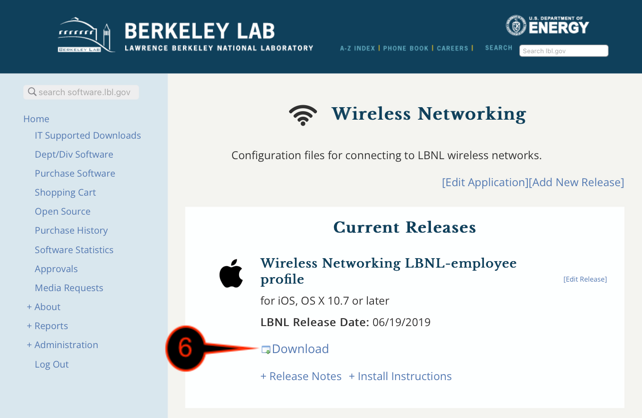
| 6 | Click Download below the "Wireless Networking LBNL-employee profile" |
|
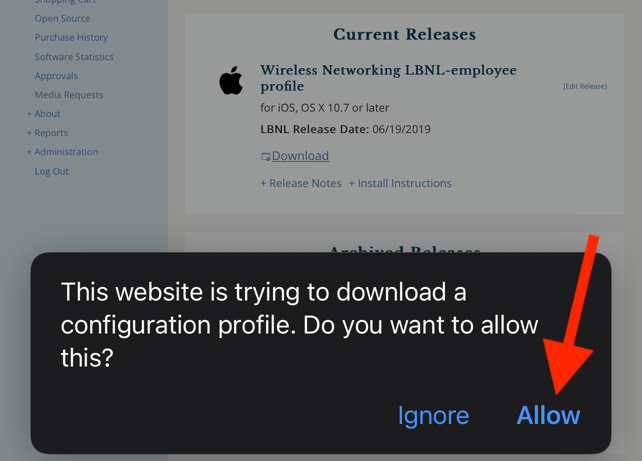
| 7 | Click Allow |
|
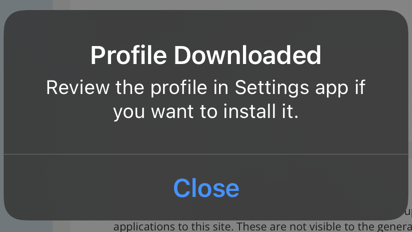
| 8 | Click Close |
|
| 9 | Go to Settings |
|
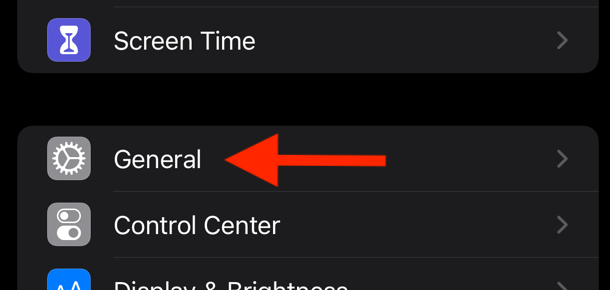
| 10 | Select General |
|
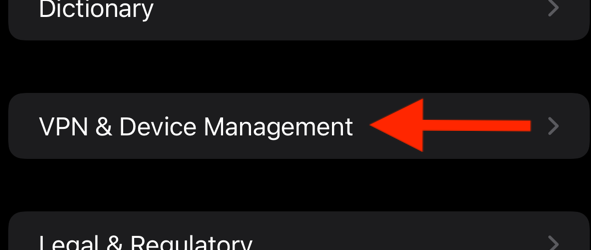
| 11 | Select VPN & Device Management |
|
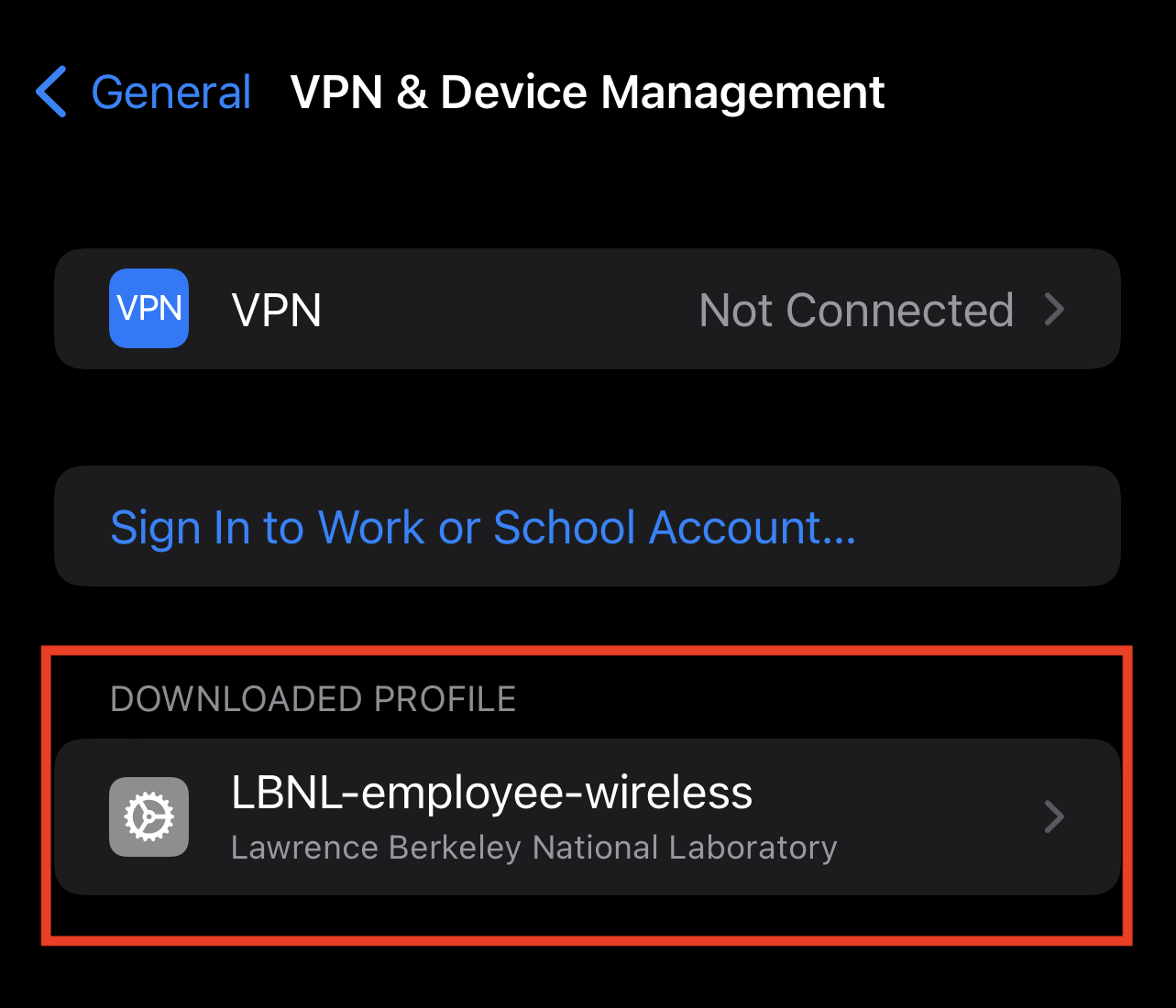
| 12 | You will see "LBNL-employee-wireless", click on it |
|
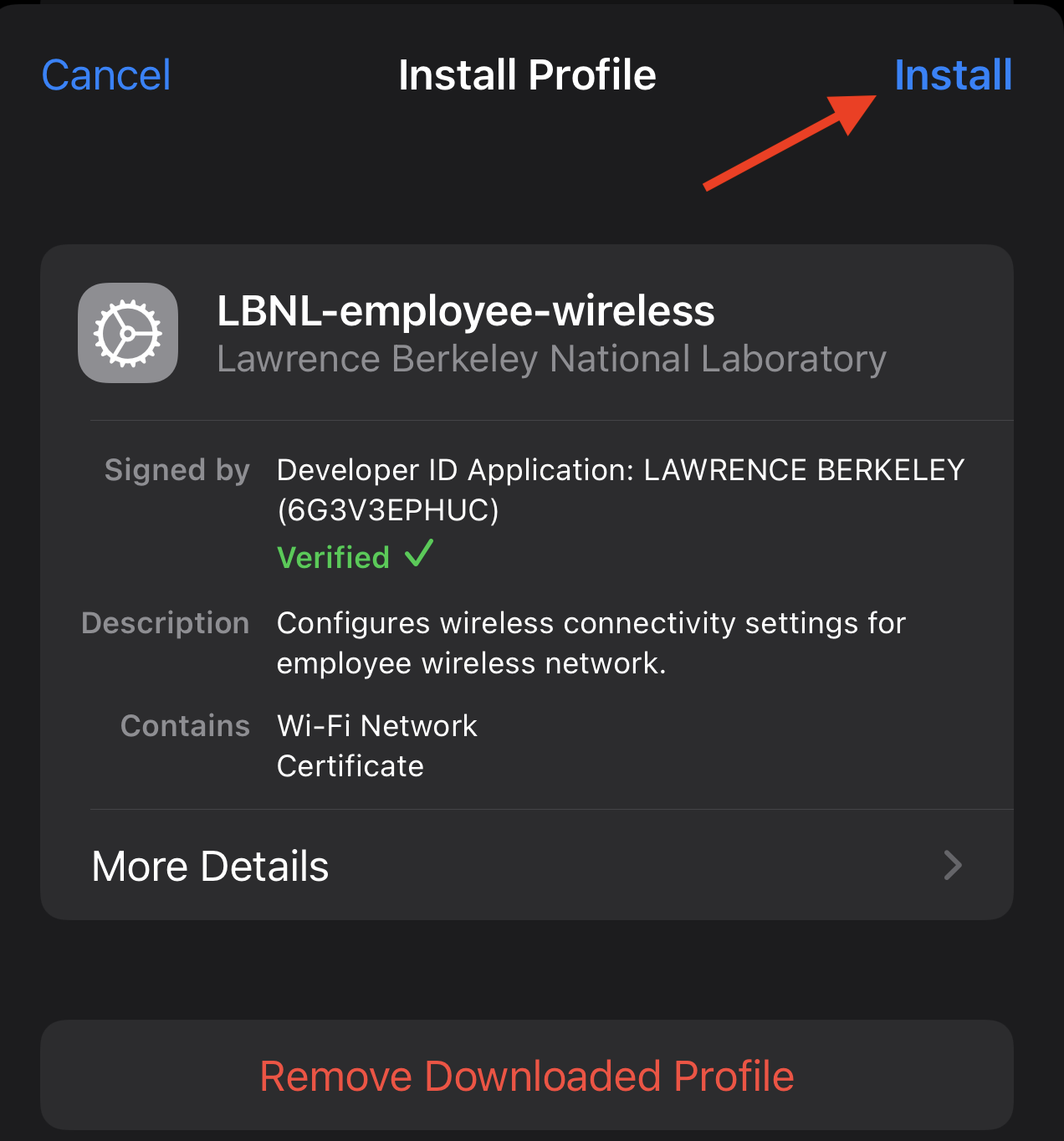
| 13 | Click Install |
|
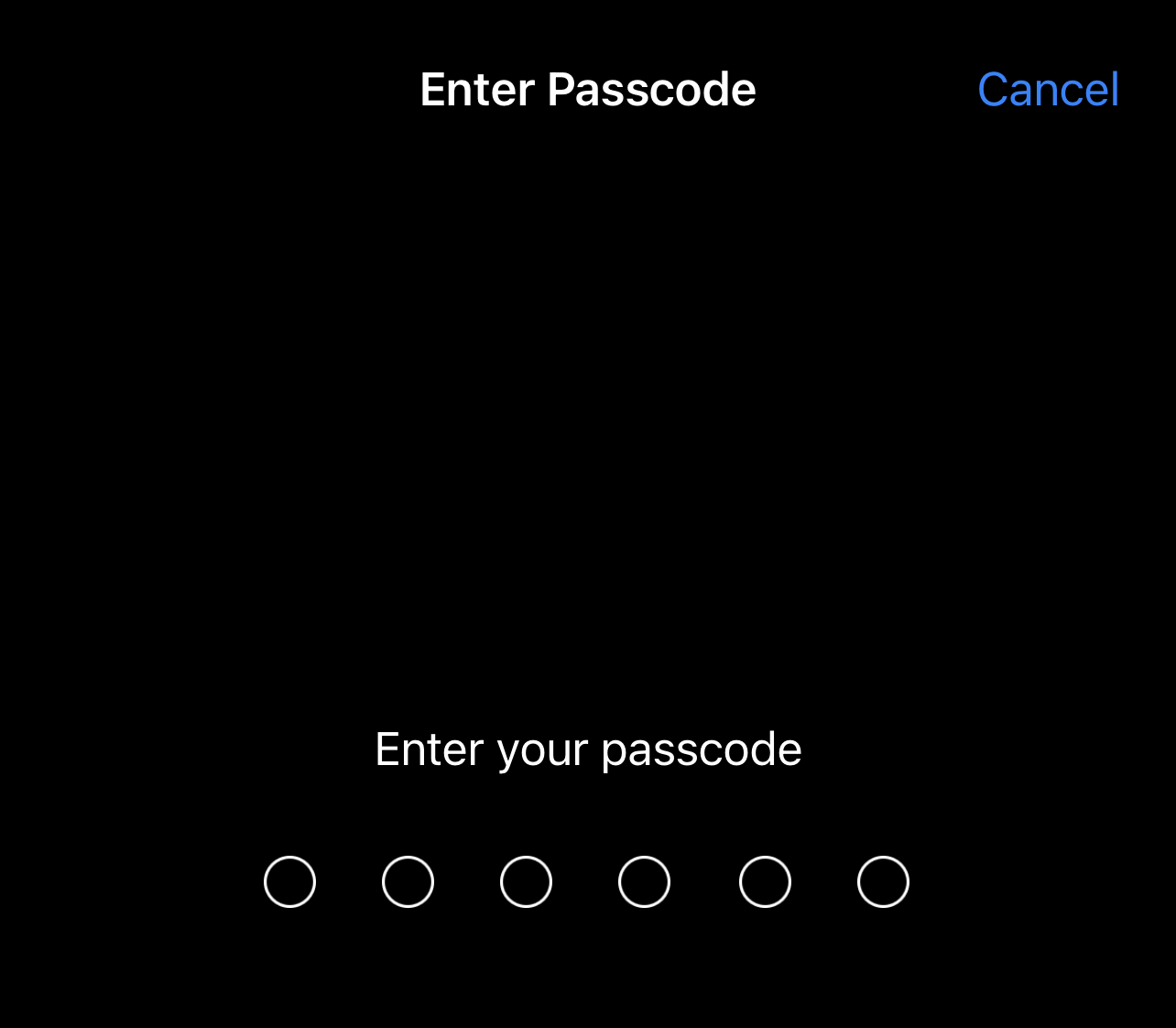
| 14 | Enter your phone passcode |
|
| 15 | Click Install |
|
| 16 | Click Done |
|
| 17 | You should now be able to connect to the LBNL-employee wifi | no image |