Purpose of Knowledge Article
Guide on how to give CrowdStrike Falcon permission on macOS 13 and newer
Resolution
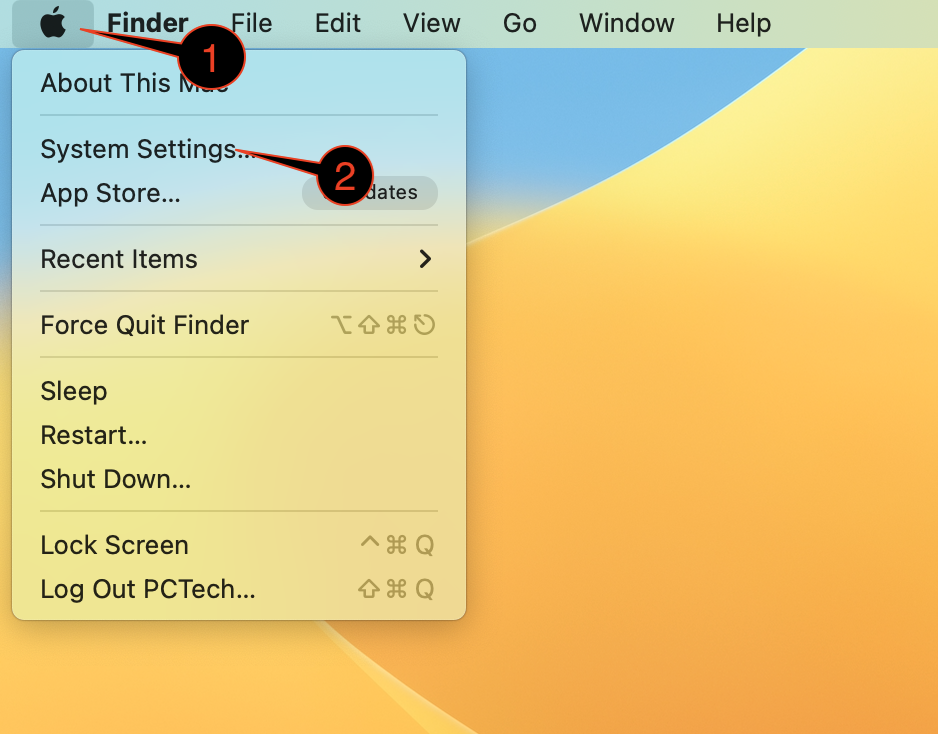
| 1 | Click the Apple icon on the top left corner |
|
| 2 | Click System Settings | |
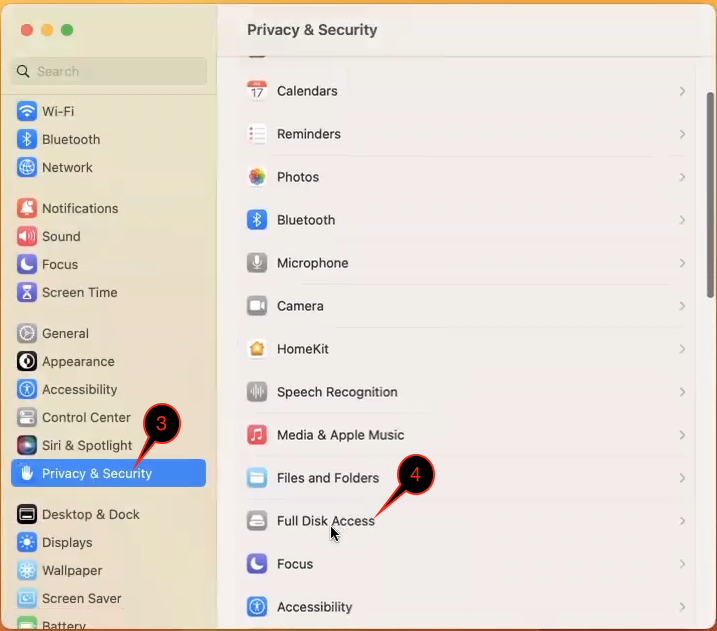
| 3 | Select Privacy & Security on the left column |
|
| 4 | Select Full Disk Access on the right side | |
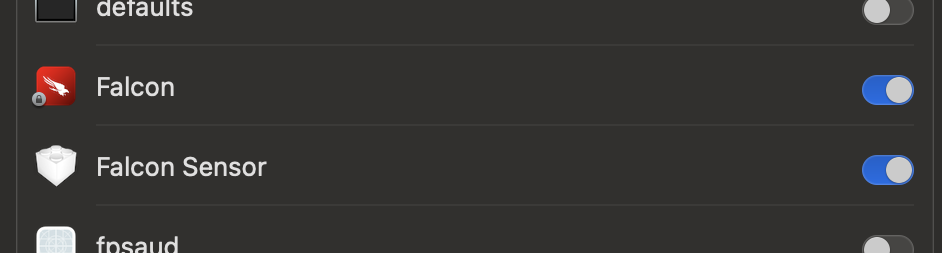
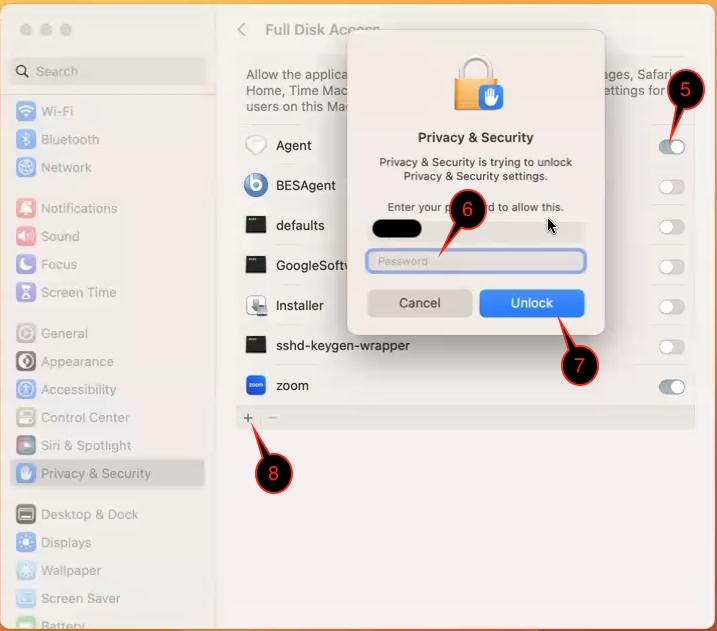
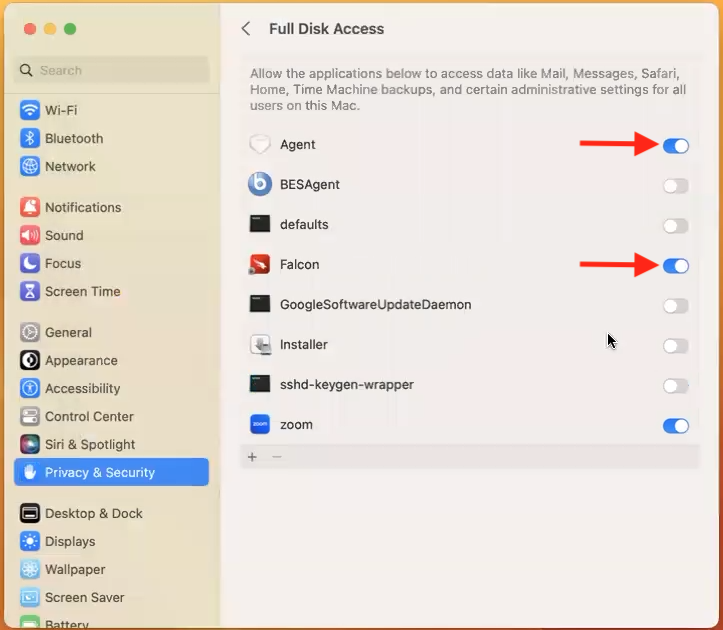
| 5 | Toggle the slider to on for Agent, or Falcon Sensor Note: instead of Agent, it may be called Falcon Sensor instead. You will only see on of them, not both.
|
|
| 6 | Type in your computer password | |
| 7 | Click Unlock | |
| 8 | Click the + icon | |
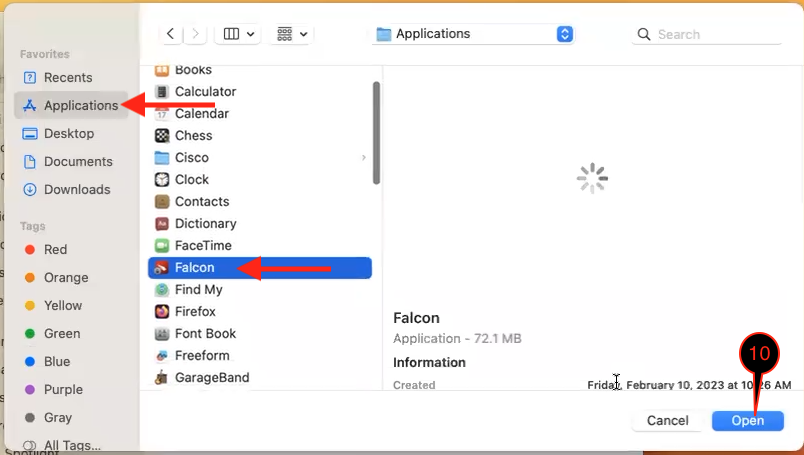
| 9 | Navigate to /Application/Falcon or Falcon.app and select it |
|
| 10 | Click Open | |
| 11 | Now, the sliders for Agent (or Falcon Sensor) and Falcon should both be toggled on You are done, close System Settings Note: if you have Sophos, you will need to restart the computer for Sophos to finish uninstalling. |
|
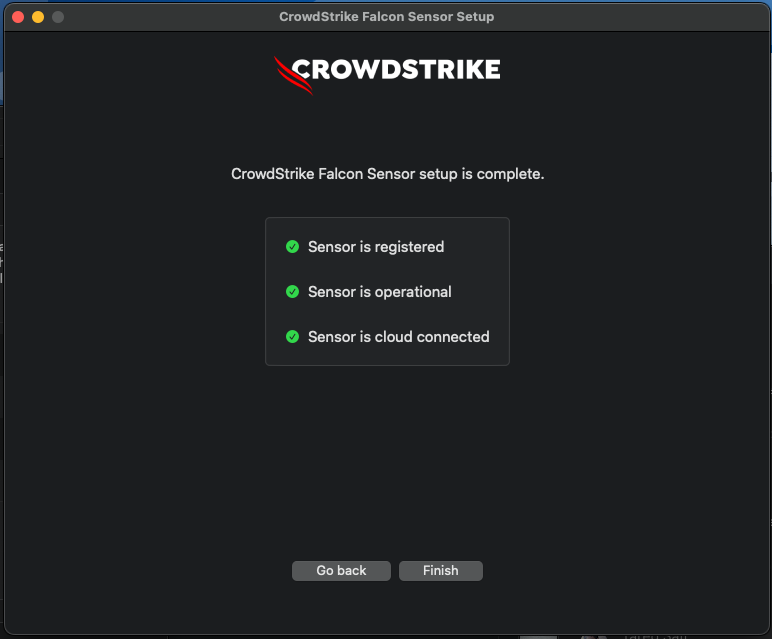
| 12 | Remember this screen? You can click Finish now If you do not see this screen, see Is CrowdStrike Falcon Running? and do method 1 for Apple. |
|