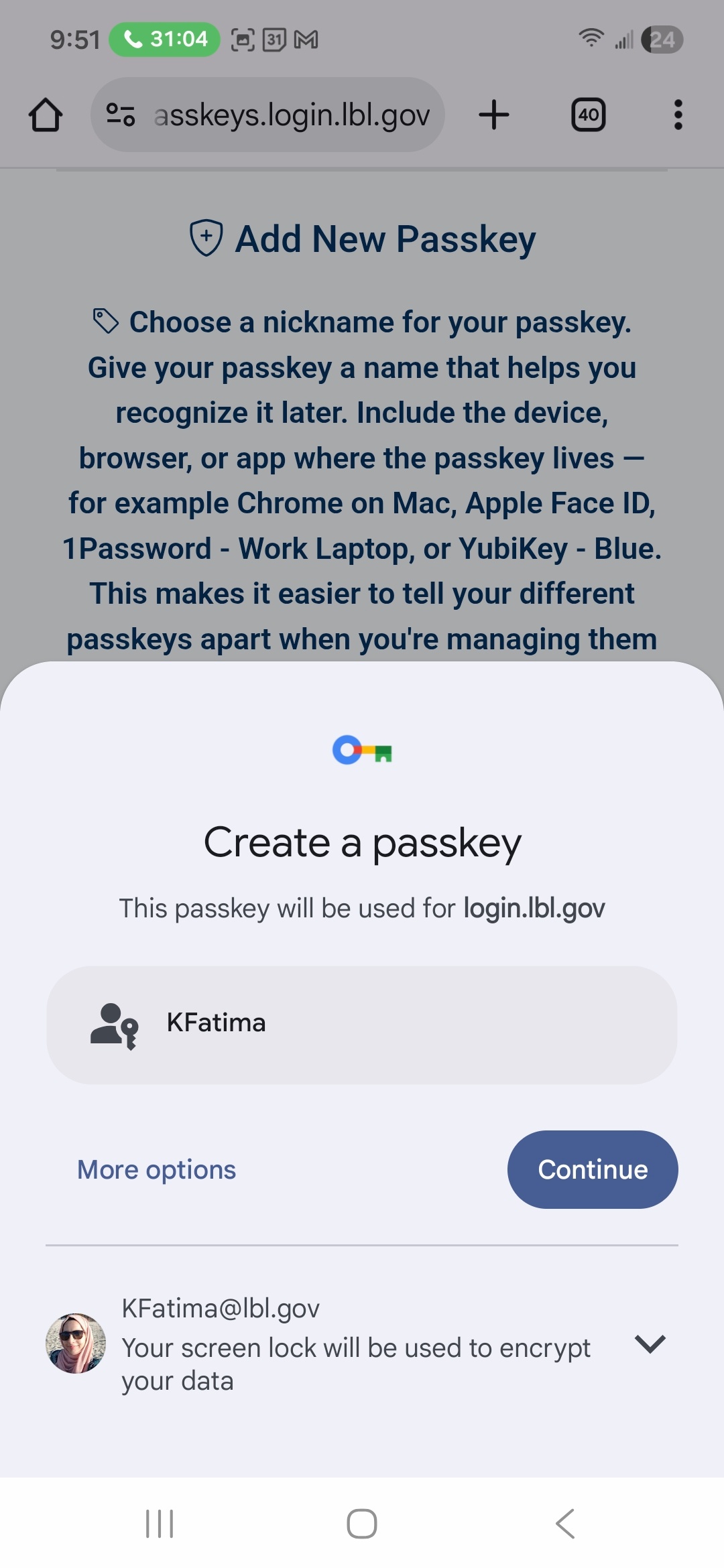
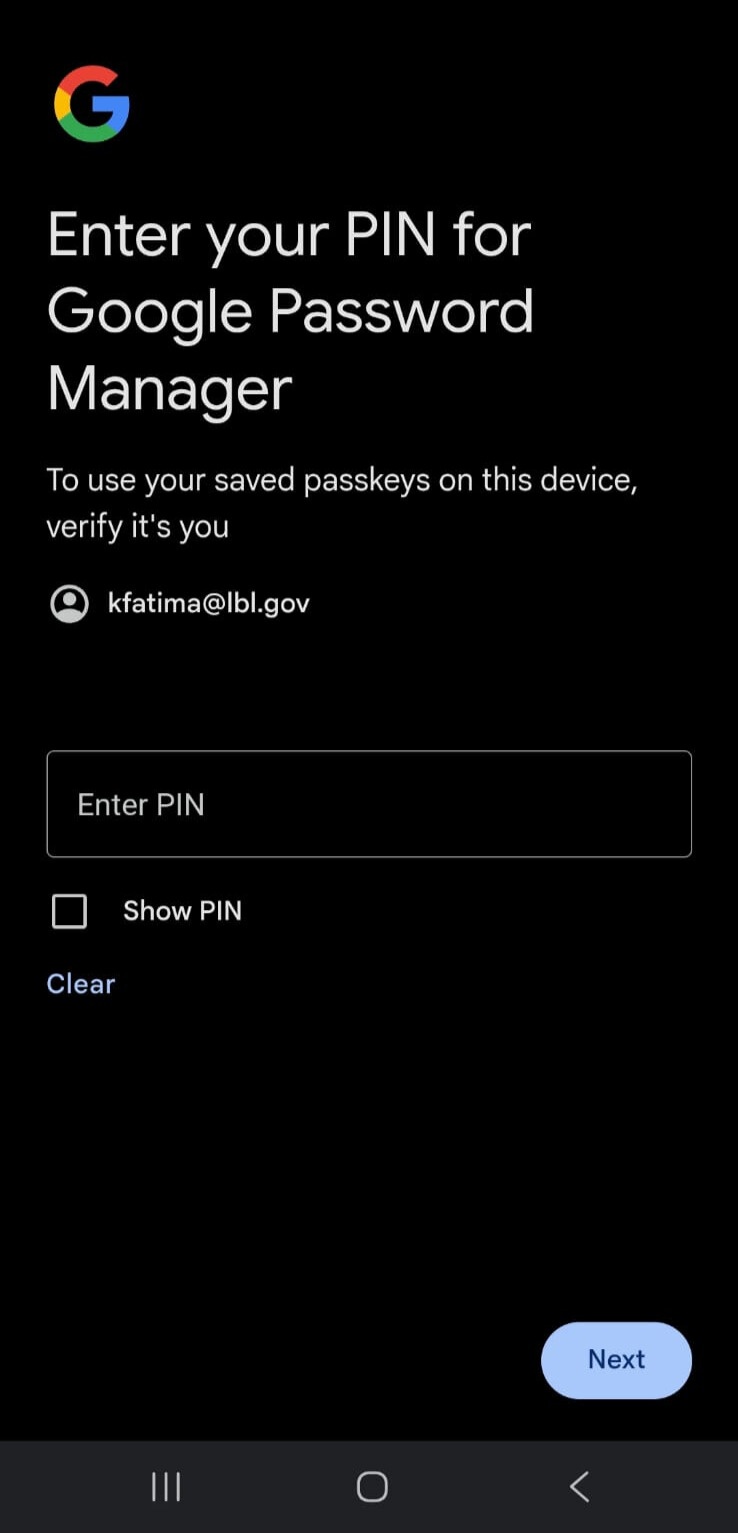
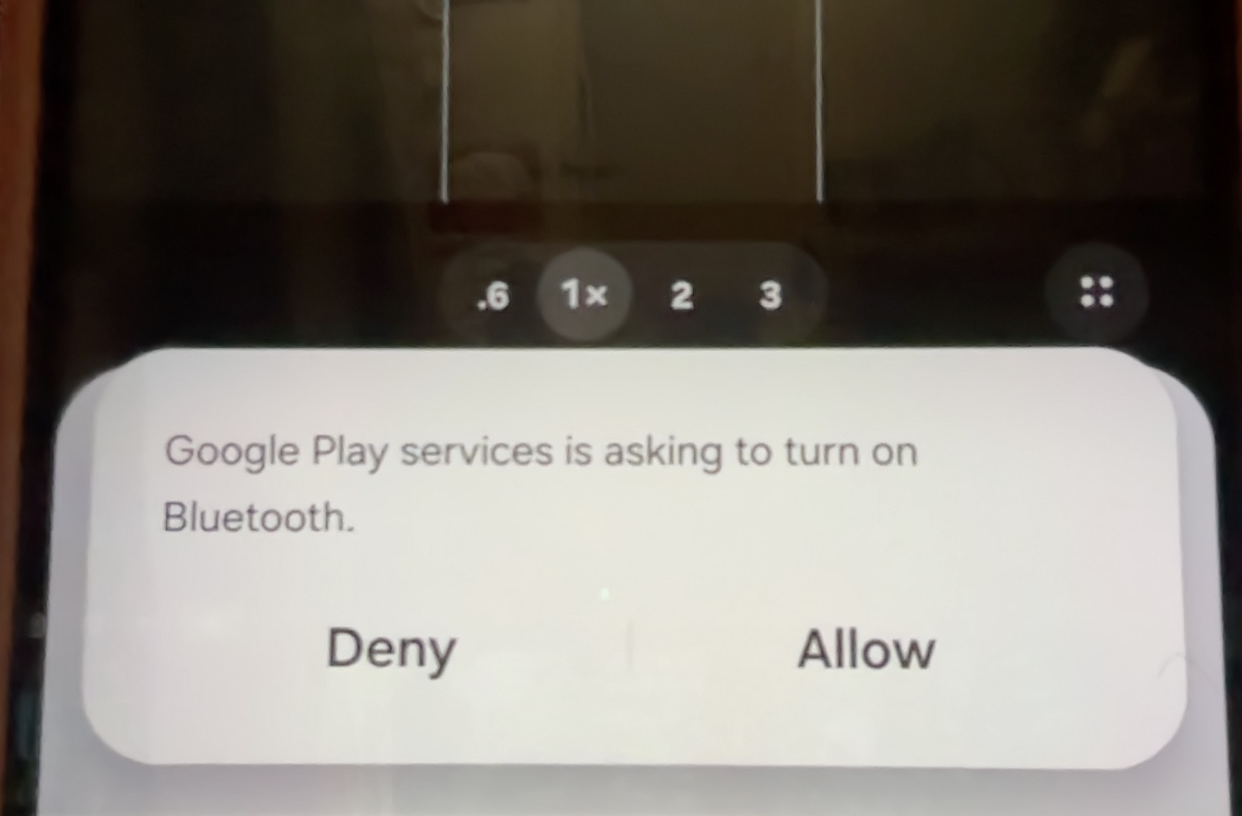
Make sure Bluetooth is enabled on your mobile device (and your computer if you are on a laptop or desktop) before beginning the passkey registration process |
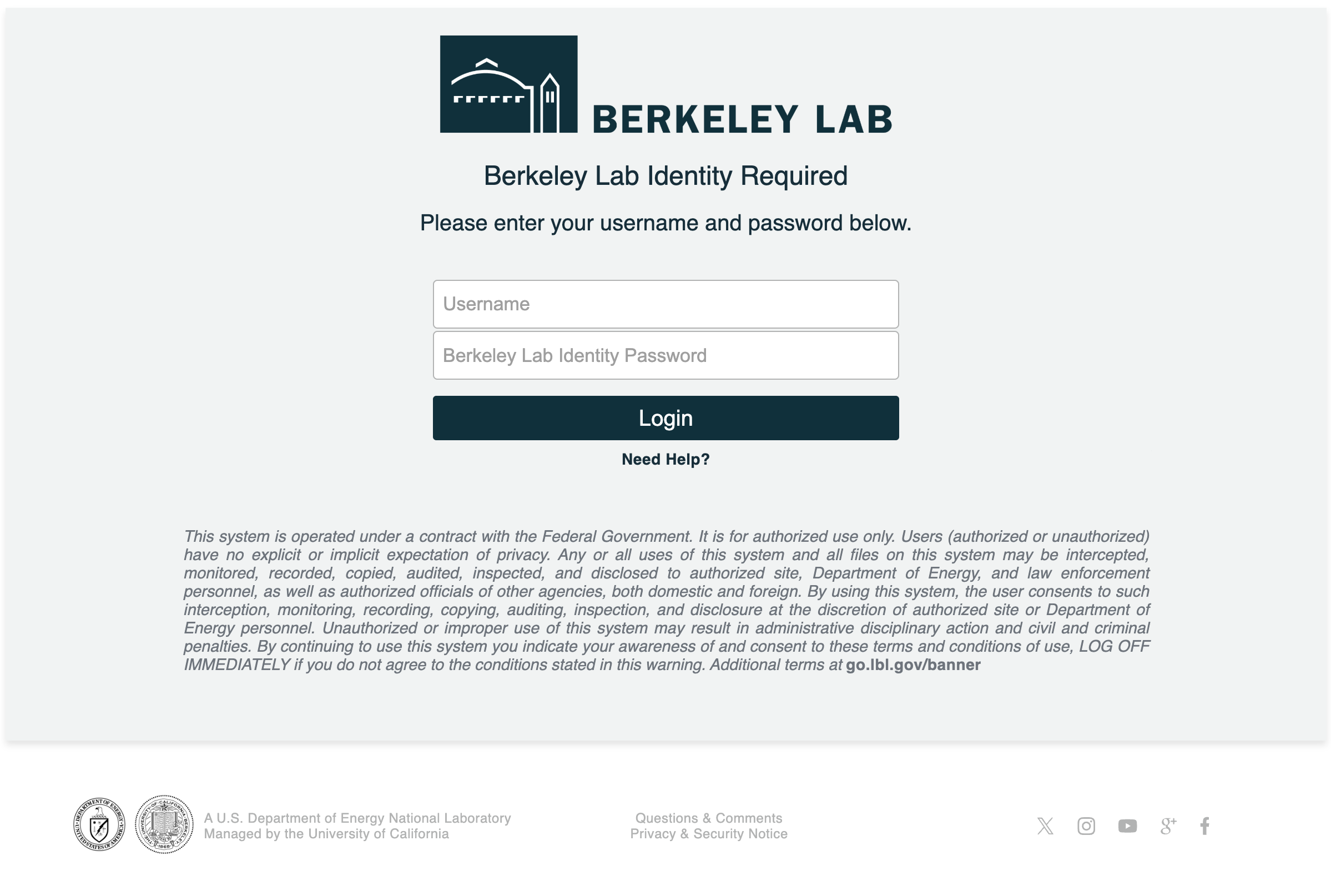
Enter your Berkeley Lab Identity account user name and password then click login
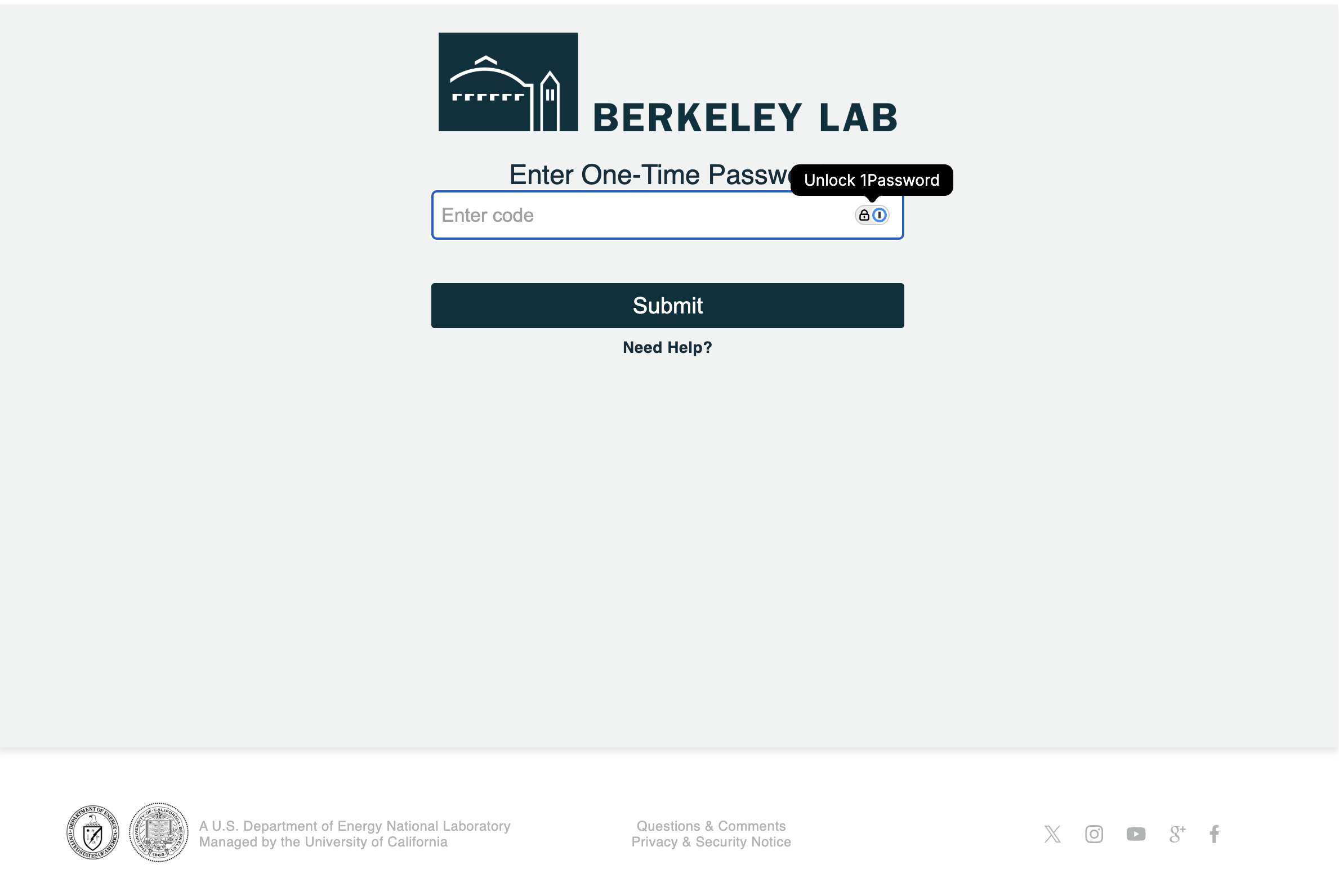
Enter your One-Time Password using Google Authenticator or Yubikey.
- Click Create Passkey
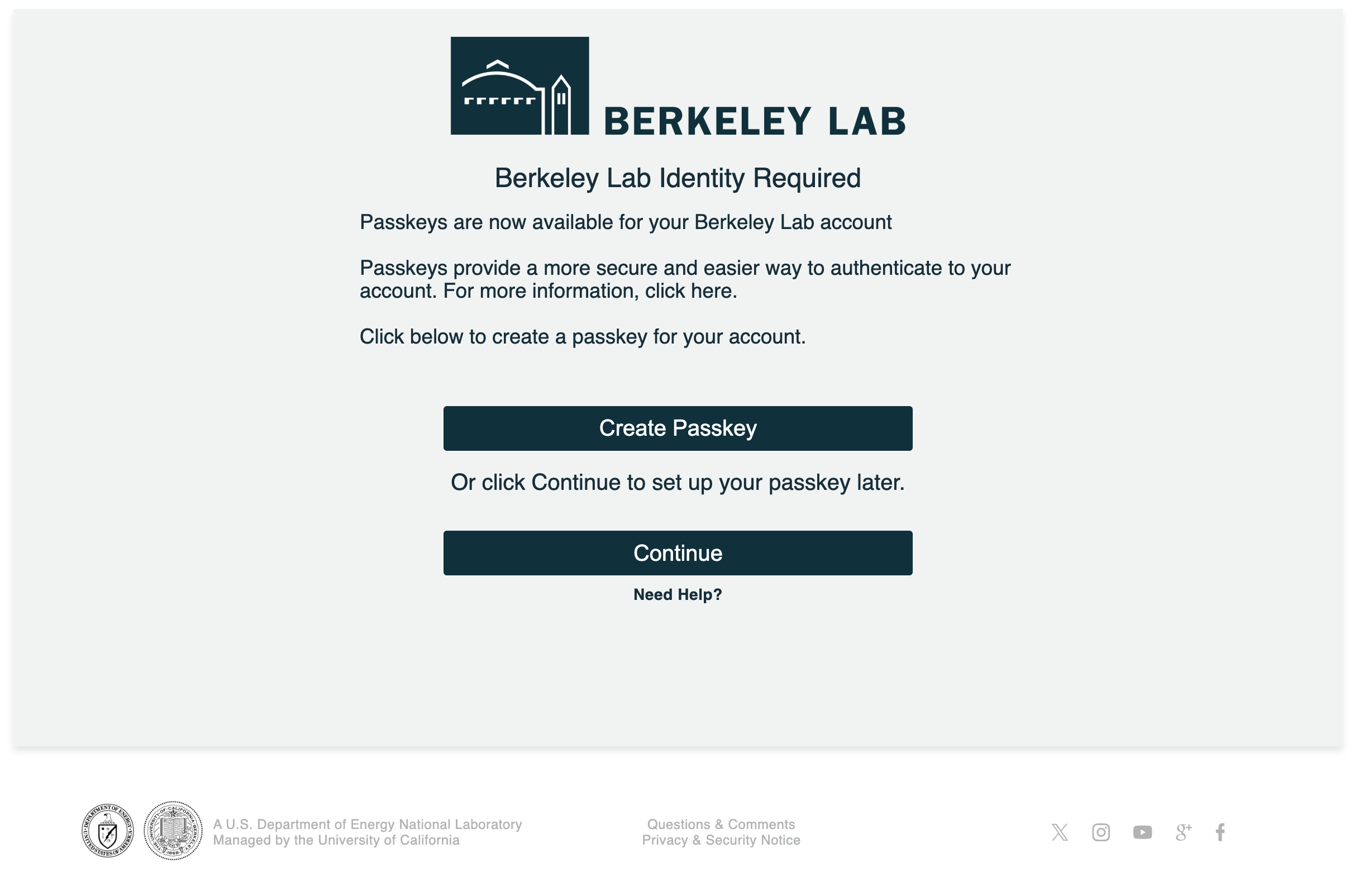
- Scan the following QR code using your Mobile Device and click create Passkey on your Mobile screen.
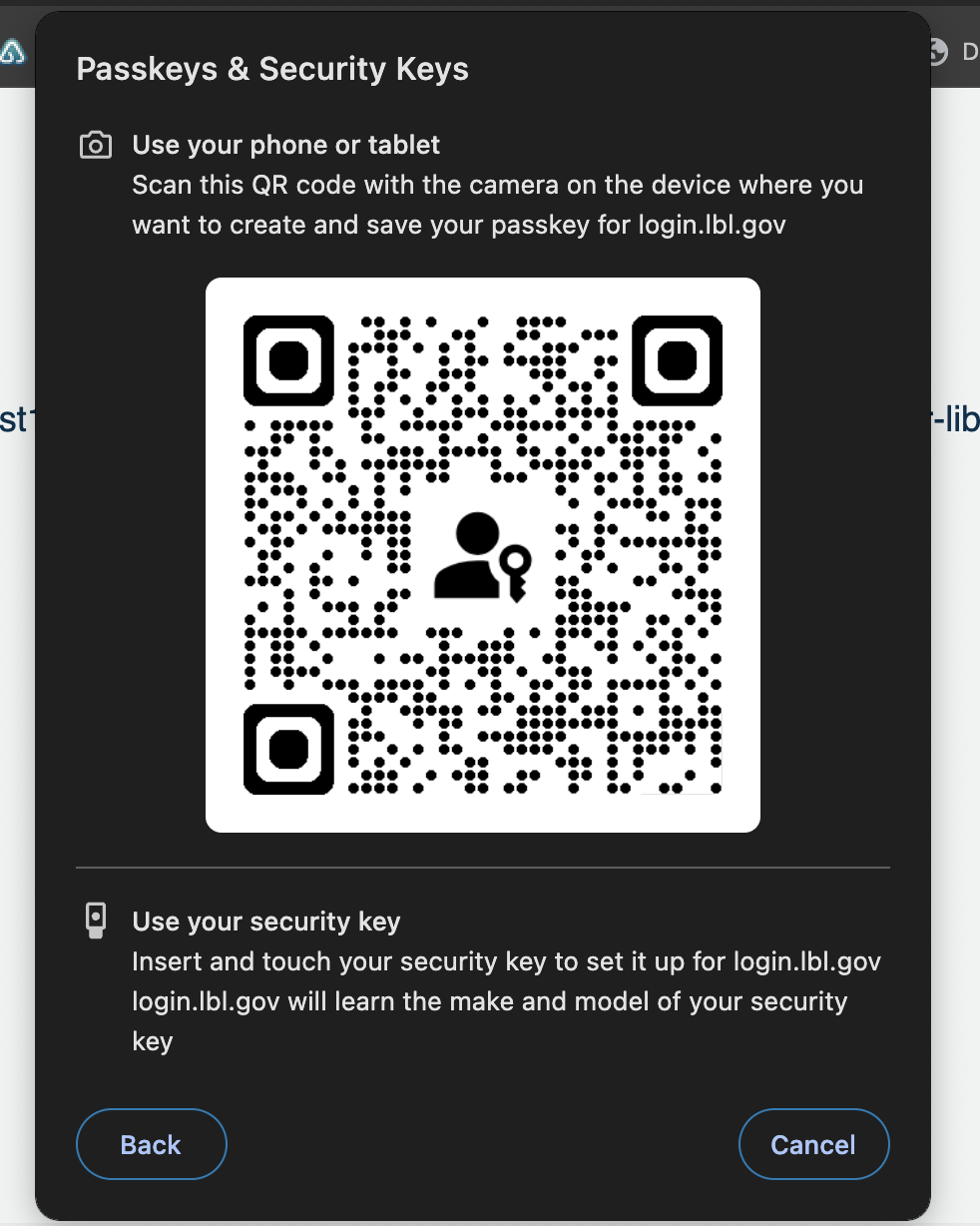 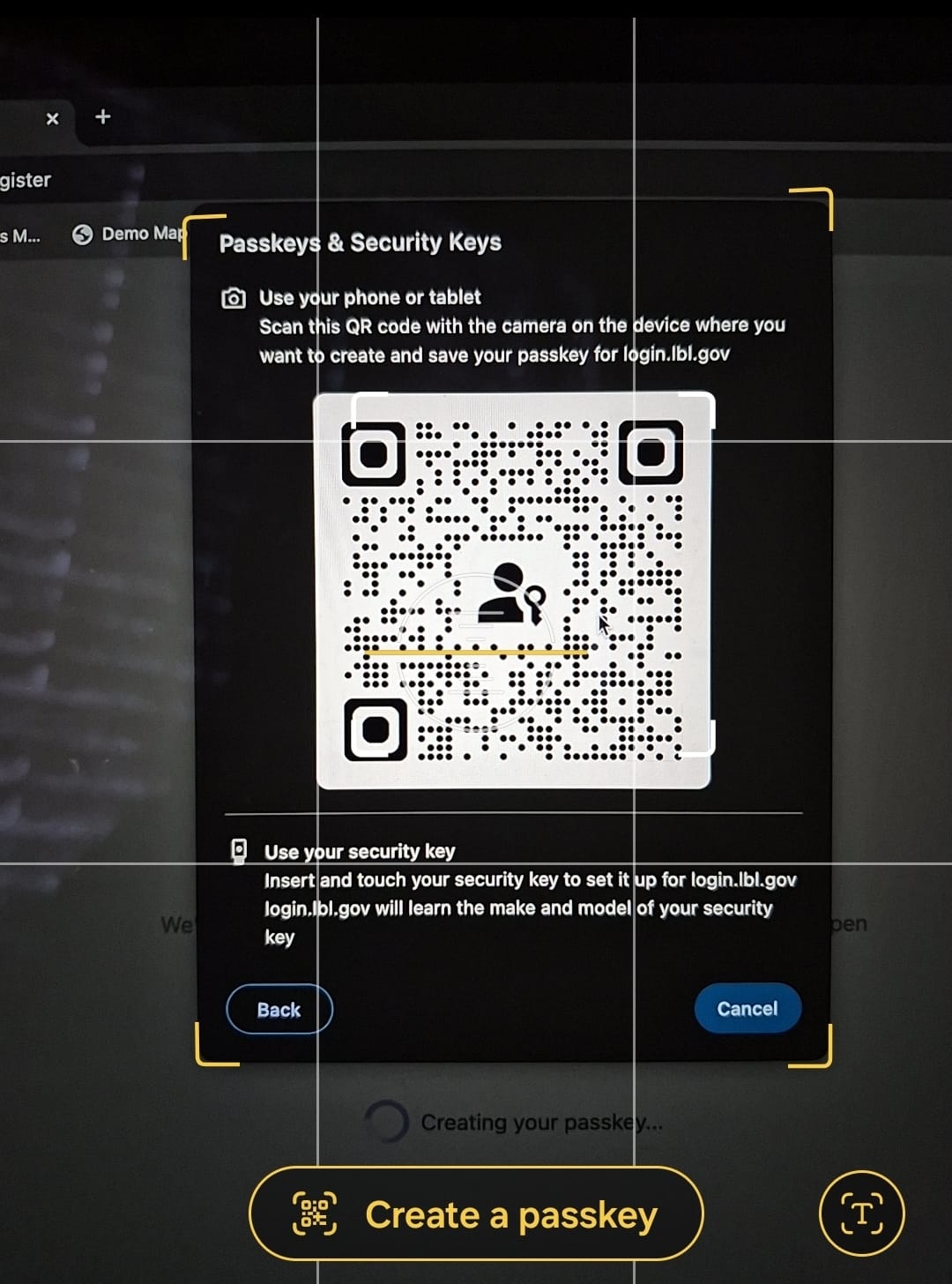
- Allow Bluetooth on your mobile device.
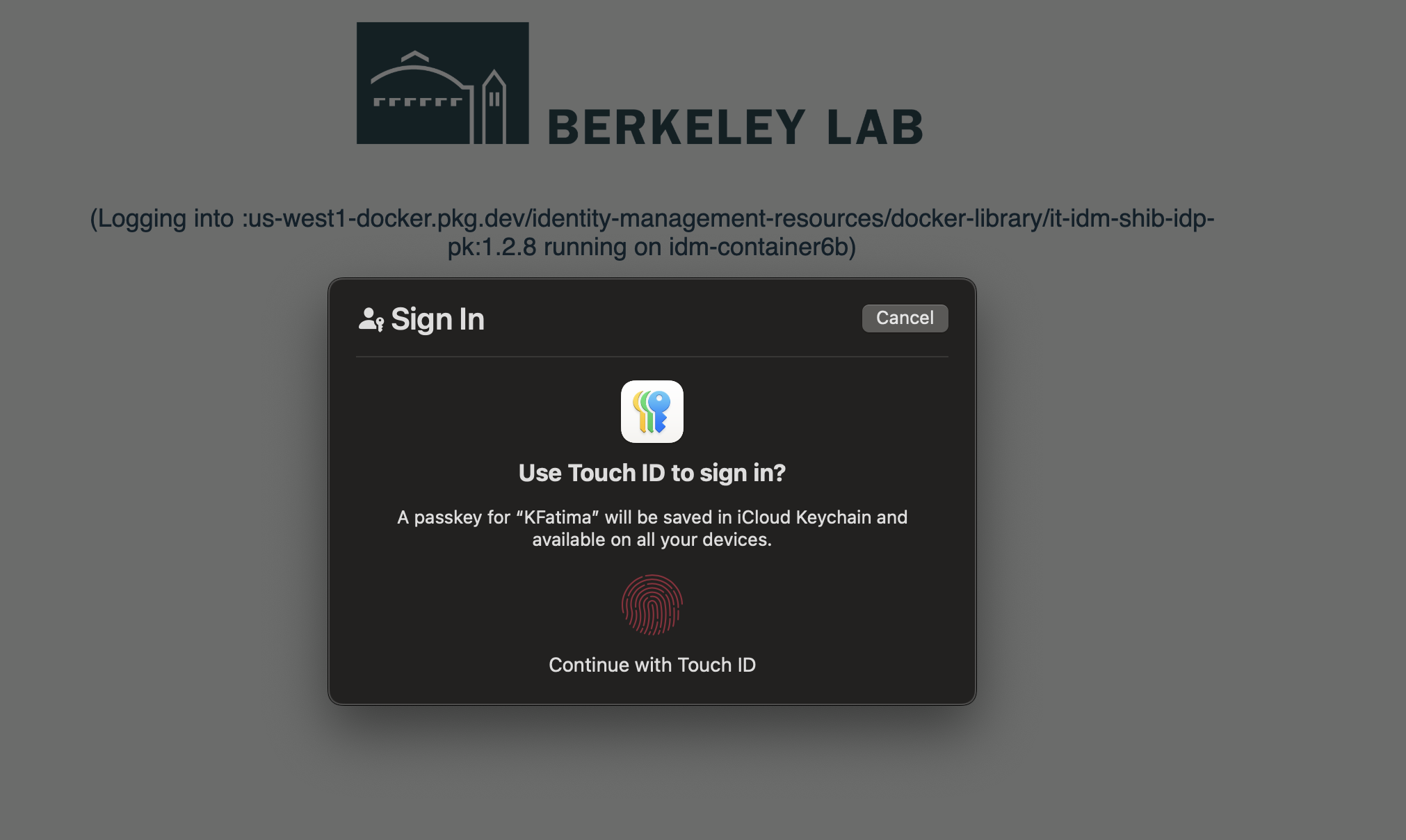
Follow the steps below on your mobile device to register a passkey, based on the platform you use: Apple ID – Use iCloud Keychain on your Apple device Google Password Manager – Use your Google account on Android or Chrome 1Password – Use the 1Password app installed on your device
Select the appropriate option for your platform and complete the on-screen prompts to finish passkey registration.
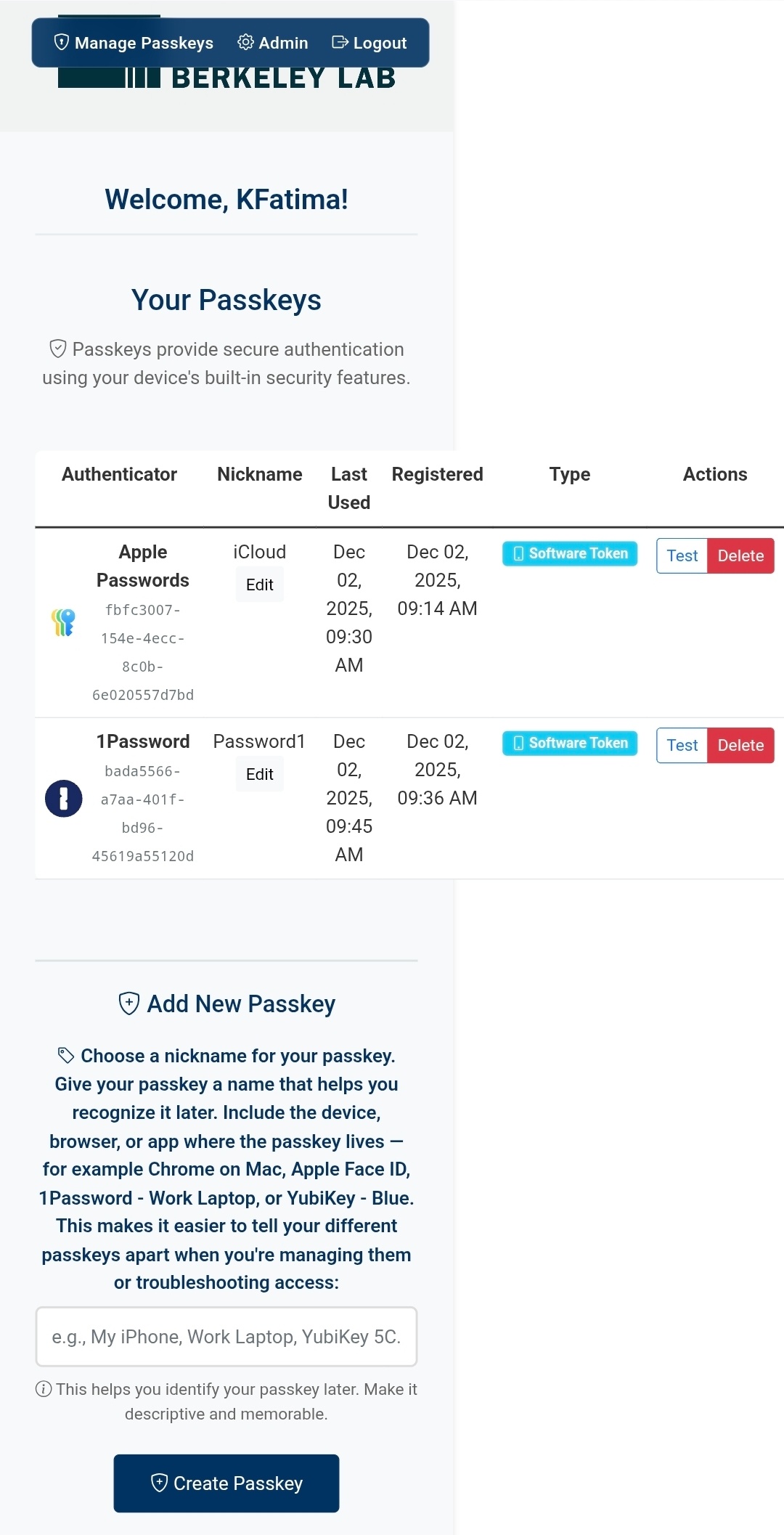
- Create a nickname for your Passkey Key on the browser.
(Note: include the type of device (eg Chrome, Apple, 1Password, Yubikey, etc) in the name you enter to better distinguish between your multiple passkeys)
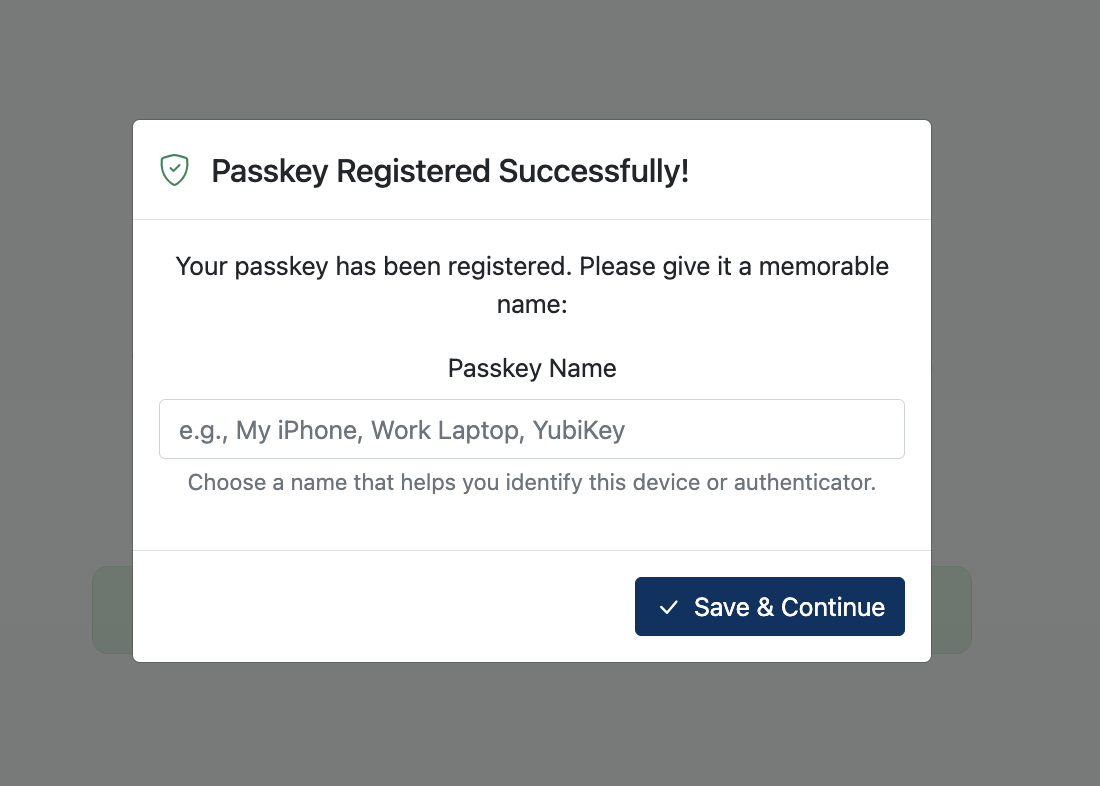
- Key created successfully!
- Register another passkey (click Create Passkey) using a different platform if you do not already have 2 or more passkeys
- Browse to an LBL service (gmail.lbl.gov, lets.lbl.gov, etc) to confirm that you can log in via a passkey
|
Make sure you have the newer, FIDO2-supported Yubikey:. You will get a "Failed to create passkey: This security key cannot be registered here because it only supports legacy U2F. Use a FIDO authenticator that supports passkeys and user verification (PIN or biometric), or choose another passkey provider on this device" error if your U2F device is compatible if your Yubikey does not support FIDO2.
If the passkey registered on your Yubikey is not working in Firefox, then you may need change the security.webauth.webauthn_enable_softtoken advanced setting to false by browsing to about:config
|
Enter your Berkeley Lab Identity account user name and password then click login
Enter your One-Time Password using Google Authenticator or Yubikey.
- Click Create Passkey
- Insert your (FIDO2-supported) Yubikey, if not already plugged in, and Touch/Tap the Yubikey
- Create a PIN
Note: Create a PIN that is at least 6 characters long. For increased security, avoid easily guessed PINs (for example, birthdays or "123456"). Instead, create a strong PIN using a combination of numbers, letters, and symbols.
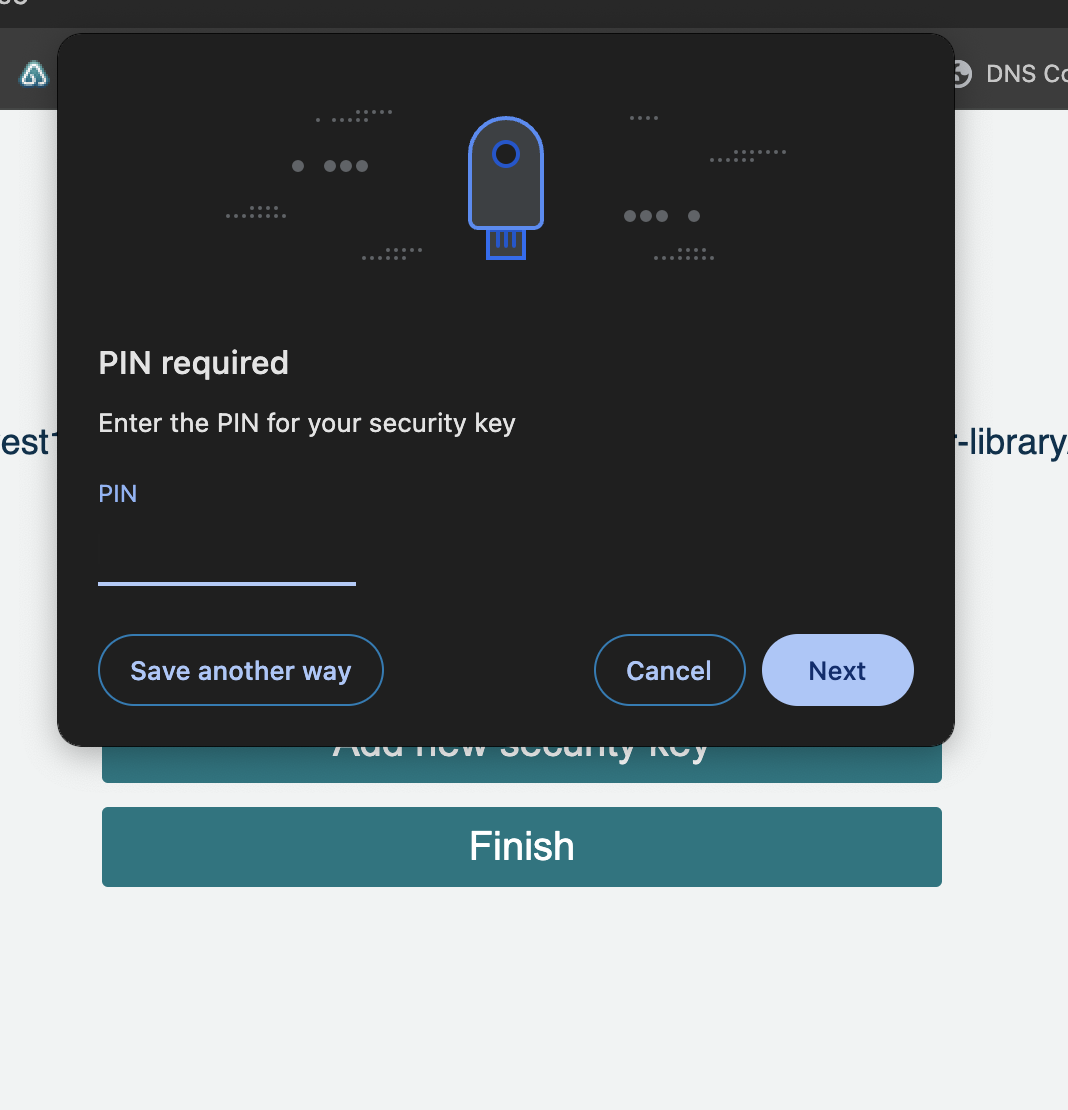
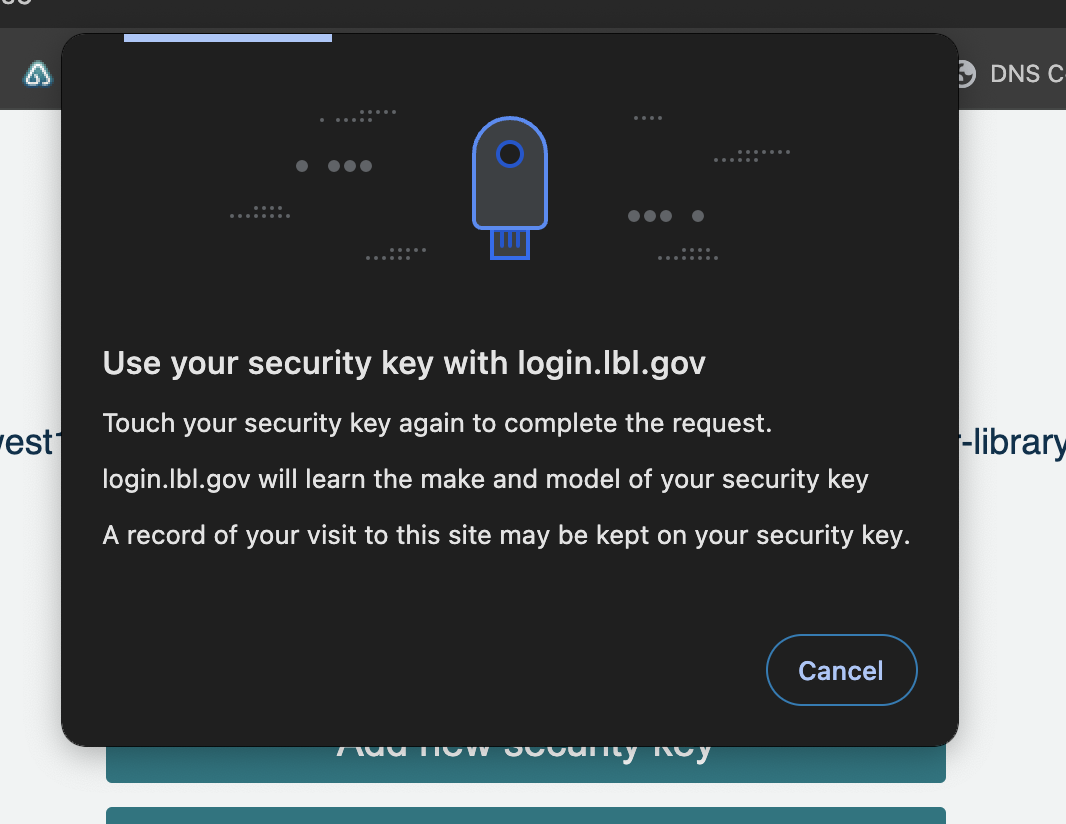
- Touch the Yubikey to verify
- Create a nickname for your Key
(Note: include the type of device (eg Chrome, Apple, 1Password, Yubikey, etc) in the name you enter to better distinguish between your multiple passkeys)
- The passkey key is successfully registered, so you can now use it as a passkey for your second factor!
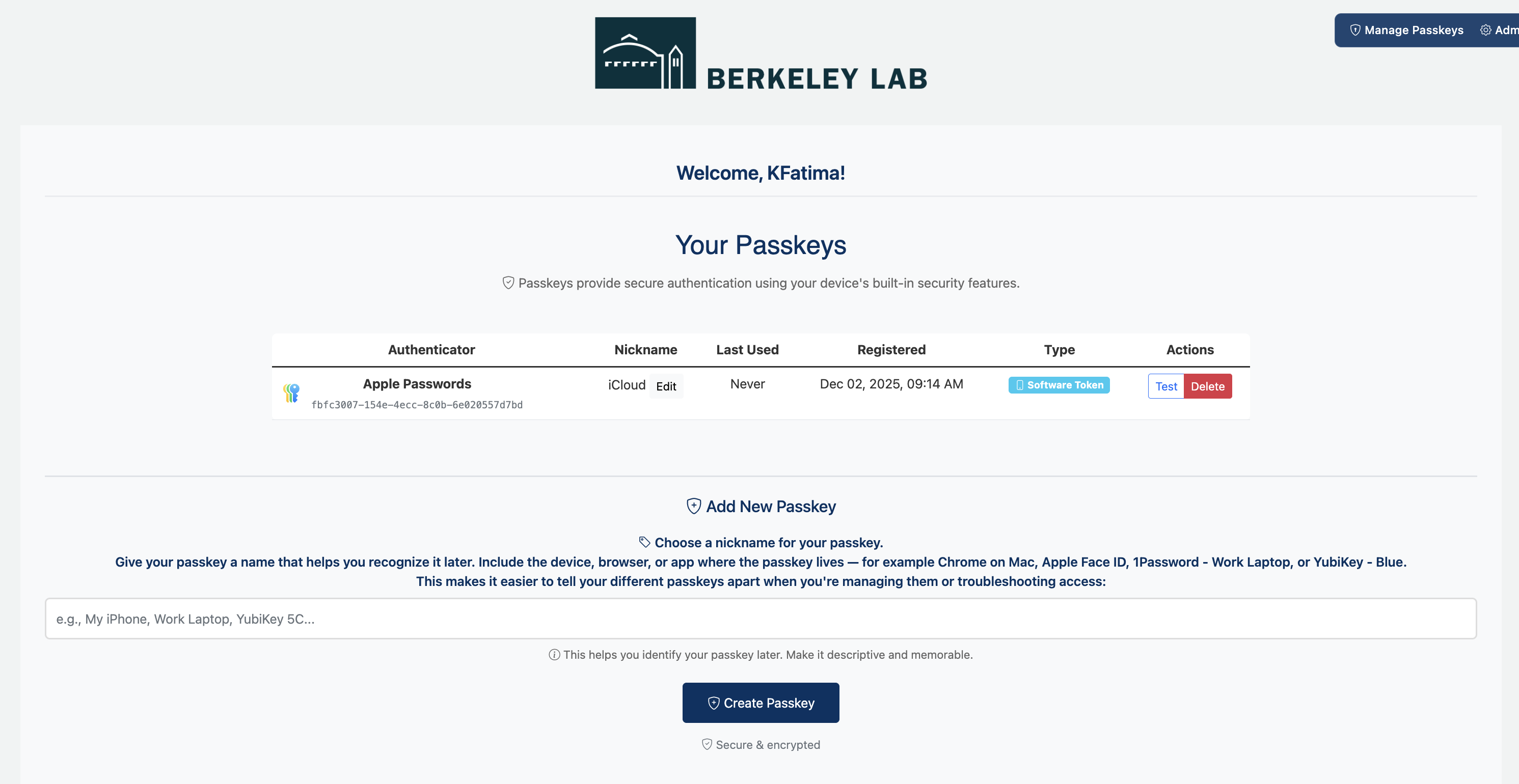
- Register another passkey (click Create Passkey) using a different platform if you do not already have 2 or more passkeys
- Browse to an LBL service (gmail.lbl.gov, lets.lbl.gov, etc) to confirm that you can log in via a passkey
|
- Enter your Berkeley Lab Identity account user name and password then click login
- Enter your One-Time Password using Google Authenticator or Yubikey.
- Click Create Passkey
- Unlock 1Password.
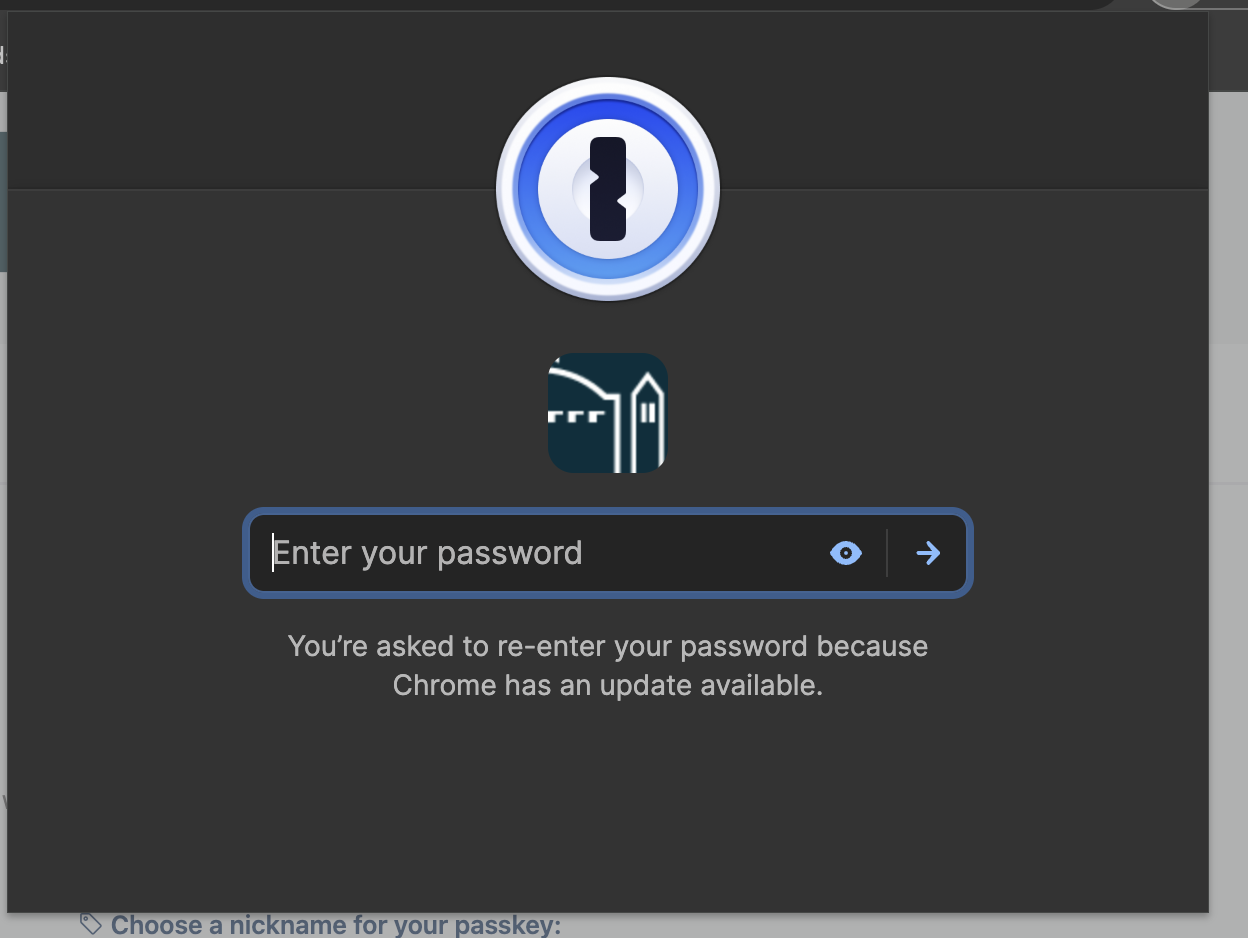
- Click save on the 1Password.
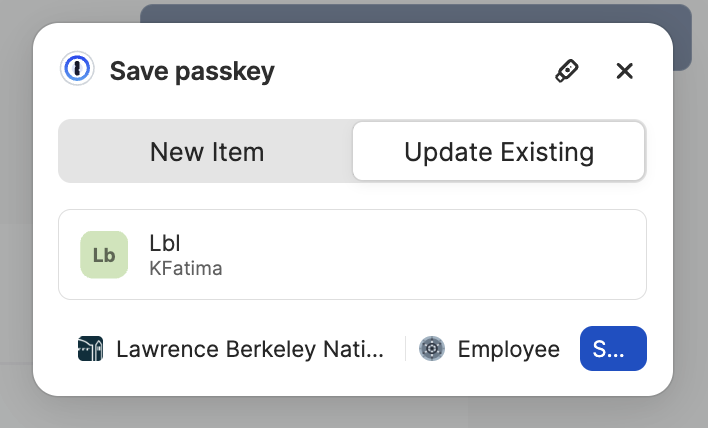
- Create a nickname for your Passkey Key on the browser.
(Note: include the type of device (eg Chrome, Apple, 1Password, Yubikey, etc) in the name you enter to better distinguish between your multiple passkeys)
- Key created successfully!
- Register another passkey (click Create Passkey) using a different platform if you do not already have 2 or more passkeys
- Browse to an LBL service (gmail.lbl.gov, lets.lbl.gov, etc) to confirm that you can log in via a passkey
|
- Login to
 page page
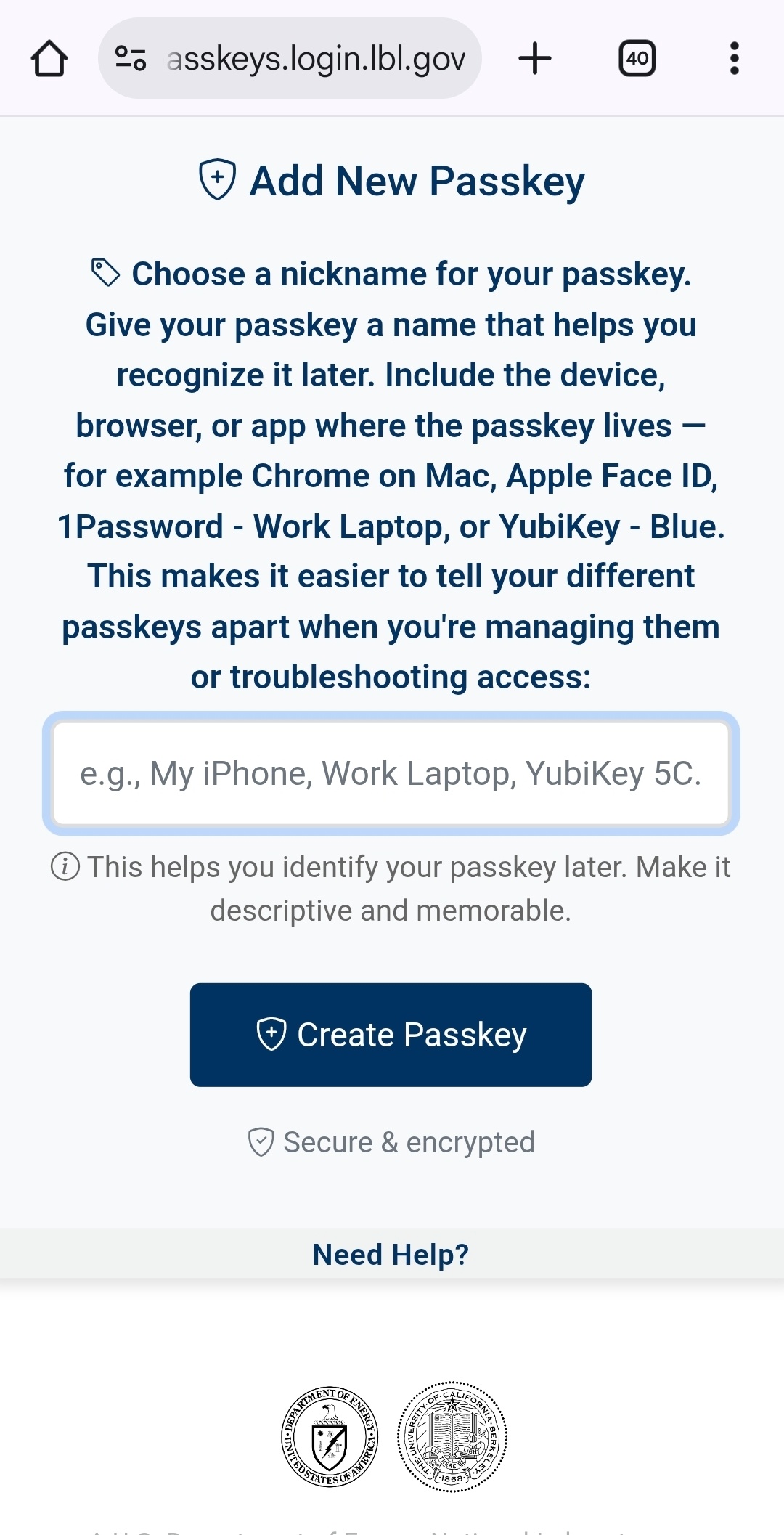
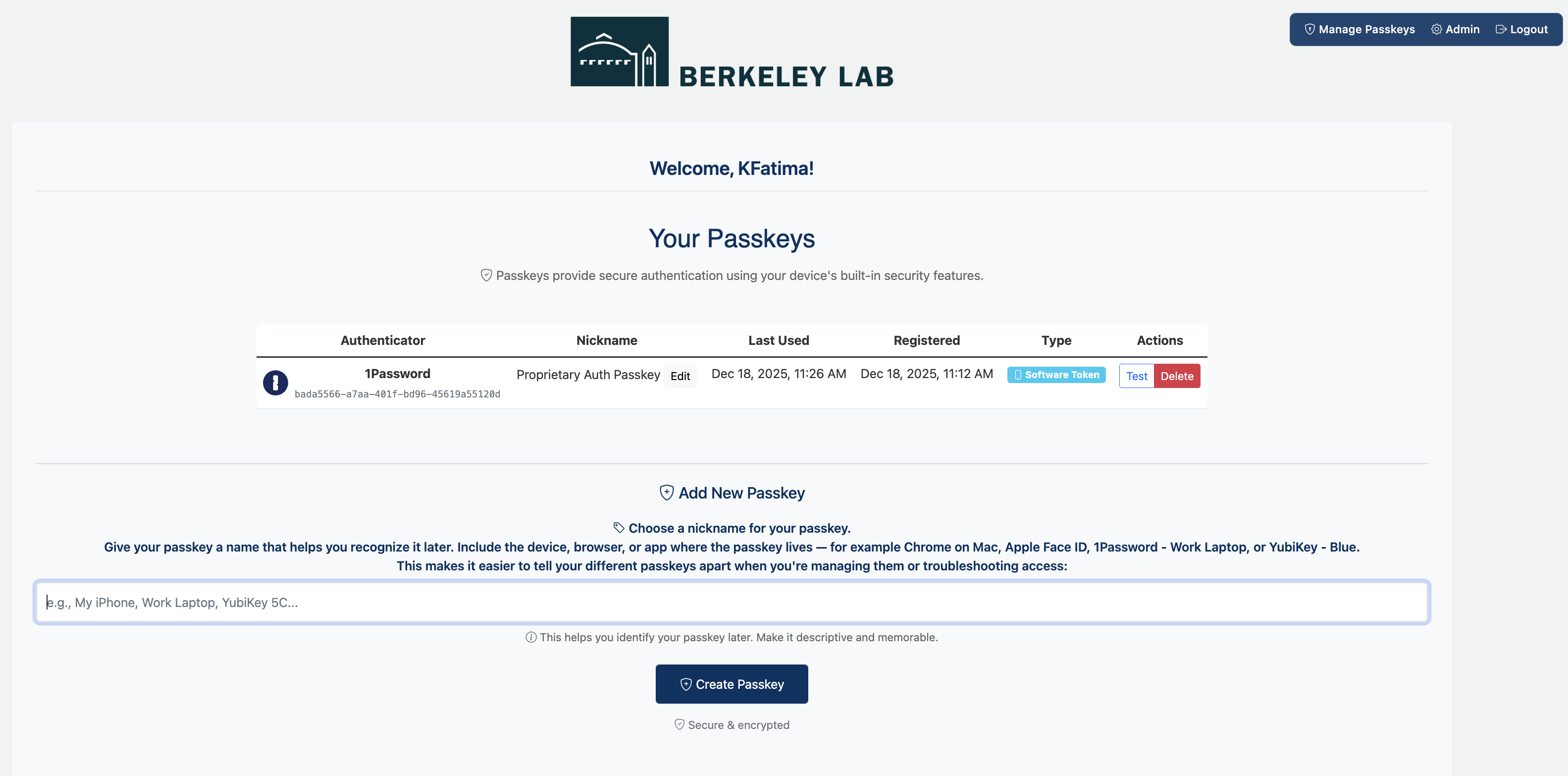
- On the manage passkey page, Enter the name of the Passkey you would like to create and click "Create Passkey"
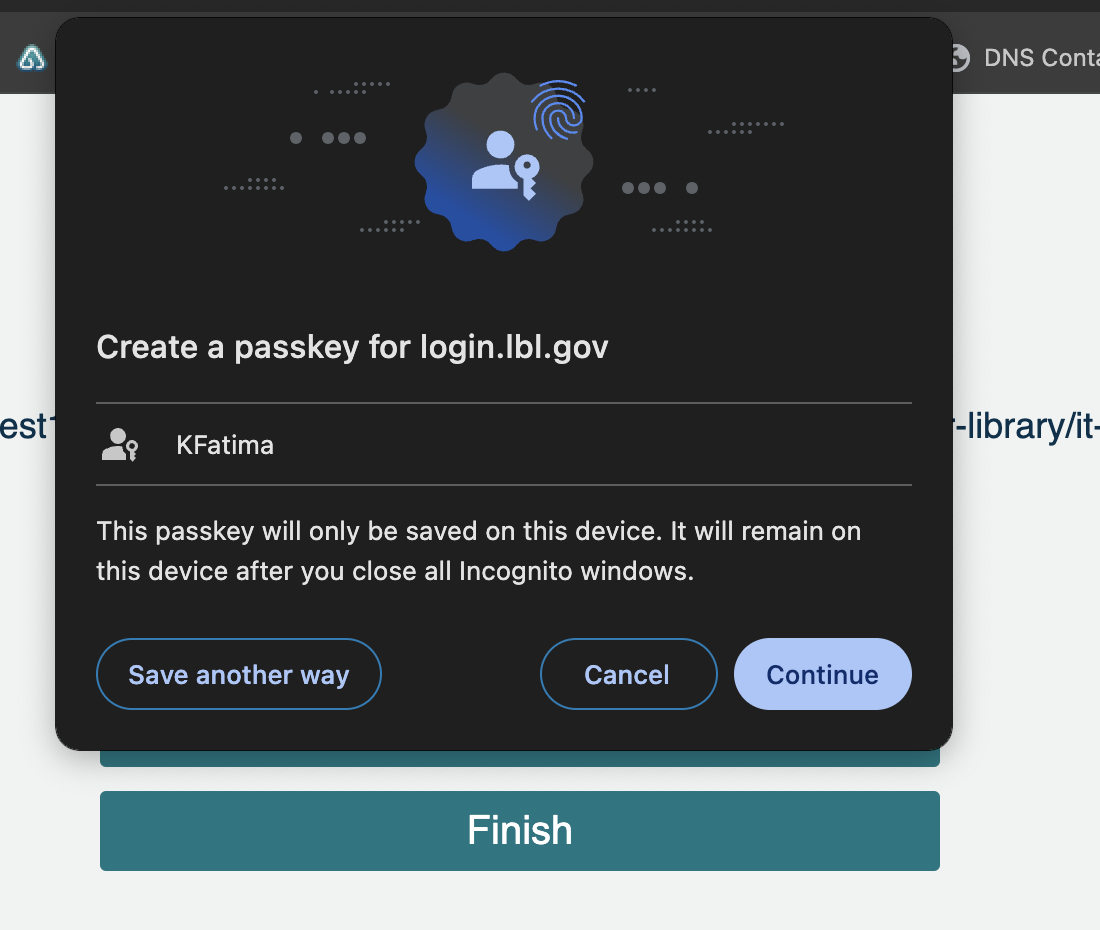
- Click “Save another way” to create a passkey on your YubiKey
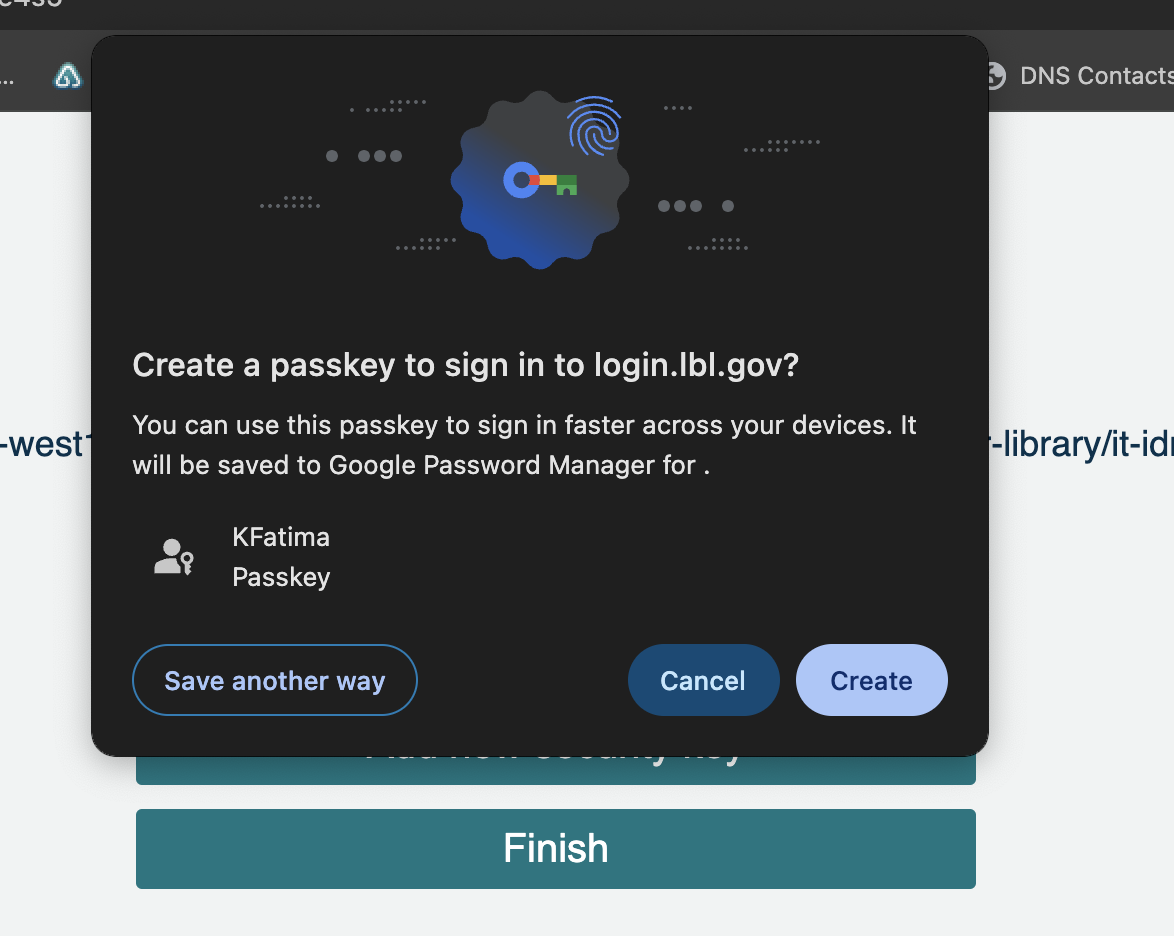
- Select “Google Password Manager.”
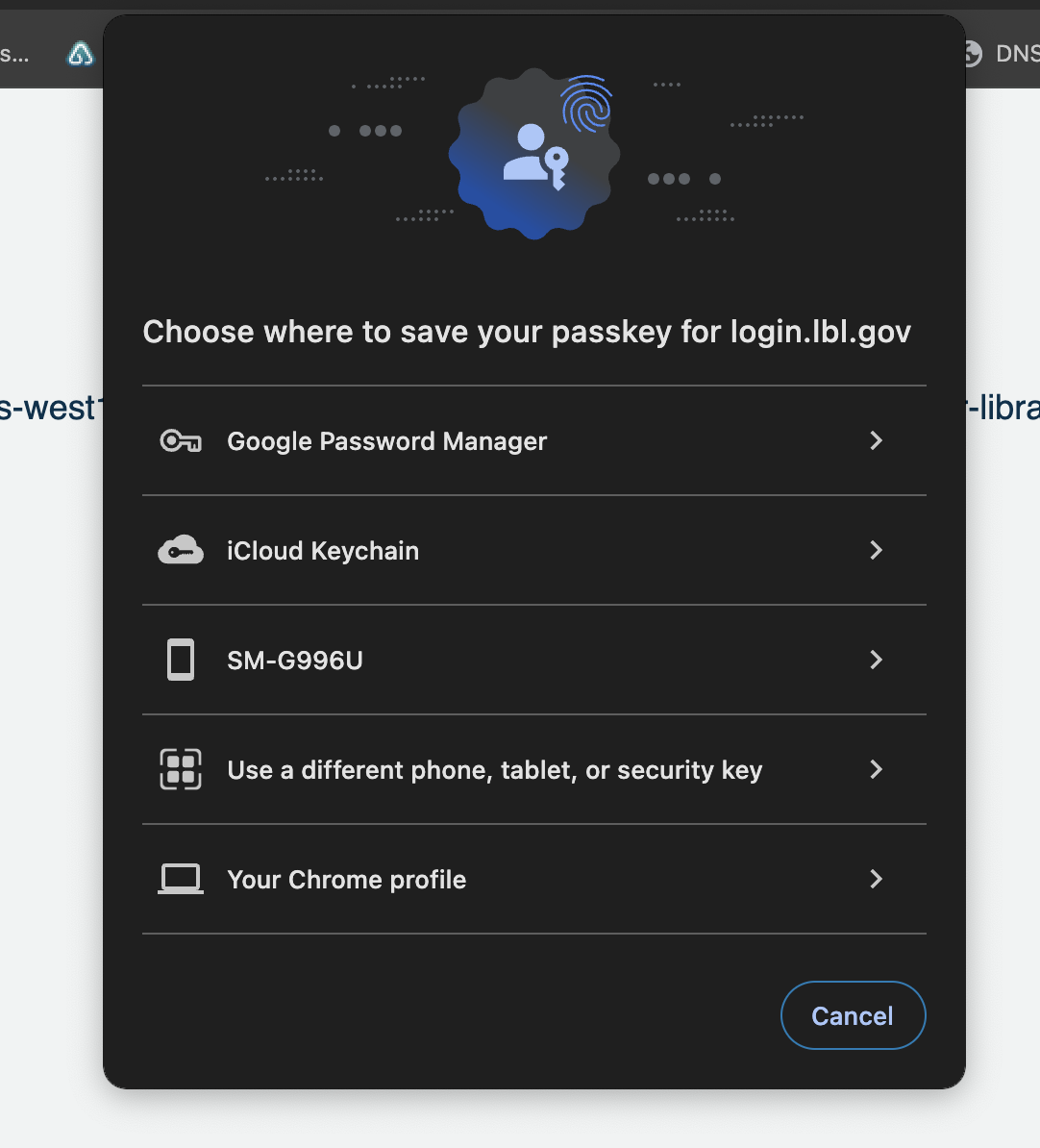
- Click continue to save your Security Key on Google Password Manager
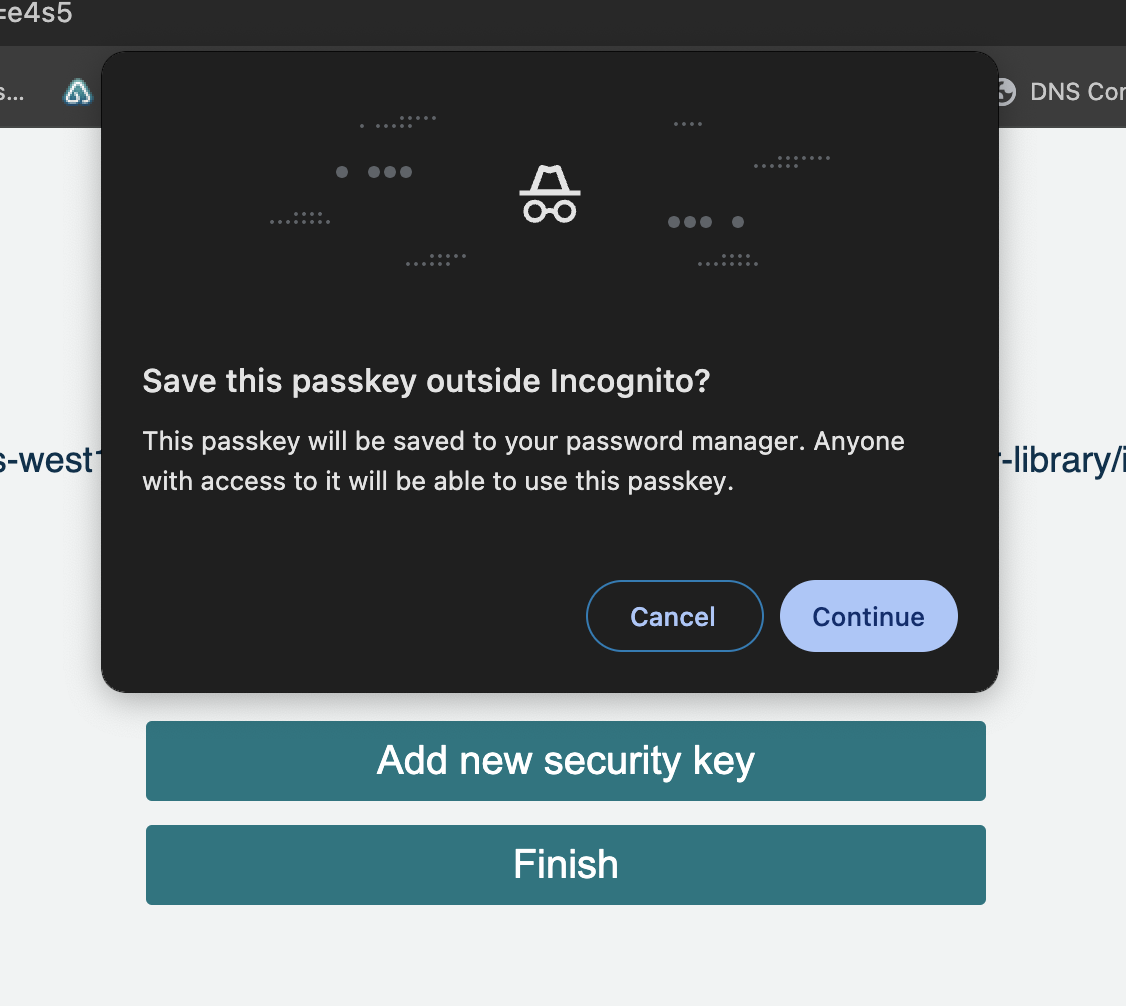
- Confirm the username and click “Create”
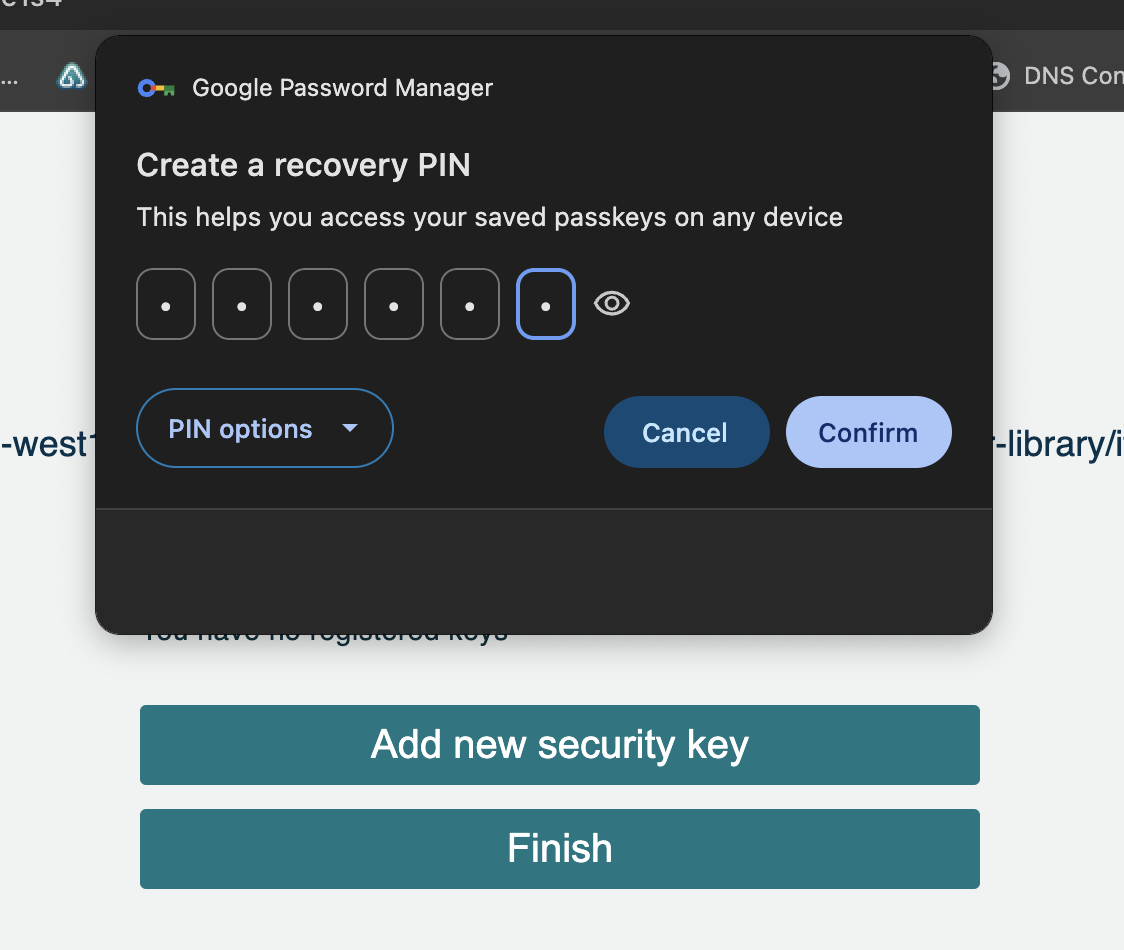
- Create a PIN
Note: Create a PIN that is at least 6 characters long. For increased security, avoid easily guessed PINs (for example, birthdays or "123456"). Instead, create a strong PIN using a combination of numbers, letters, and symbols.
- Create a nickname for your Key
(Note: include the type of device (eg Chrome, Apple, 1Password, Yubikey, etc) in the name you enter to better distinguish between your multiple passkeys)
- The Passkey Key is successfully registered.
- Register another passkey (click Create Passkey) using a different platform if you do not already have 2 or more passkeys
- Browse to an LBL service (gmail.lbl.gov, lets.lbl.gov, etc) to confirm that you can log in via a passkey
|
|