This is a guide to check if CrowdStrike is running correctly on your system.
Resolution:
This feature is not available for Windows Server and Windows 10 embedded versions.
1
Expand the system tray (If necessary) by clicking the small arrow icon next to the clock and/or weather display
2
Find the CrowdStrike Falcon icon () - it will display the current state in a small context box if hovered over for a moment
3
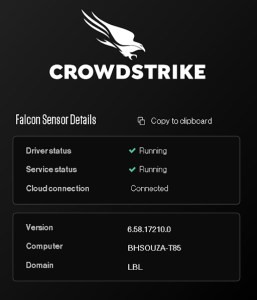
If you left-click the CrowdStrike icon in the system tray, it will bring up a status menu with more detail - if the Falcon Sensor Details show running, then the app and services are working properly.
1
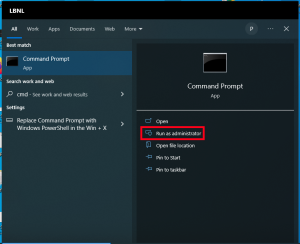
Use the search bar to search for 'cmd' and launch Command Prompt as an administrator
2
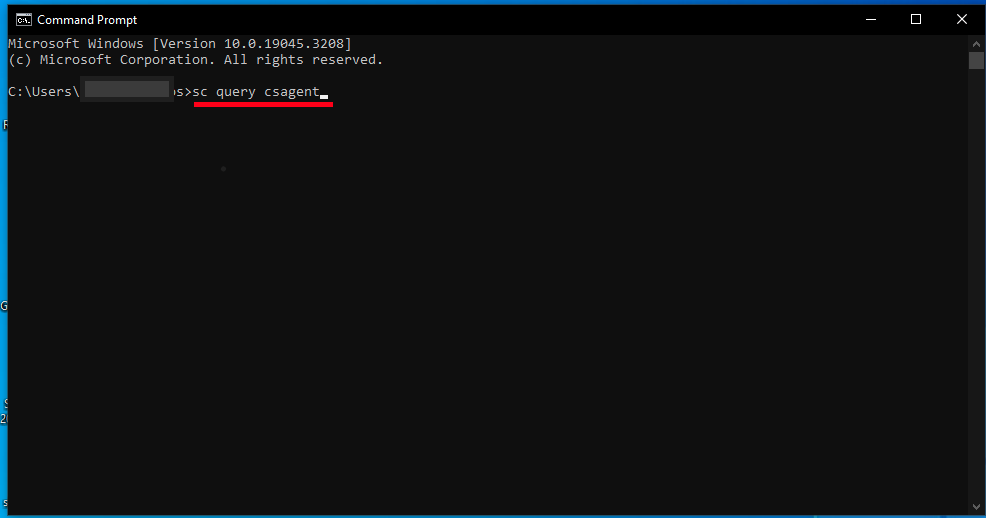
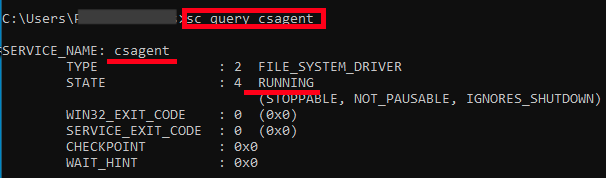
Run the command sc query csagent
3
Ensure the result shows “STATE” is “RUNNING”
1
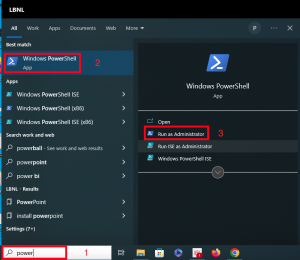
Use the search bar to search for 'power' and run a Windows PowerShell terminal as an administrator
2
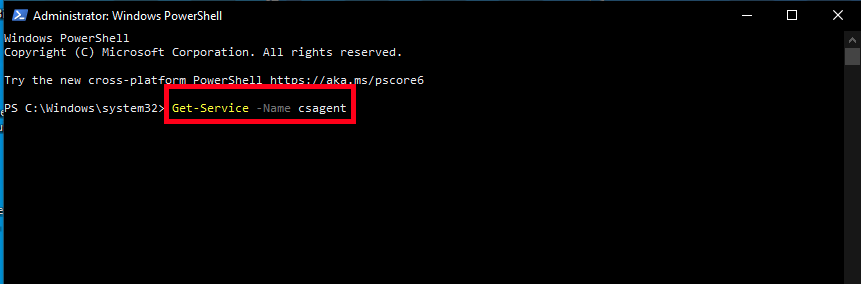
In the PowerShell terminal type the following command:
Get-Service -Name csagent
3
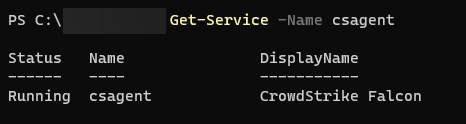
You should see the status of the CrowdStrike Falcon agent
1
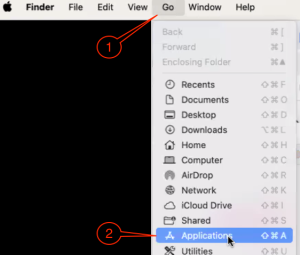
Click the Go on the menu bar
2
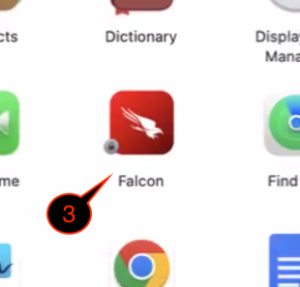
Select Applications
3
Open Falcon
4
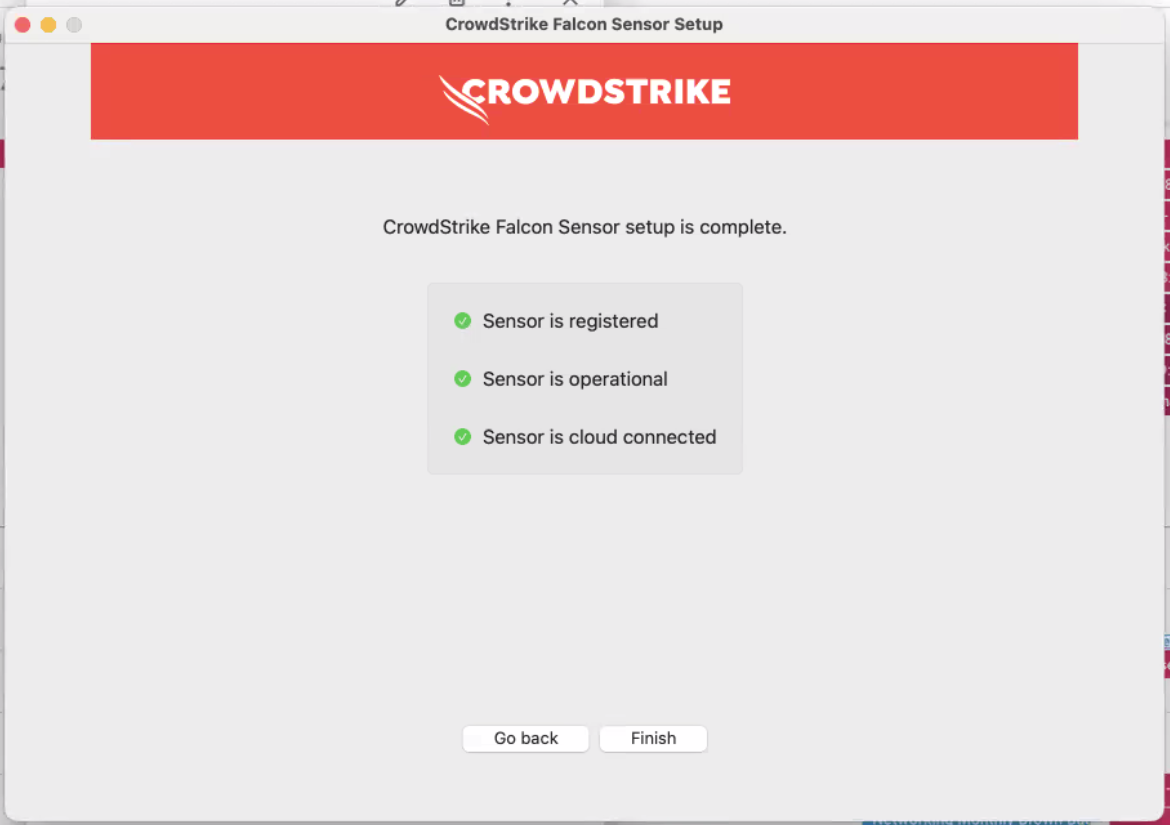
The CrowdStrike Falcon Sensor Setup will show up and you should see 3 green check marks
1
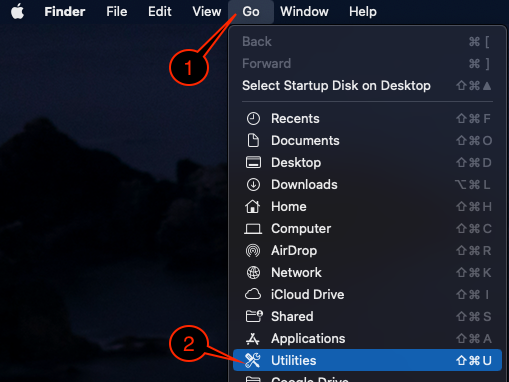
Click the Go on the menu bar
2
Select Utilities
3
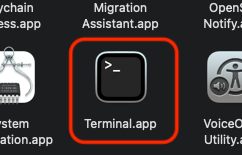
Open Terminal
4
Type in sudo /Applications/Falcon.app/Contents/Resources/falconctl stats | head -n 6 and hit enter
Note: If asked for the password, type in your computer password
5
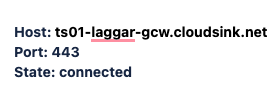
You should see this result
1
Click the Go on the menu bar
2
Select Utilities
3
Open Terminal
4
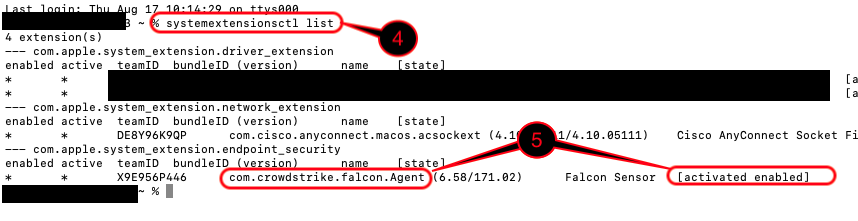
Type in systemextensionsctl list and hit enter
Note: If asked for the password, type in your computer password

 ) - it will display the current state in a small context box if hovered over for a moment