If you use Google Authenticator on your personal or Lab issued mobile device, Lab policy requires that the device must be configured to use a lock screen (PIN, pattern, fingerprint, etc.).
1
Find the Google Authenticator application in the Google Play Store.
Install and open the app.
2
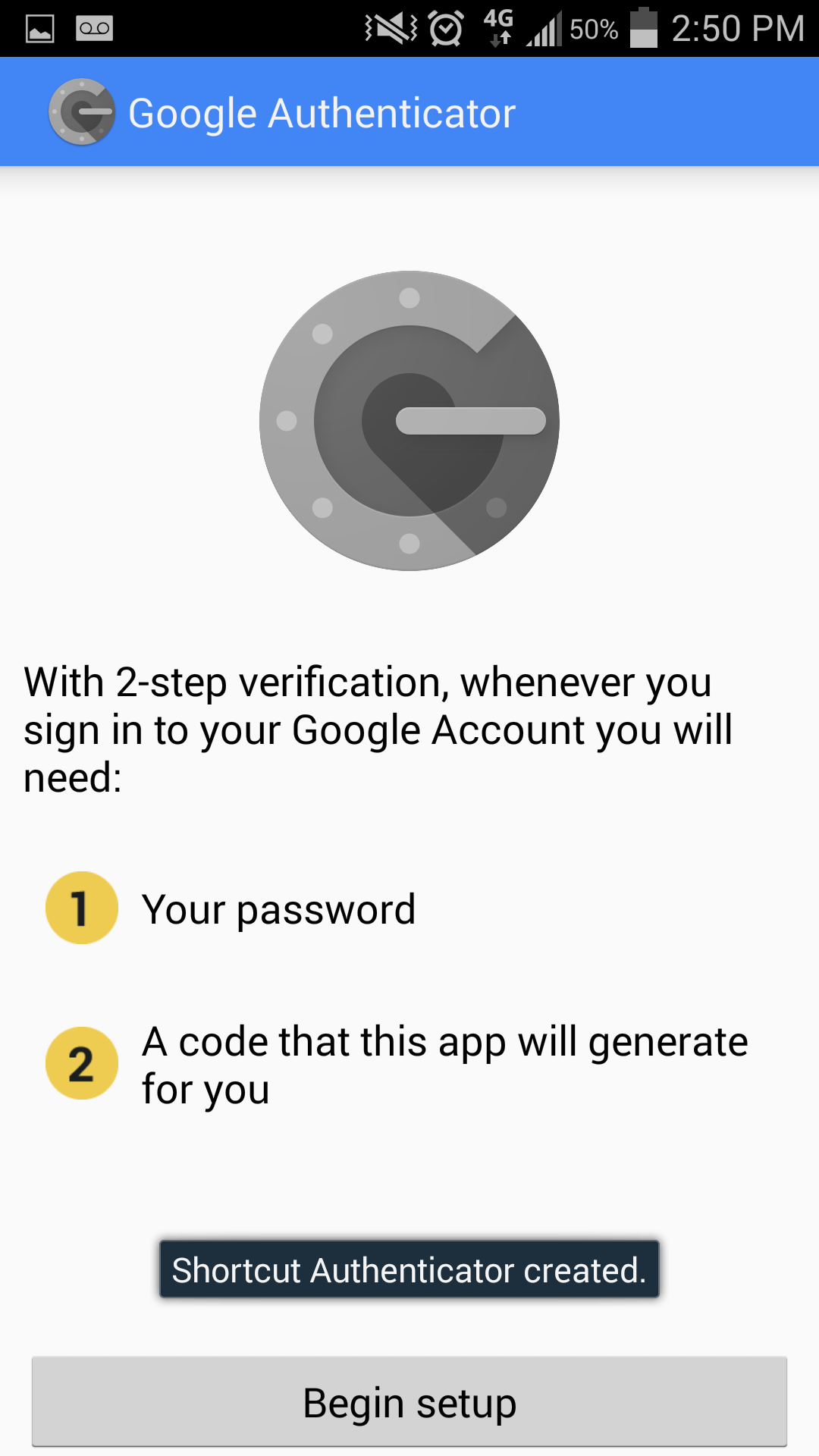
Tap "Begin setup".
3
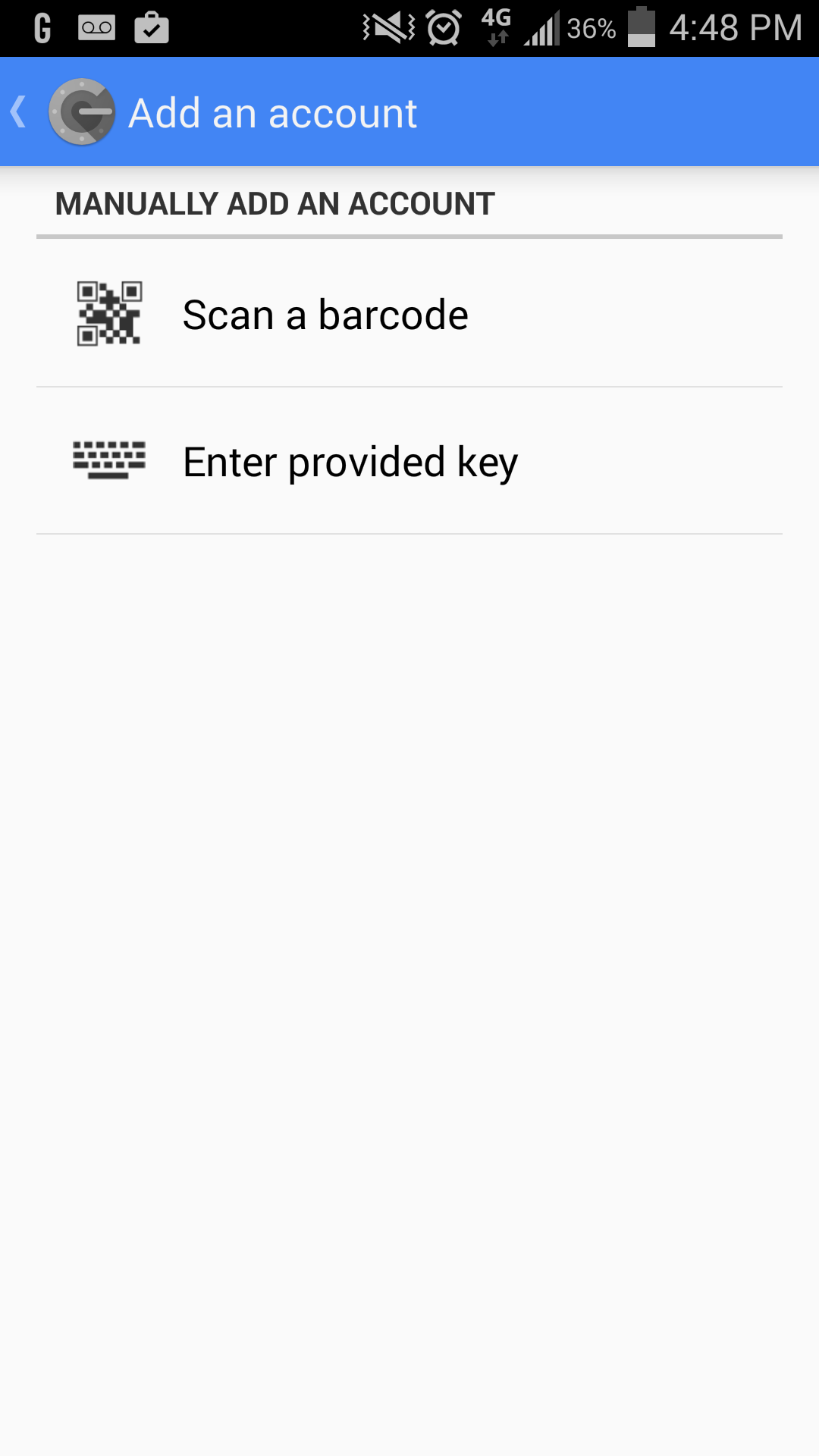
Tap "Scan a barcode".
If you are missing a "Barcode Scanner", the app will prompt you to install a suggested app. Tap "Install" to install. After installation has completed, click "Scan a barcode" once more on Google Authenticator.
You must generate a barcode at the above link to continue installation.
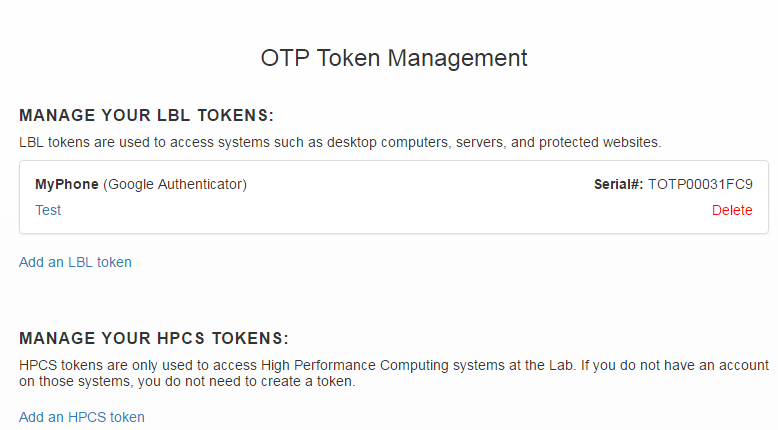
Click the "Add an LBL token" link.
5
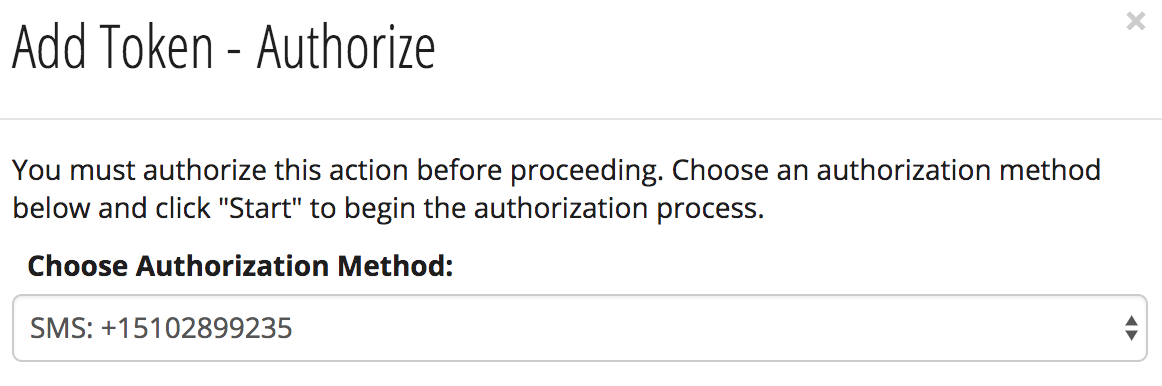
Select the method by which you can receive an authorization code.
Select either:
Email: <personal email address on record>
SMS (text message): <personal phone number on record>
Click the "Start" button to receive a text or email with the authorization code.
6
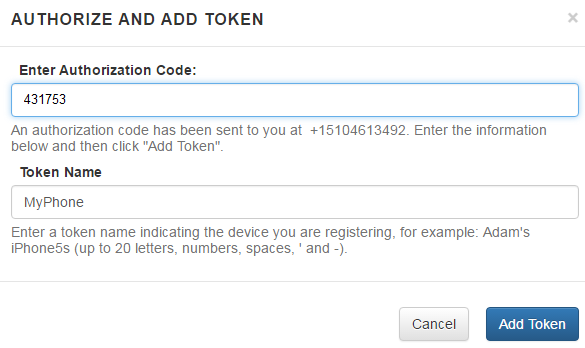
Type the authorization code into the "Enter Authorization Code" field and give the registered device a meaningful nickname in the "Token Name" field.
Click "Add Token." Note, there is a time limit that you must complete this step by.
If time has expired, "Cancel" and retrieve a re-issued token.
7
You will see a QR code code on the screen that you must scan with Google Authenticator on your device/phone.
You only have ONE CHANCE to scan this code. Do not close this window until you have successfully scanned the code.
8
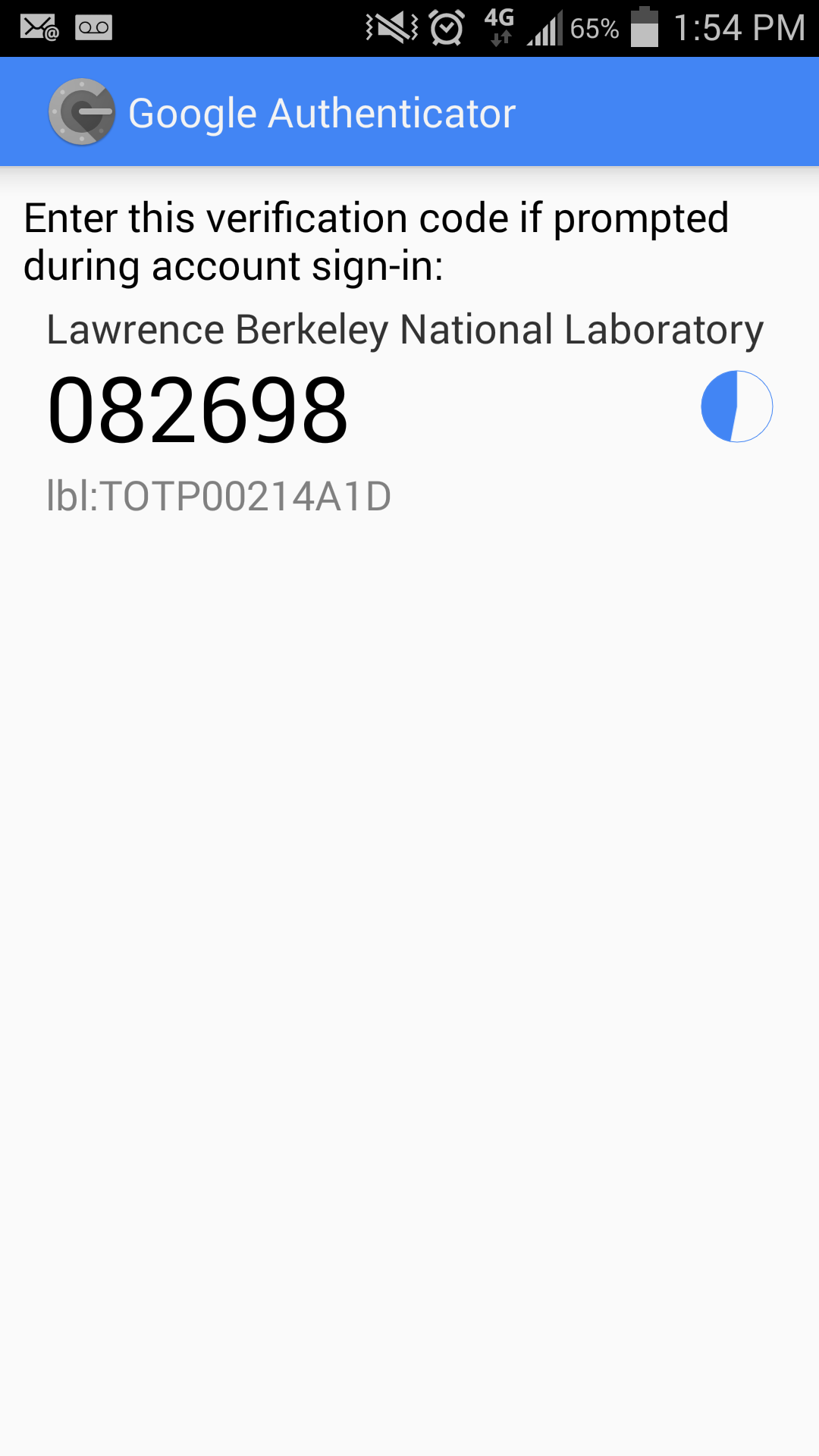
If the barcode scan is successful, you will see the 6-digit OTP (One-Time-Password) on your device.
This code is valid for 30-seconds only. As the time limit approaches, you may see the code turn red. If you cannot enter it immediately, then wait a few seconds until the next code appears.
1
Find the Google Authenticator application in the Apple App Store.
When you find the listing, tap on the "GET" button, then tap on the "INSTALL" button.
3
Open the Google Authenticator app, and tap "BEGIN SETUP".
4
Tap "Scan barcode", then tap "OK" to allow the app to access the camera.
You must generate a barcode at the above link to continue installation.
Click the "Add an LBL token" link.
6
Select the method by which you can receive an authorization code.
Select either:
Email: <personal email address on record>
SMS (text message): <personal phone number on record>
Click the "Start" button to receive a text or email with the authorization code.
7
Type the authorization code into the "Enter Authorization Code" field and give the registered device a meaningful nickname in the "Token Name" field.
Click "Add Token." Note, there is a time limit that you must complete this step by.
If time has expired, "Cancel" and retrieve a re-issued token.
8
You will see a QR code code on the screen that you must scan with Google Authenticator on your device/phone.
You only have ONE CHANCE to scan this code. Do not close this window until you have successfully scanned the code.
9
If the barcode scan is successful, you will see the 6-digit OTP (One-Time-Password) on your device.
This code is valid for 30-seconds only. As the time limit approaches, you may see the code turn red. If you cannot enter it immediately, then wait a few seconds until the next code appears.
1
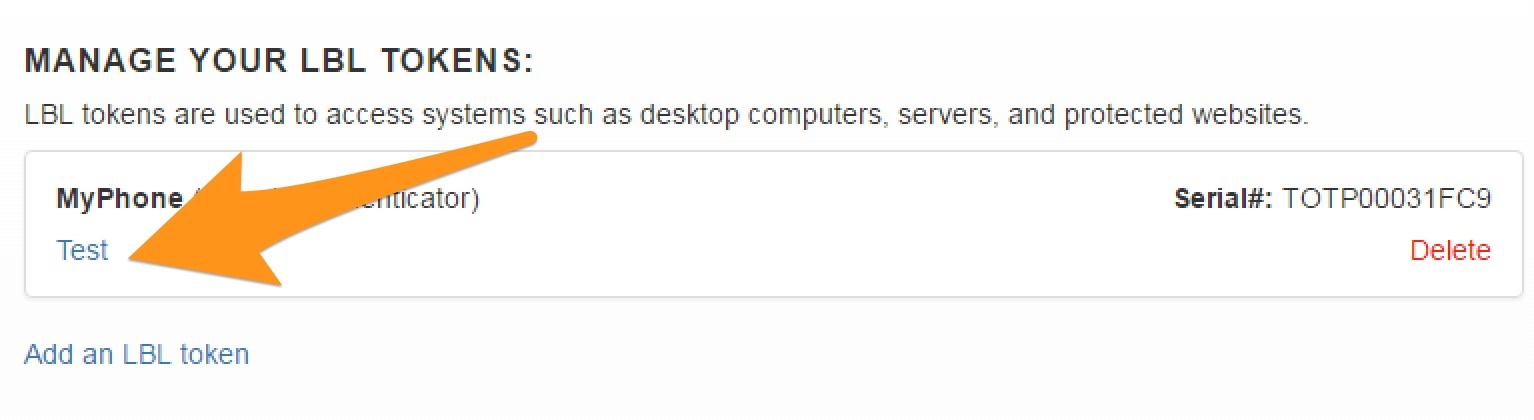
Go to https://identity.lbl.gov/mfa/ to verify if your OTP is working by clicking on the "Test" link below your device's nickname.
2
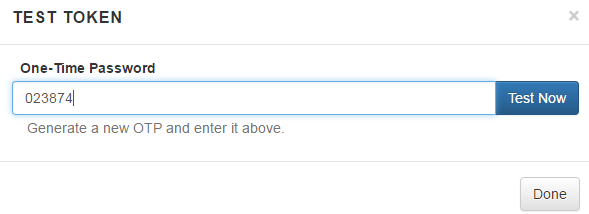
Enter the Google Authenticator's OTP from your device into the "One-Time Password" field and click "Test Now".
Only the newest OTP should be entered into the field for verification, expired codes will not work.
3
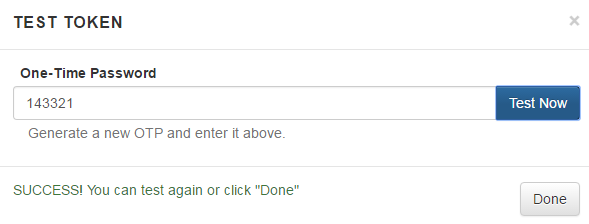
You should see a Success! You can test again or click "Done" message if successful.
If there is a problem, you may restart the registration or call the help desk at x4357.
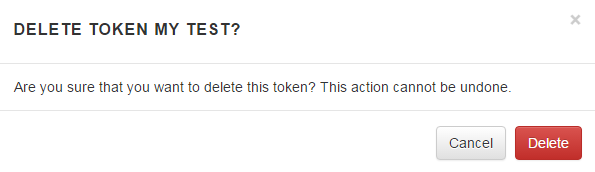
Ensure you have another form of MFA setup before removing a token.