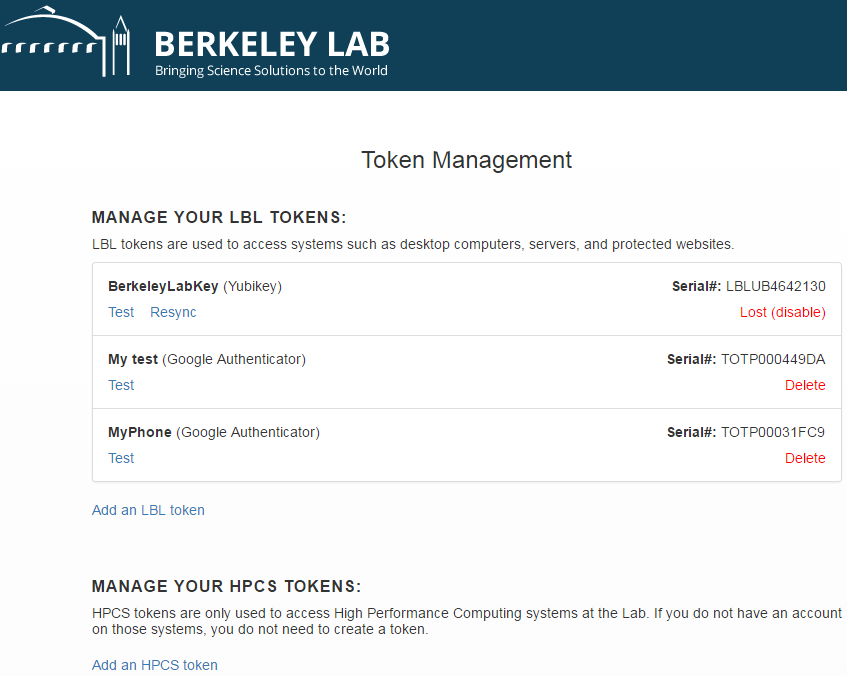
| | Instructions | View |
|---|
| 1 | Go to the OTP Token Management webpage. Click the "Berkeley Lab login" button. |  |
| 2 | Click the "Add an LBL token" link. |  |
| 3 | Select the authorization method by which you can receive an authorization code. The choices are: Email: <personal email address on record> SMS: <personal phone number on record> For this example, the SMS (text messaging) is used. |  |
| 4 | Here is the text message with the Authorization Code sent to your mobile device. |  |
| 5 | Type the Authorization code into the "Enter Authorization Code" field and give the registered device a meaningful nickname in the "Token Name" field. Click "Add Token." Note, there is a time limit that you must complete this step by. If time has expired, "Cancel" and retrieve a re-issued token. | 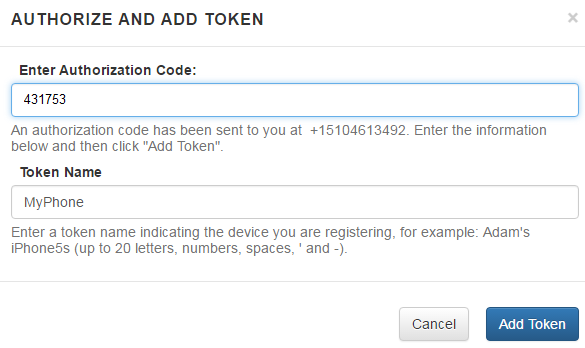 |
| 6 | You will see a 2-D barcode on the screen that you must scan with your device. If you have not done so, install the "Google Authenticator" app from the Google Play Store. |  |
| 7 | To install the Google Authenticator app, please go to the Google Play Store on your phone. (This image is from a Samsung Galaxy 6S Android phone) |  |
| 8 | Find the Google Authenticator application and install it. Then open the app. |  |
| 9 | Tap "Begin setup". | 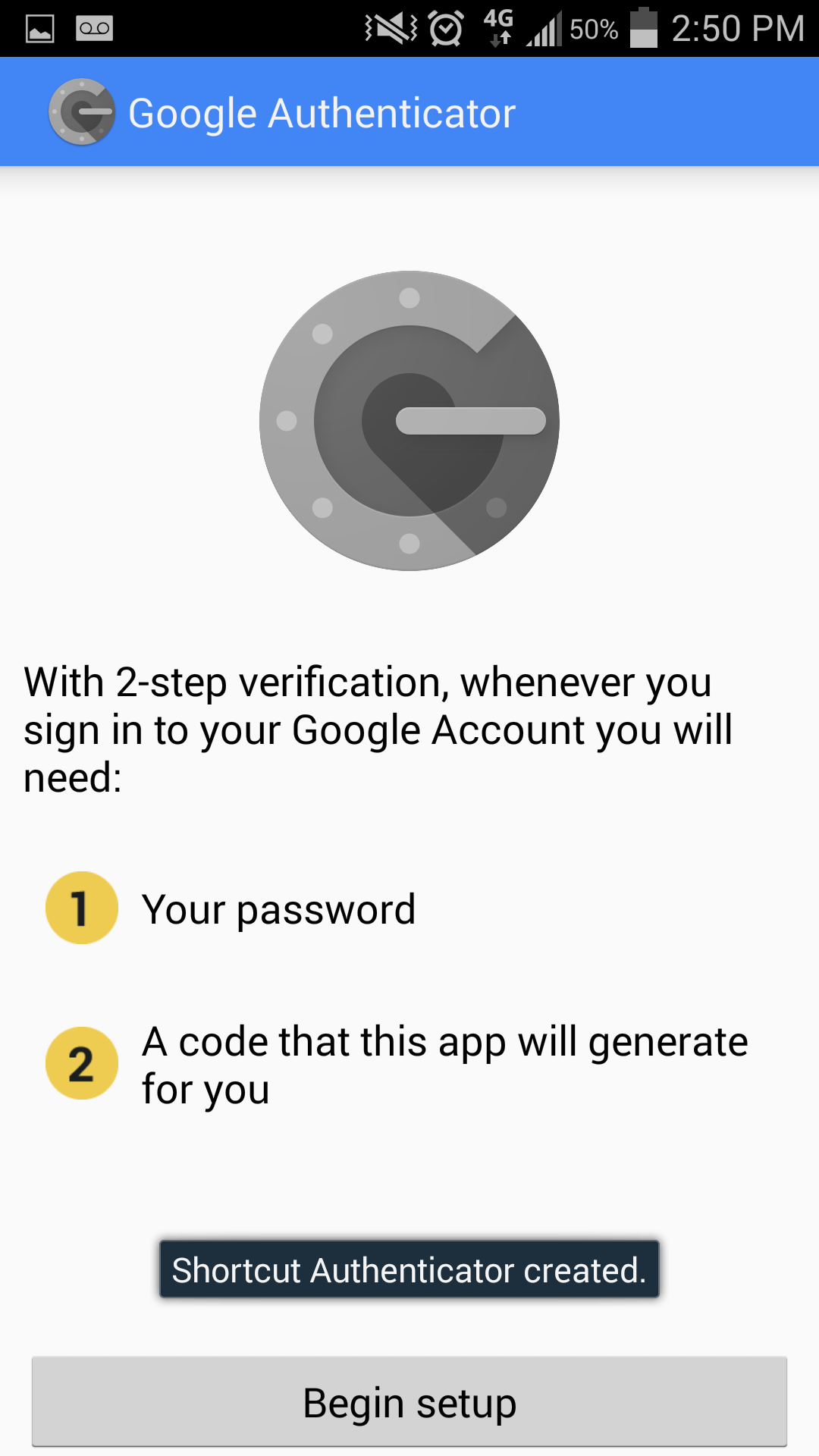 |
| 10 | Then, tap "Scan a barcode" or "Enter provided key". In our example, we will scan a barcode. | 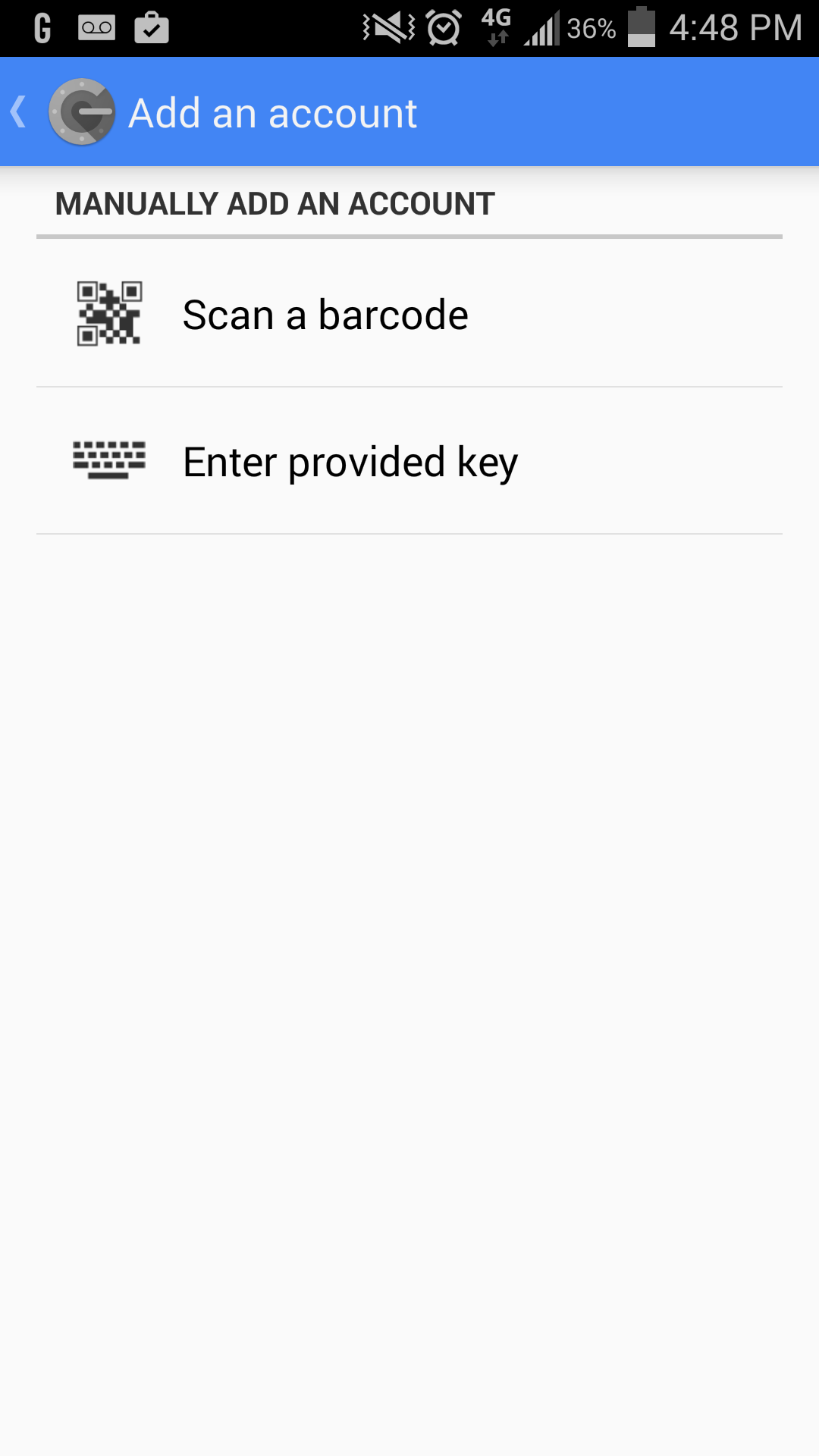 |
| 11 | Google Authenticator will check if you have a barcode scanner installed. If a barcode scanner is missing, the app will prompt you to install a suggested app. |  |
| 12 | Tap "Install" to the suggested ZXing's "Barcode Scanner" app. Your device may select another suitable barcode scanner (which would also be sufficient). After installation has completed, close the app. |  |
| 13 | Run the Google Authenticator by choosing the "Authenticator" icon on your device's icon gallery. Tap "Scan a barcode", which is where you left off earlier. | |
| 14 | Aim your phone's camera at the 2-D barcode on the browser when the barcode scanner runs inside of Google Authenticator. You may need to slowly adjust the distance and angle of your phone to allow the camera to auto-focus and capture the barcode image. You will only have ONE CHANCE to scan this code. | |
| 15 | If the barcode scan is successful, you will see the 6-digit OTP (One-Time-Password) on your device. This code is valid for 30-seconds only. You must enter the token when you log in with your username and password. If you happen to take longer than 30 seconds, then use the most current auto-generated OTP. Note that there is a 30-second timer on screen. | 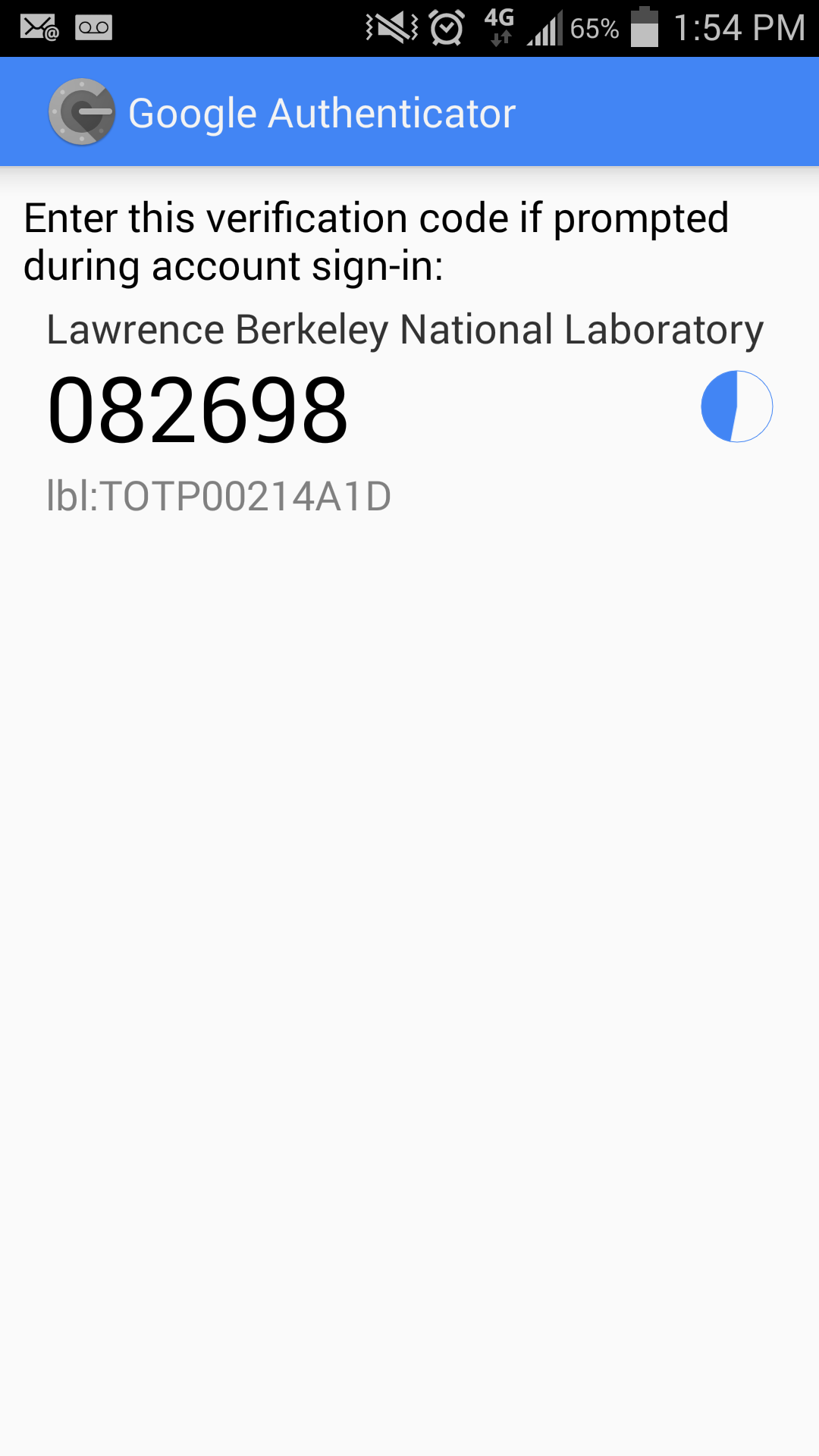 |
| 16 | Your OTP dashboard should show all of your devices from which you will log into LBL's systems that require an OTP (including the one you just entered). Registration is complete now. | 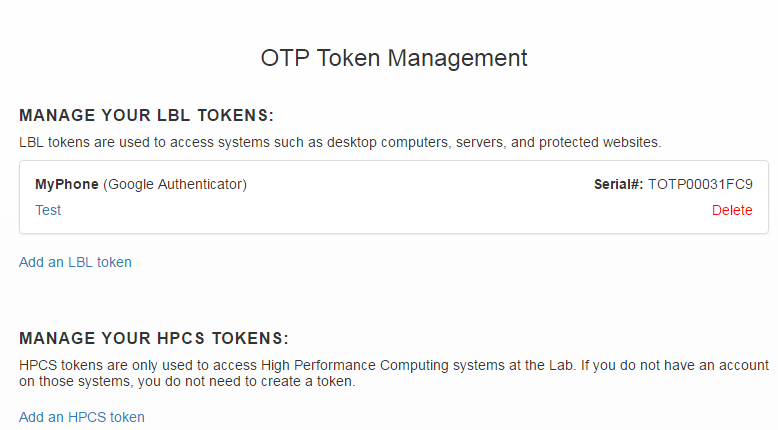 |
| 17 | OPTIONAL: On the OTP homepage, you may verify if the OTP is working by clicking on the "Test" link below your device's nickname. | |
| 18 | Enter the Google Authenticator's time-sensitive OTP from your device into the "One-Time Password" field and click "Test Now". Note, once the time has expired, the token will be invalid. Only the newest OTP should be entered into the field for verification. | 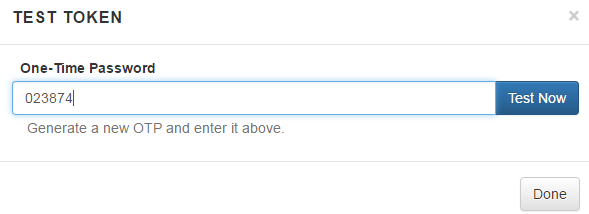 |
| 19 | You should see a Success! You can test again or click "Done" message if successful. If there is a problem, you may restart the registration or call the help desk at x4357. | 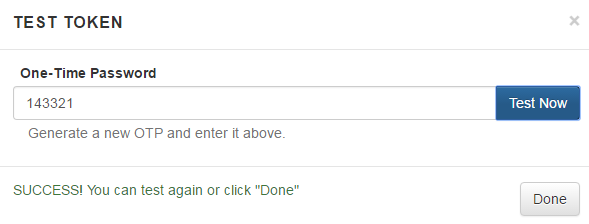 |
| 20 | OPTIONAL: On the OTP dashboard, you may click on "Delete" if you decide to permanently stop using the device to access LBL assets that require an OTP. | |
| 21 | Click "Delete" to confirm the deletion. | 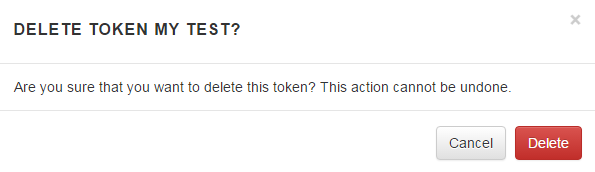 |
| 22 | If you were using the Pledge application from Nordic Edge, you may uninstall it now. | |