In order to use Chrome Remote Desktop, you will need to have Chrome Browser installed, and have already gone through the following setup process. This must be done ahead of time!
If you are planning on using this for telecommuting, you must complete the setup before leaving the office.
Installation Instructions
Remote/Target Computer (eg your Office computer)
Click and launch Chrome Browser | |
Go to https://remotedesktop.google.com/home and select “Remote Access” | |
Click on the download button to set up remote access | |
Click on “Add Extension” | |
Select “Add to Chrome” | |
Create a computer name and then select “Next” |


On your client computer (eg home computer)
On your the computer you will be connecting FROM, click and launch your Chrome browser and select the Chrome Remote Desktop Extension | |
Click on your remote device you wish to log into | |
Enter the six digit numerical pin you created and click on the arrow key | |


Initiate a Remote Connection
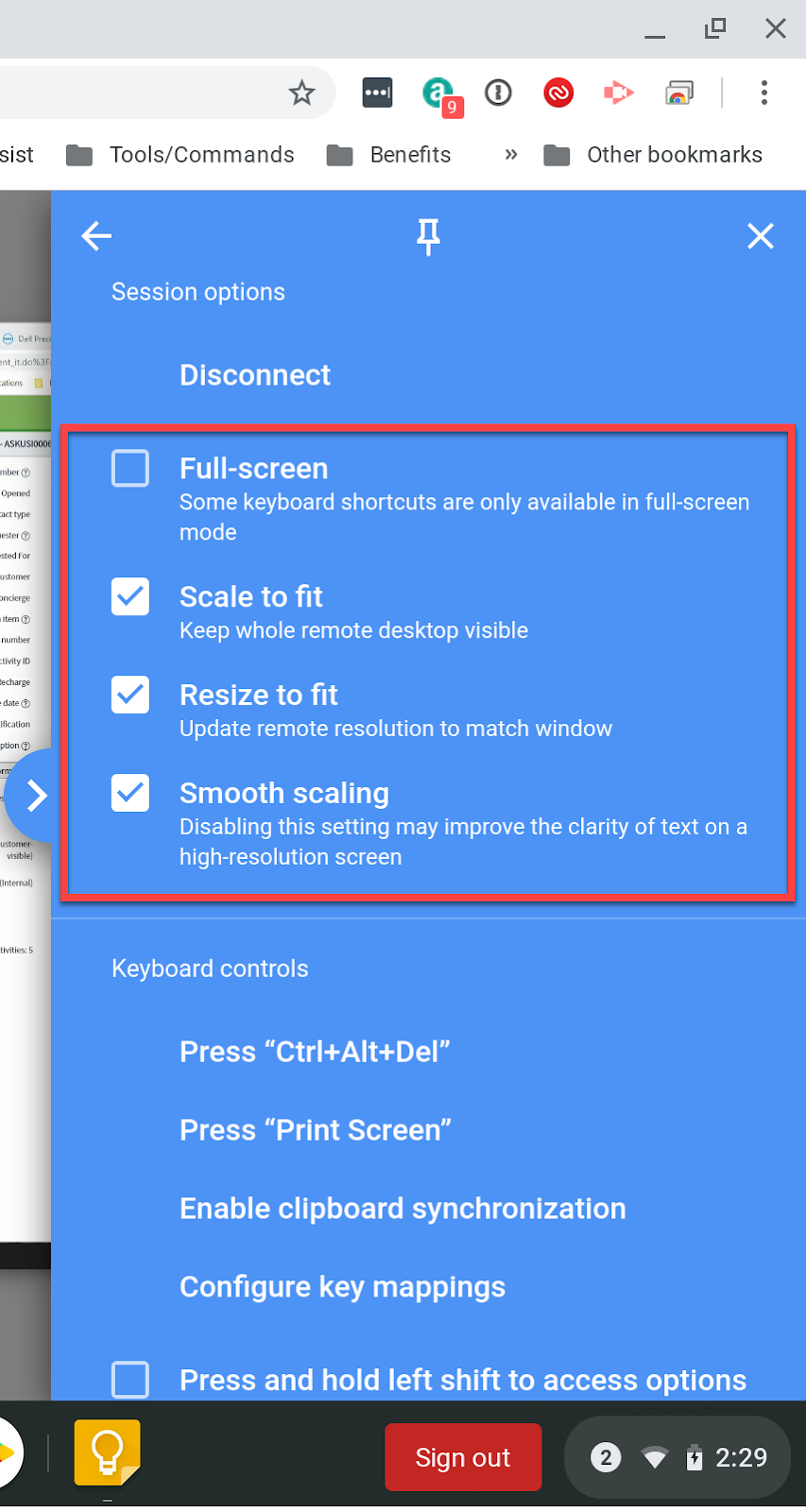
Click on the blue arrow located at the right side of the screen | |
Keyboard controls are also located in the side pullout menu. i.e. “CTRL+ALT+DEL” |


Adjusting Window Size
This next step is optional but useful to enlarge the remote session window size. Check the “Full-screen” box and uncheck the “Scale to fit” box | |
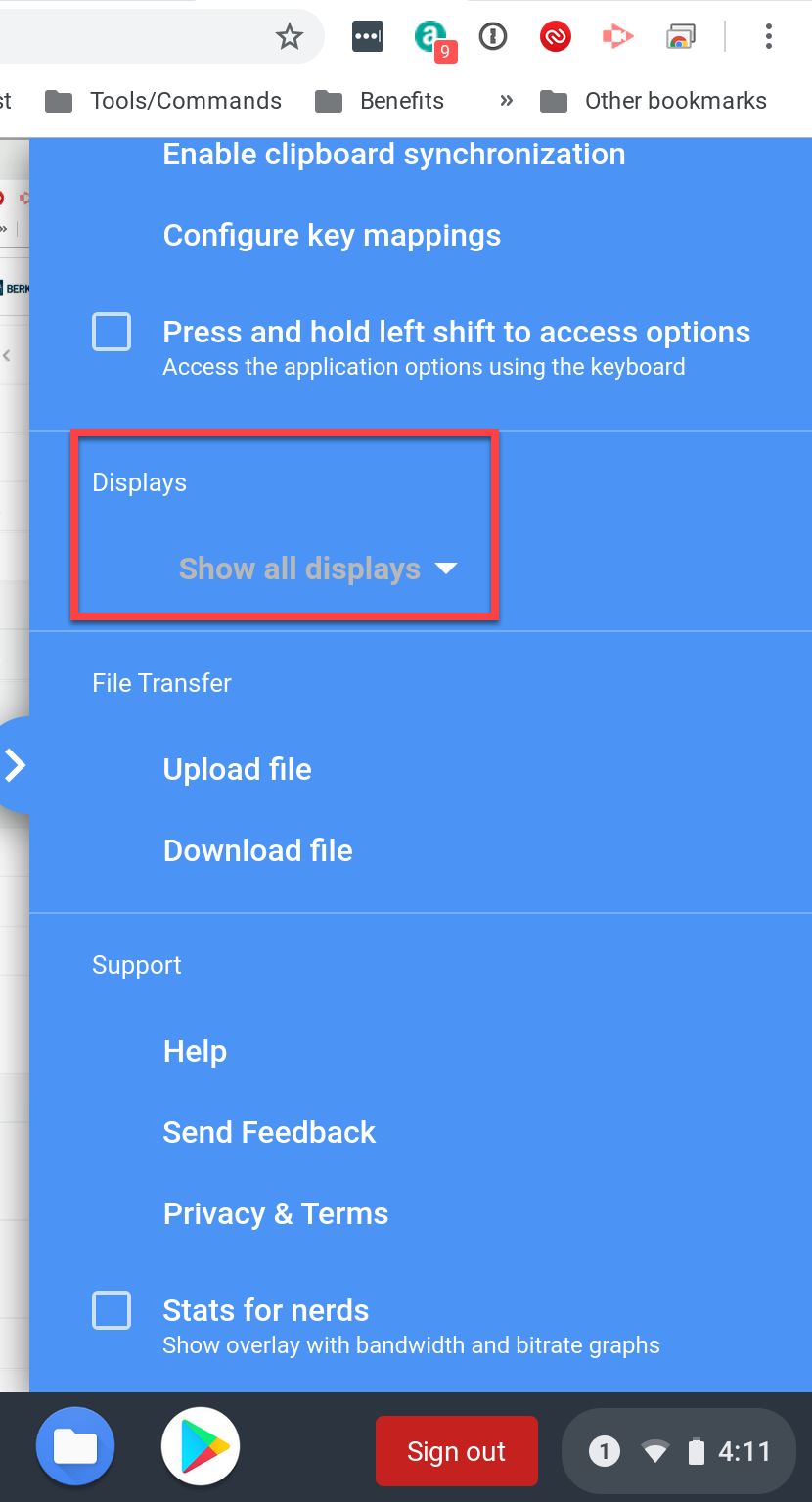
If the desktop is has a dual monitor setup - you can select to either display both monitors or select a single display. | |
Disconnect a Remote Session
To disconnect the remote session, click on “Disconnect” located in the blue box - top of the session options While a remote session is still established, lock your screen on the target client before ending the session to ensure your desktop is not open for anyone to access freely. |

