...
Remote/Target Computer (eg your Office computer)
For Google's documentation, see https://support.google.com/chrome/answer/1649523?co=GENIE.Platform%3DDesktop&hl=en-GB.
The following tables include detailed instructions for Windows and Mac.
Windows Instructions
Click and launch Chrome Browser | |
Go to https://remotedesktop.google.com/home and select “Remote Access” | |
Click on the download button to set up remote access | |
Click on “Add Extension” | |
Select “Add to Chrome” | |
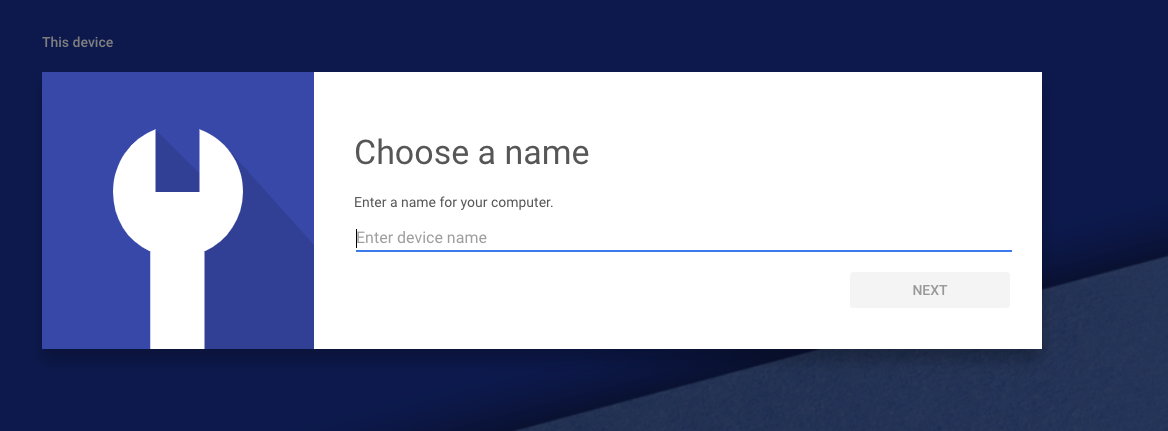
Create a computer name and then select “Next” |


MacOS Instructions
In order to install the Chrome Remote Access components on newer versions of Mac, you need to change your security settings.
|

| |
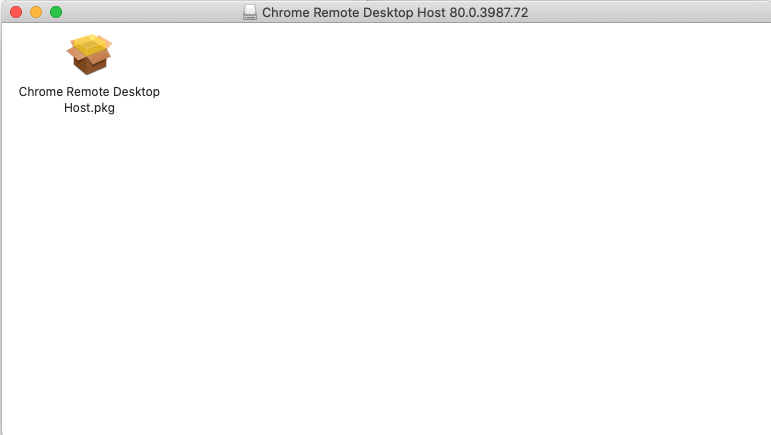
| Run the install package downloaded by Chrome |
|
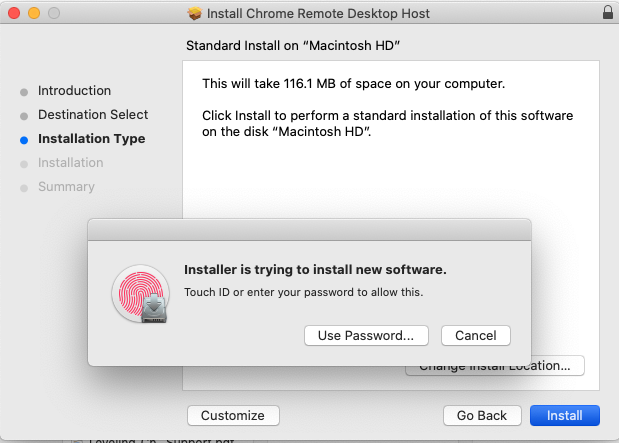
| Enter your password (or fingerprint) when prompted |
|
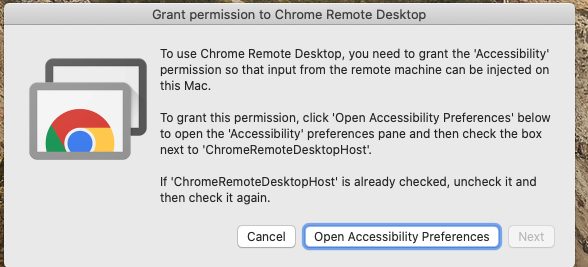
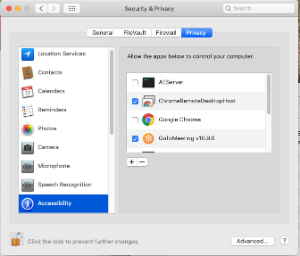
| After installation, Chrome will request extra permissions. Click 'Open Accessibility Preferences'. |
|
|
|
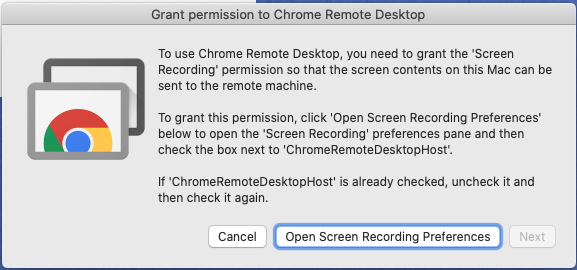
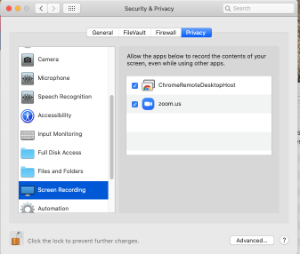
Next, Chrome will ask for screen recording permissions. Click 'Open Screen Recording Settings'. |
|
|
|
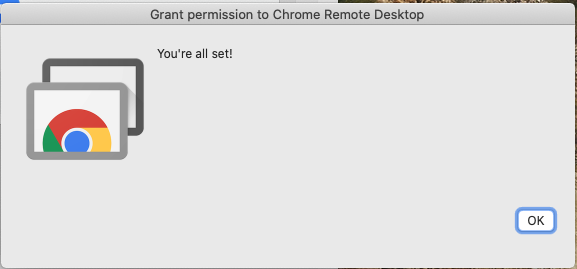
| Installation complete. Next, activate it. |
|
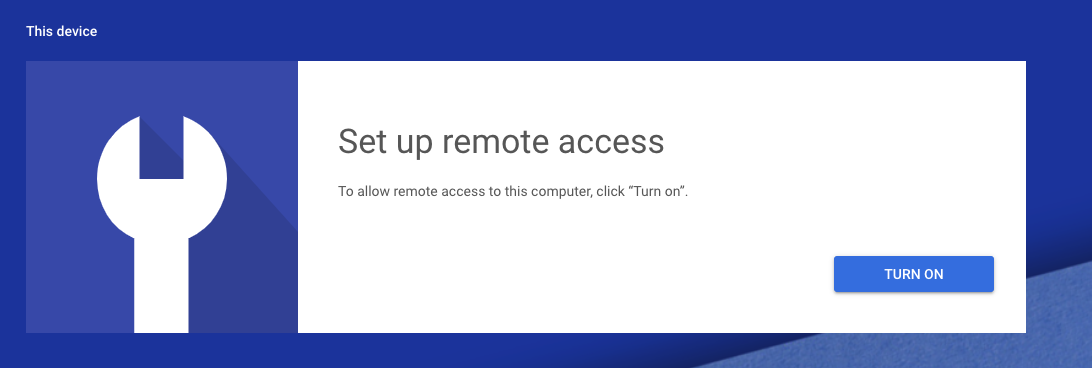
Chrome will return you to remotedesktop.google.com/access. Click 'Setup Remote Access', and then 'Next' |
|
| Enter the name you want. The default is the host name. Press 'Next'. |
|
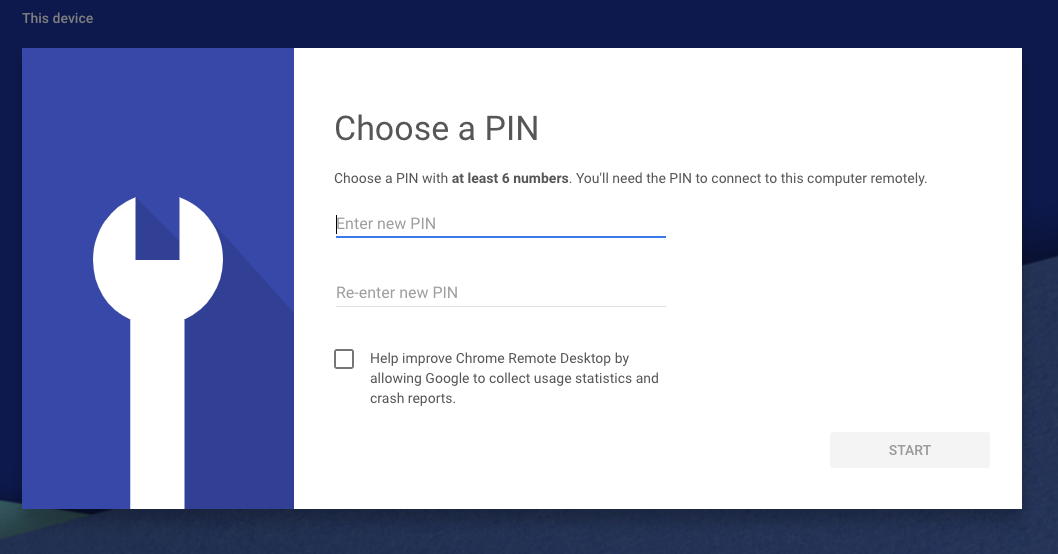
| Choose an easy-to-remember PIN, and click 'Start' |
|
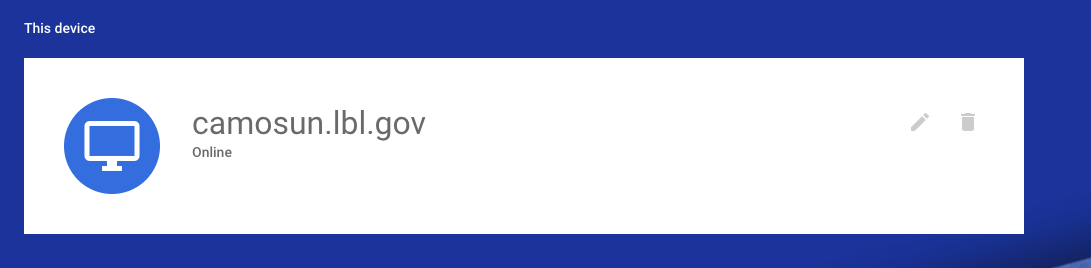
| You should see a screen like this: |
|
| Done! | |
Initiate a Remote Connection
...
