| Info |
|---|
We value your feedback. Use this form to tell us about your experience with Passkeys. |
Passkeys replace MFA tokens as the primary way to authenticatemethod of authentication, making it essential to manage them effectively.
You will NOT lose your one-time password properly. No, you are not going to lose your tokens for the foreseeable future, even if you have moved on to using Passkeys.
However, to streamline your login experience and enhance security, you should plan to use your newly minted passkey as your primary method of authentication method.
Since passkeys are stored securely on your device and may sync across devices via cloud services, periodic reviews of your stored passkeys are recommended.
Follow the step-by-step instructions below to manage passkeys efficiently.
Access the Passkey management console here.
Managing your Passkeys
If you don't see the Passkey authentication screens when attempting a login to a service or you receive an error, follow these steps to make sure you’re on the Passkey identity provider:
...
Open a Private/Incognito window in your web browser
...
| Link in New Window | ||
|---|---|---|
|
...
|
...
Paste the link into your Private/Incognito browser window's address bar and press Enter.
...
|
...
|
...
|
...
|
Managing your Passkeys
- Enter your Berkeley Lab Identity account user user name and click Proceed

Enter your password and password then click login
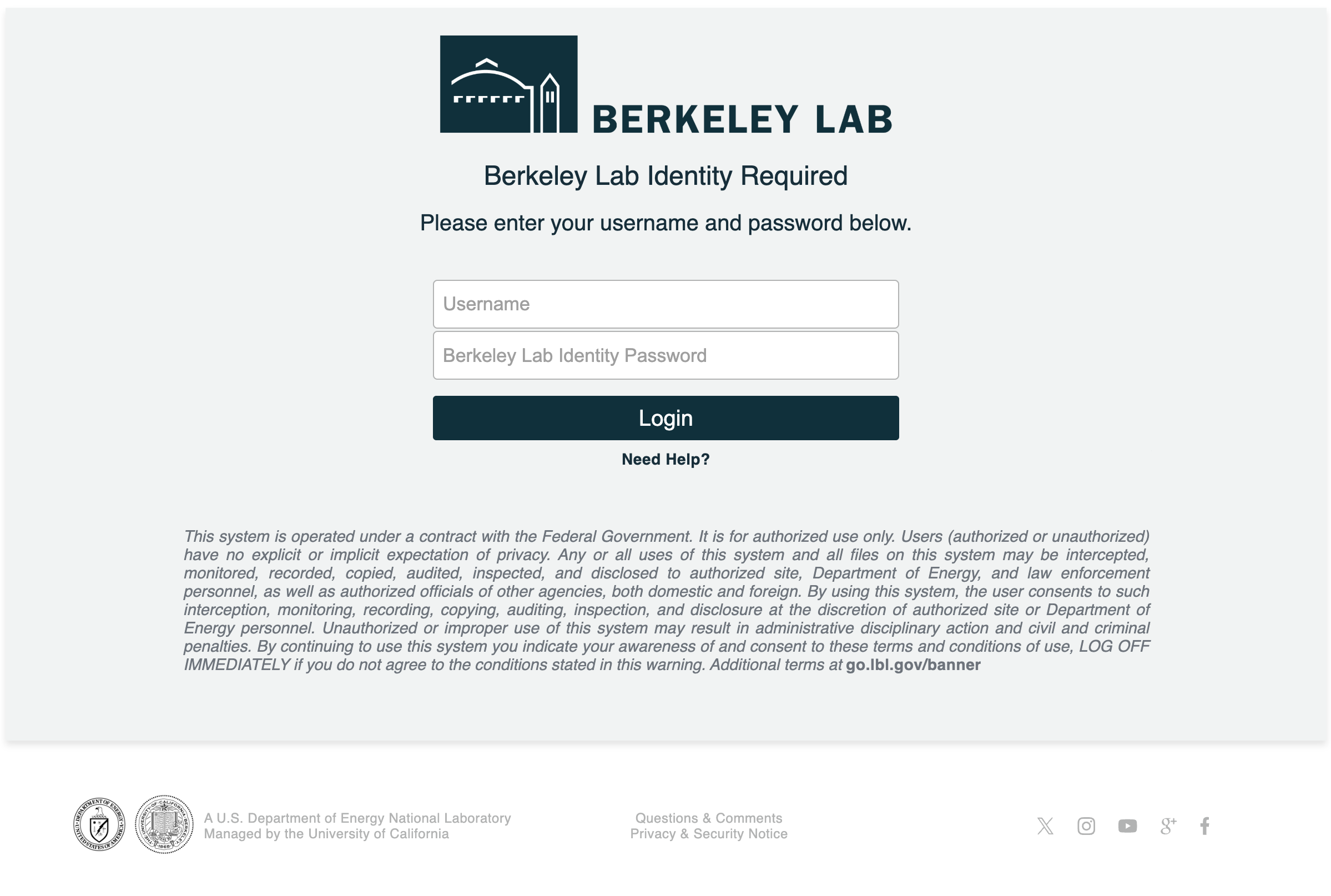
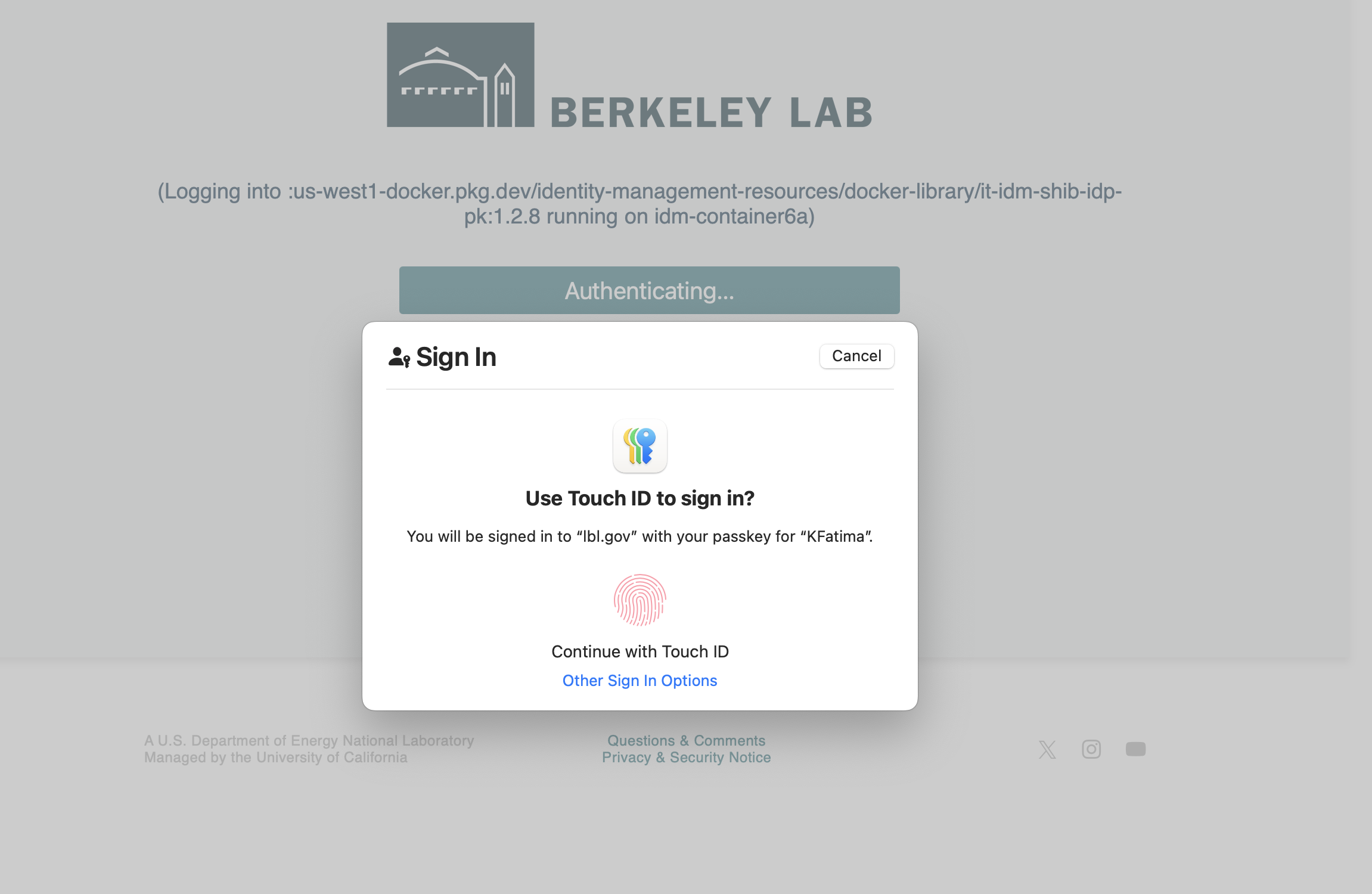
- Continue with the touch ID for Passkey stored in the Apple password/iCloud
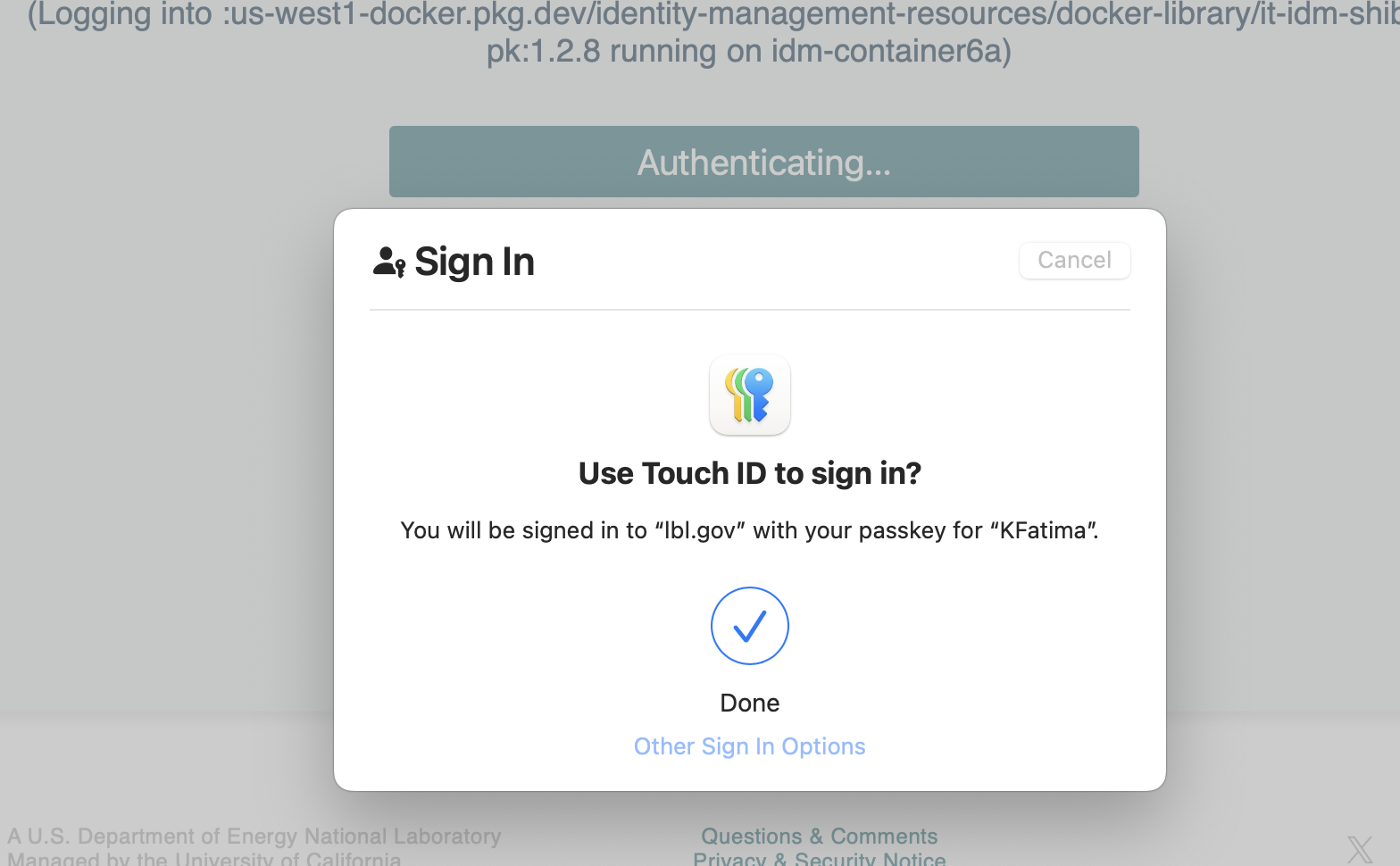
- Login was successful!
- You can now add a security key
- or delete and complete by clicking Finish.
- a Passkey
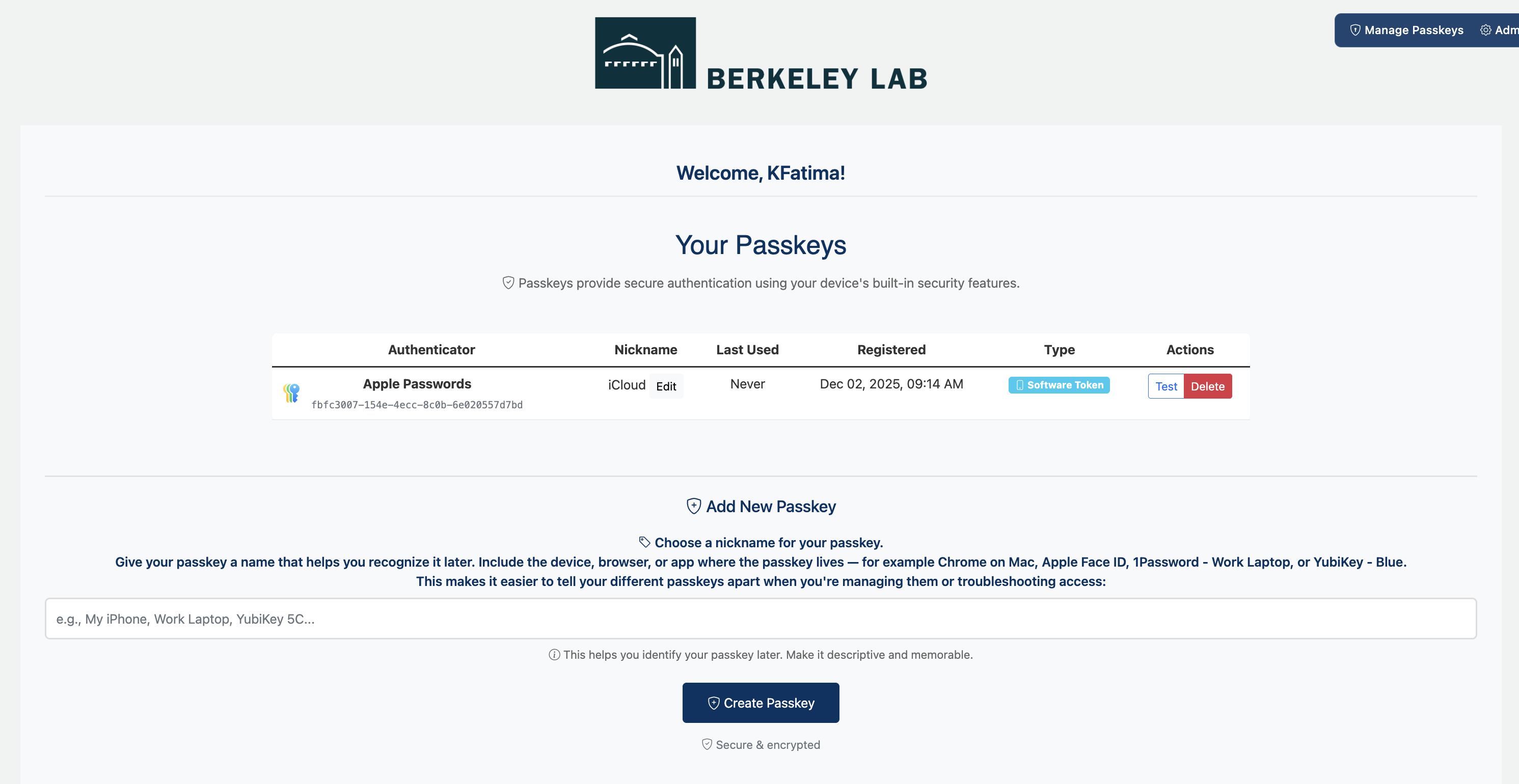
- Follow steps for creating a passkey: Creating Passkeys

