Versions Compared

Key

  • This line was added.
  • This line was removed.
  • Formatting was changed.
Deck of Cards
idnewemp Tabs
classtundra
Card
idstarting
labelGetting Started

Getting started

Google Apps include Mail, Calendar, Docs/ Drive, ContactsSites, and Sites as well as a few several marketplace apps: AODocs, GQueues, LucidChart, and Smartsheet.   We have also included some of Google's non-core, consumer applications (reader, blogger, etc) for use with your LBL account.  Among  Among these consumer services is Google+, the social networking component of Google's product line.

If you're new to Google, you might want to visit some of the links on the Resources tab of this site to learn more. Some are general Google help pages, but others are specific to LBL.

Get a Google Apps account

This is something that will probably be done for you, but if it's not , here are the steps to do it. You will receive an email to your alternate email address when the LBL process is finished and the request is sent to Google. Your account should be ready for you within 24 hours of the initial requestyou can request one from here.

Accessing Google Apps

Now that you have your account, navigate to one of the primary Google apps (gmailMail, gcalCalendar, gdocsDrive, or gsitesSites)

Log in using your Berkeley Lab Identity,
(formerly known as LDAP user account)
which is used

for  IT

for IT Business
and Collaboration Systems.

Image Modified

If you forget the URLs listed here, simply navigate to Google's home page and click Sign In in the upper right corner.

On the next page, enter your entire email address (include the @lbl.gov) in the Email box, don't enter your password, and click Sign in.

You will be taken to LBL's Central Login Facility, where you will be given the opportunity to log in with your Berkeley Lab Identity user name and password.
This time, do NOT include @lbl.gov and DO enter your password.

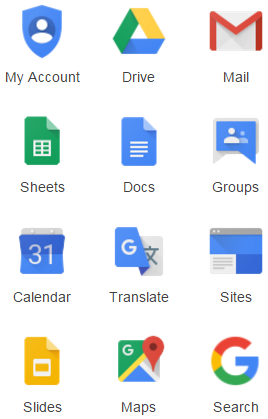
All the Google tools are integrated – once you've logged in to one of them, the others are accessible through their respective links in the grid of the current page:   Image Removed


Image Added

If you click More, you'll may find

  • Maps

    Contacts

  • YouTube

  • News

  • Translate

    Photos

  • Blogger

    Hangouts

  • Finance
  • Photos
  • - - - - -
  • Forms

  • AODocs
  • GQueuesHelloSign
  • Lucidchart Diagrams
  • Smartsheet

- - - - - - - - - - - - - - - - - - - - - - - - - - - - - -

Use this link to see a video showing how to log in to your new Google account and navigate around the Google Apps pages.

It's just a repeat of what's here, but with demonstration.

If you want to configure another application or a mobile device to access your LBL Gmail account, click the appropriate link here for assistance:

Android . . . Apple Mail . . . Blackberry . . . iPhone . . . Mutt . . . Outlook . . . Thunderbird

  • Lucidcharts
  • Smartsheet
Card
idsettings
labelConfigure Settings

Configure Settings

Now that you've logged in to your Google account, it's time to configure settings for each app the way you want them:

Click the gear button in the upper right   Image Removed   and choose Settings in the pop-up menu.

Mail settings

    Image RemovedConfigure the general settings the way you want them; pay particular attention to the following:

  • turn conversation view on or off, according to your preference
  • apply a signature if you want one
  • when you're away from the office, set the vacation responder
Mail labs

    Image Removed

Look through the available labs to see what strikes your fancy. We suggest the following:

  • Apps Search
  • Calendar View
  • Canned Responses
  • Inserting Images
  • Undo Send
  • Unread Message Icon
Calendar settings
  • set Set your working hours
Calendar labs
  • We recommend Event Attachments and Next Meeting. Other popular ones are Year View and Jump To Date.
Documents settings
  • should Should documents open in the same window or a new one?
Use this link to see a video showing how to find the Settings and Labs in our Google Mail, Calendar, and Docs.
https://sites.google.com/ a /lbl.gov/ms06july/ a site containing helpful information.

Connect with other Google Users

Google Plus is Google's social networking application. One of its major contributions to the business environment is Hangouts – a way to have video chats with others. Here's how to become a part of it.

Note: When you request a Google+ account, you are required to enter a birth date. If you enter a date that indicates you are younger than 13 years old, Google will immediately disable access to ALL of your Google apps. Be Careful!!!

Chat (or video chat) with others in real time

Gmail has a built-in chat client. Once you request a chat connection with a team member (put in their email address in the chat dialogue box) and they accept, you can chat. If both of you have web cams, you will see a camera icon next the person's name, and you can initiate a 1-to-1 video chat. If you need a multi-person video chat meeting, request a Google+ account and try "Hangouts". Up to 10 participants can join a Hangout.

Manage a small project using Smartsheet

Smartsheet is a web-based tool that allows you to collaborate with internal and external team members on shared tasks or small projects. Learn about Smartsheet here. You can access it from the More menu in the Google banner at the top of the page.

Card
idnotable uses
labelNotable Uses for Google Apps

Notable Uses for Google Apps

Create a new Calendar for a special project

You can create (and delete) secondary calendars for special purposes – group project, group resource, vacation schedule, your personal activities. See the procedure here.

Use a Form to survey collaborators about some aspect of a project

Google Spreadsheets provides a form tool which allows you to enter a row of data by using a form.   It can be used for a quick survey, indication that a process is complete, or just a more controlled data entry method (where access to the spreadsheet is protected).   The spreadsheet accepting responses from the form also provides some graphical statistics relating to the data collected.

Create a Google Site to advertise and organize a project

This isn't something that we can explain in a single page, but it's extremely useful, and a relatively easy way to create a web site. Please come to a Google Sites class to learn how to create and configure a Google Site. If you decide that you want to learn on your own,

Link in New Window
iconfalse
linkTexthere's
href
target"_blank"
Card
idintegrated use
labelIntegrated Use of Google Apps

Integrated Use of Google Apps

Use Google Mail to create an event in Google Calendar

If you have received an email that requires you to put something on your calendar, you can create an event on your Google Calendar directly from that message and it will automatically fill in the title and guest list from the subject and recipients list of your message. Simply open the message, click Create an event in the More menu, and then fill in the date and time. If you need more detailed instructions, here are the steps.

If you want to send an email and create an event at the same time, use the invitation link as you compose the email. We've got steps for that here

Use Google Mail to create a Google

Document

There's a Gmail lab that will add a Create a document option to the More menu when a message is open. Once that's enabled, open an email message, click Create a document in the More menu, and Google will create a document - the title will be that of the email and the content will be what's in the body of the email. If you need more detailed instructions, here are the steps.

Use Google Mail to create a Google Task (GQueues is another option)

If an email contains something that should go on your To-Do list, there's an easy way to add it to either your Google Task list or your GQueues tasks. Here are the steps.

Not familiar with GQueues? Read about it here.

Card
idresources
labelResources

Resources

Google's introductions to Google

Just remember that some things will be slightly different in our LBL environment.

LBL's Google Apps Help Center

The primary LBL site for help with anything Google: Help Center.

A New Google site for Administrative assistants is another excellent resource.

Google Apps Script Center (LBL)

IT help

IT Help Desk

If you have questions that aren't answered in the individual help centers, contact the helpdesk.

Google User Group

We have established a Google Users Group (GUG).   The primary focus will be communicating new features via email and occasional brown bags.   Anyone will be able to opt in or opt out as they desire.   If you'd like to join our group please click here to subscribe.

Training

You can enroll in a class through Employee Self Service. Log in with your LDAP user name and password, choose Training Enrollment in the left sidebar, select Computer Applications, then enroll in the class that best fits your needs and your schedule.

...


Pop away
metadata
metadata
1 comments
2 children