...
If you don't see the Passkey authentication screens when attempting a login to a service or you receive an error, follow these steps to make sure you’re on the Passkey identity provider:
Open a Private/Incognito window in your web browser
Copy the following selector link:
Paste the link into your Private/Incognito browser window's address bar and press Enter.
...
- Proceed to the next
...
- step if you see
...
- "Current setting: v5-test-
...
- a" at the top of the page.
- Use the following link to register and manage the Passkey/ Security Key: https://login.lbl.gov/idp/profile/admin/webauthn-registration
- Enter your Berkeley Lab Identity account user name and click Proceed

- Enter your password and click login

- Continue with the touch ID for Passkey stored in the Apple password/iCloud
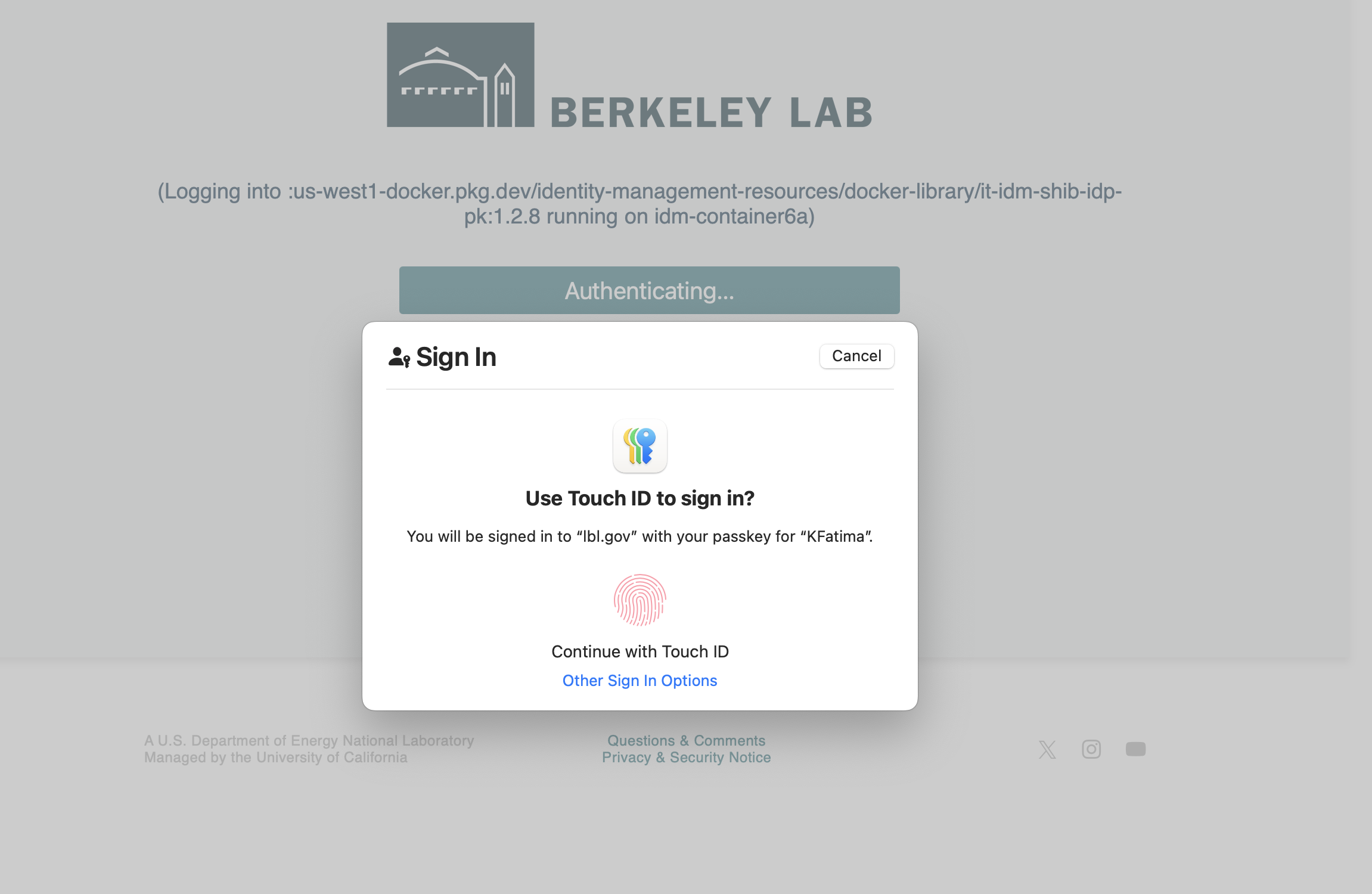
- Login was successful!
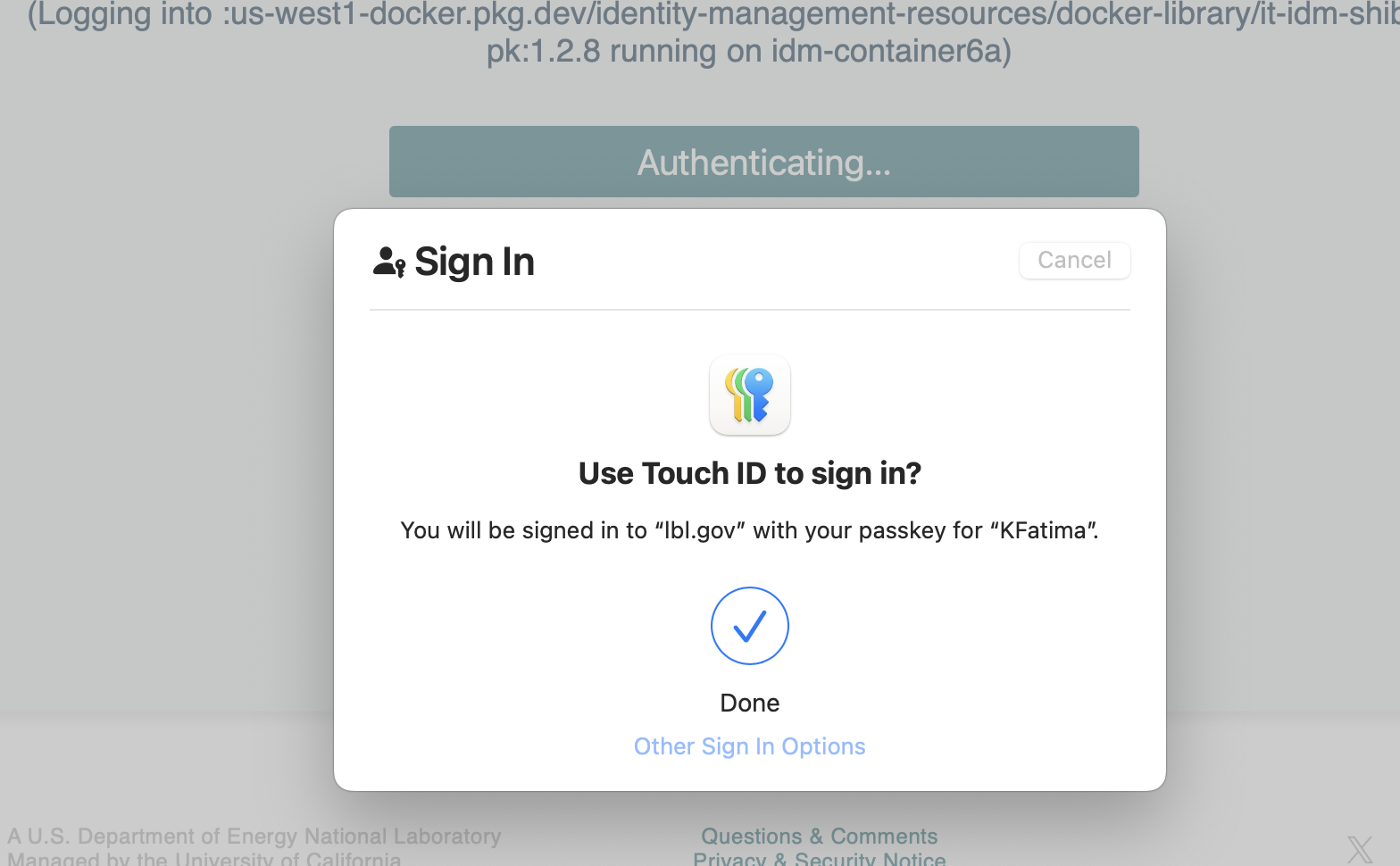
- You can now add a security key or delete and complete by clicking Finish.

