| Card |
|---|
| label | Install Google Authenticator on Android |
|---|
| | 1 | On your mobile device, find the Google Authenticator application in the Google Play Store. Install and open the app.
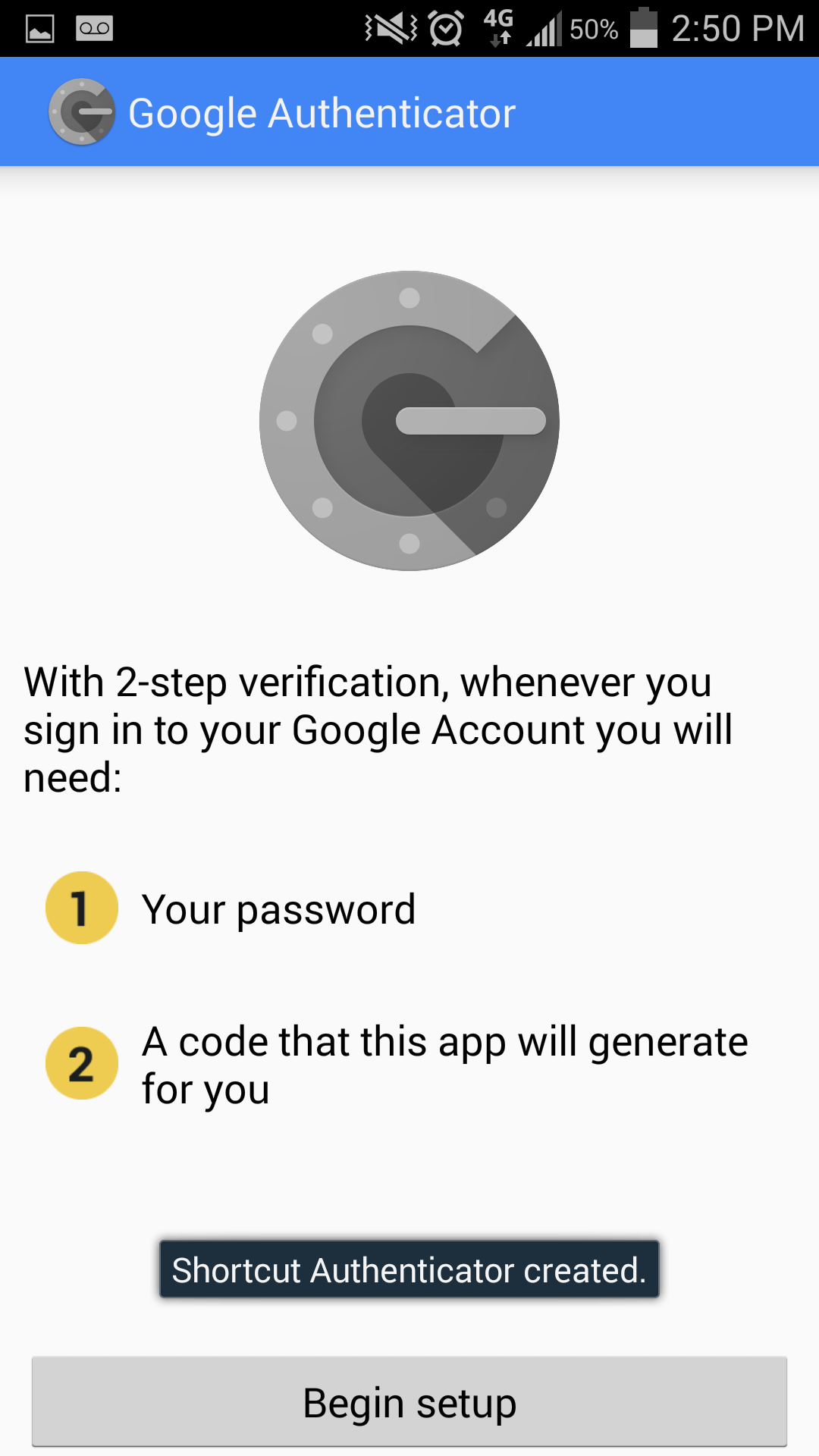
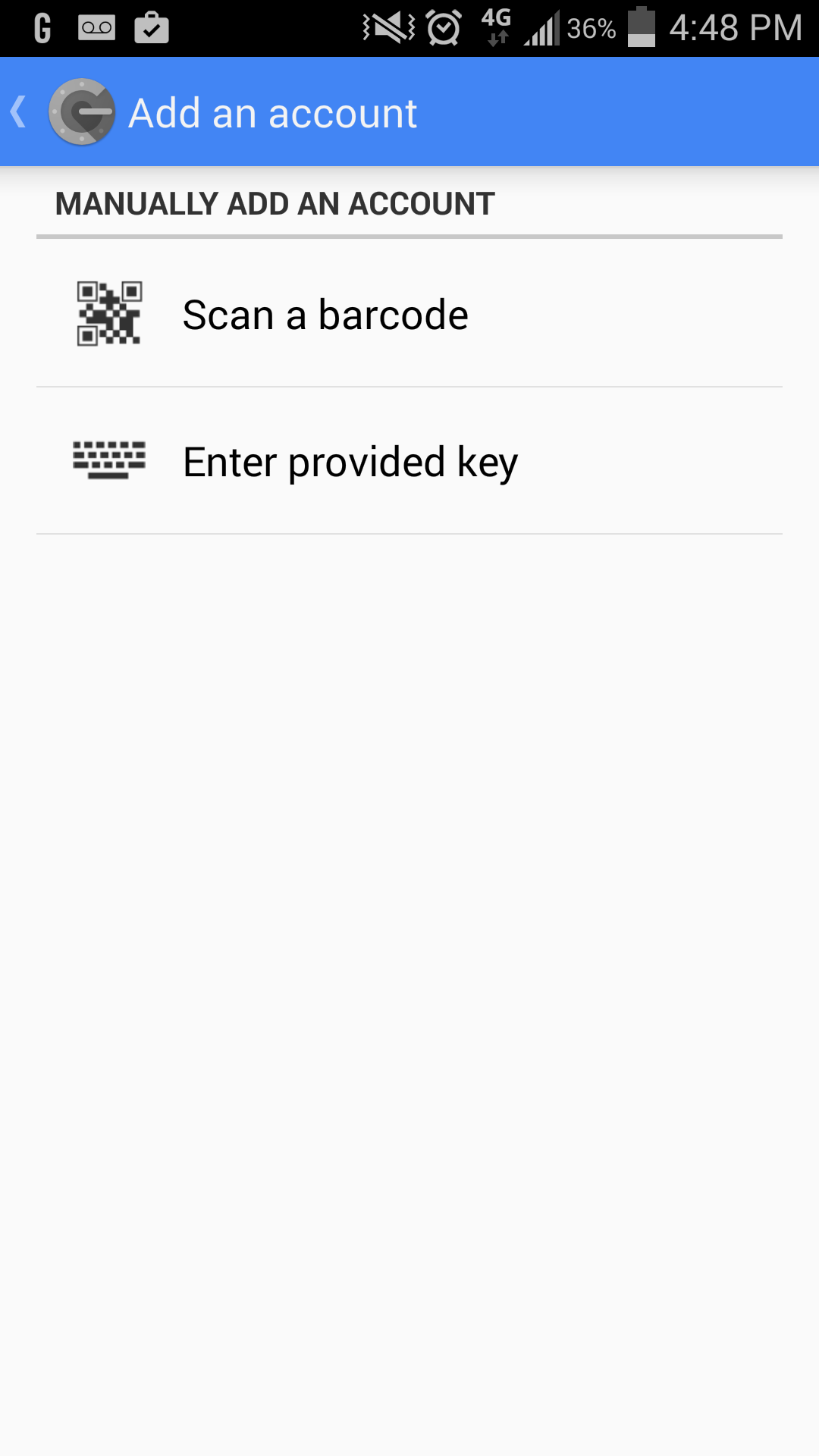
| | | 2 | On your mobile device, tap "Begin setup". | | | 3 | On your mobile device, tap "Scan a barcode". | Tip |
|---|
If you are missing a "Barcode Scanner", the app will prompt you to install a suggested app. Tap "Install" to install. After installation has completed, click "Scan a barcode" once more on Google Authenticator. |
| | | 4 | On your computer, go to https://identity.lbl.gov/mfa to add a token and create a barcode. You must generate a barcode at the above link to continue installation. This step must be done on a computer, as you will need to scan the barcode with your mobile device. Click the "Add an LBL token" link.
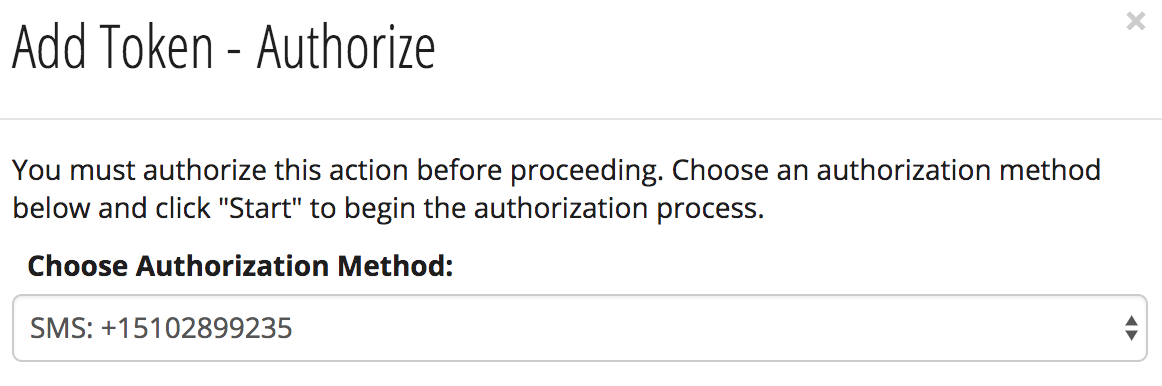
|  | | 4a | Select the method by which you can receive an authorization code. Select either: - Email: <personal email address on record>
- SMS (text message): <personal phone number on record>
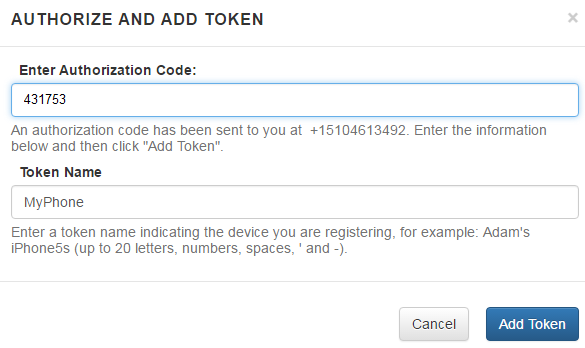
Click the "Start" button to receive a text or email with the authorization code. | | | 4b | Type the authorization code you received in your email or mobile device into the "Enter Authorization Code" field on the computer and give the registered device a meaningful nickname in the "Token Name" field. We recommend including the month, year, and model to easily identify the device. Example: Jay's iPhone 11, August 2020 Click "Add Token." Note, there is a time limit that you must complete this step by. If time has expired, "Cancel" and retrieve a re-issued token. | | | 4c | You will see a QR code code on the computer screen that you must scan with Google Authenticator on your mobile device. | Note |
|---|
You only have ONE CHANCE to scan this code. Do not close this window until you have successfully scanned the code. |
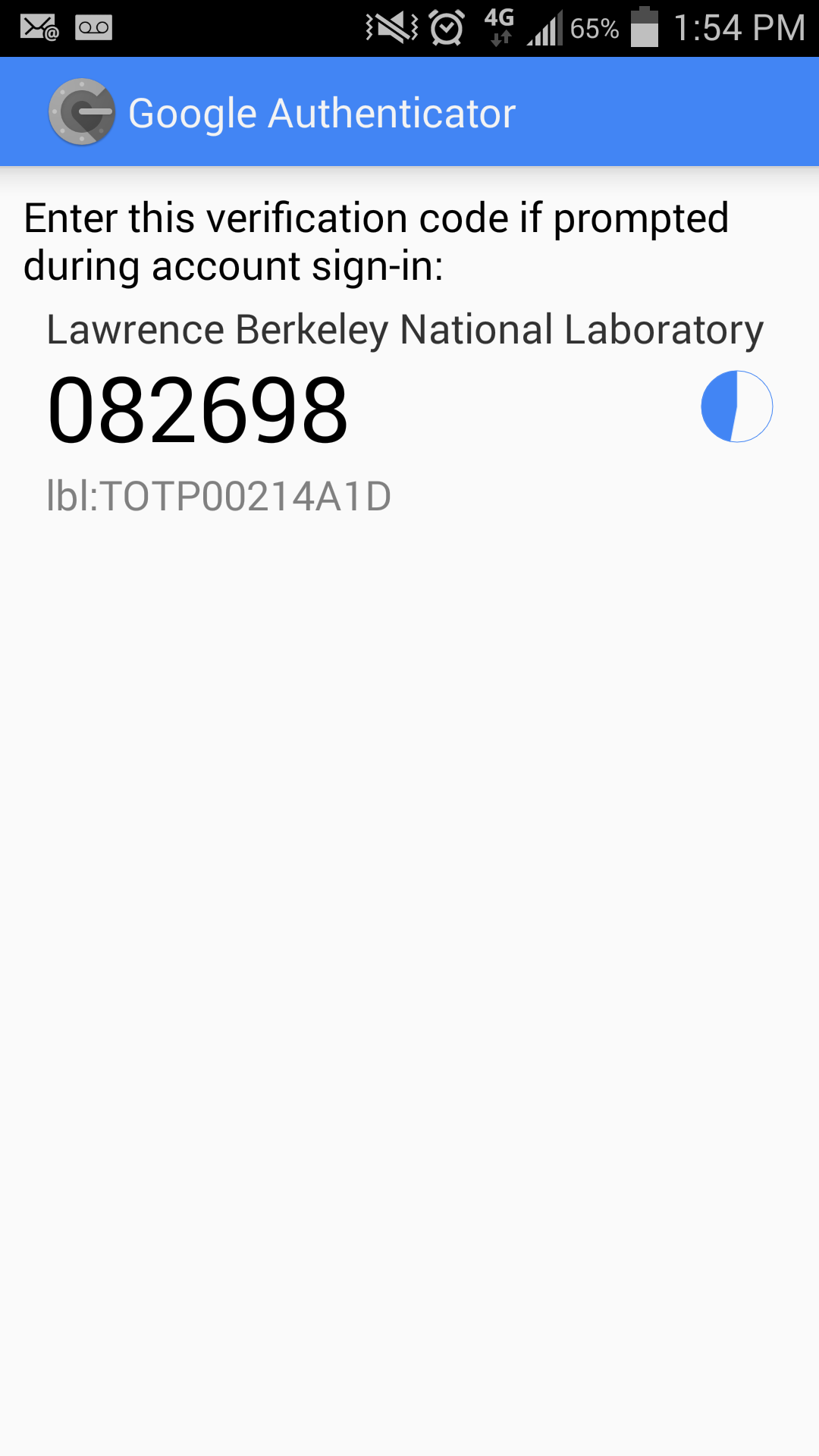
| no image | | 5 | If the barcode scan is successful, you will see the 6-digit OTP (One-Time-Password) on your mobile device. This code is valid for 30-seconds only. As the time limit approaches, you may see the code turn red. If you cannot enter it immediately, then wait a few seconds until the next code appears. | |
|
| Card |
|---|
| label | Install Google Authenticator on iPhone |
|---|
| | HTML |
|---|
<iframe src="https://drive.google.com/file/d/1QoPjYltukLqoDOzN1RREtn9uFslkCOPg/preview" width="640" height="480"></iframe> |
| 1 | On your mobile device, find the Google Authenticator application in the Apple App Store. When you find the listing, tap on the "GET" button, then tap on the "INSTALL" button.
| | | 2 | On your mobile device, open the Google Authenticator app, and tap "BEGIN SETUP". | | | 3 | On your mobile device, tap "Scan barcode", then tap "OK" to allow the app to access the camera. | | | 4 | On your computer, go to https://identity.lbl.gov/mfa to add a token and create a barcode. You must generate a barcode at the above link to continue installation. This step must be done on a computer, as you will need to scan the barcode with your mobile device. Click the "Add an LBL token" link.
| | | 4a | Select the method by which you can receive an authorization code. Select either: - Email: <personal email address on record>
- SMS (text message): <personal phone number on record>
Click the "Start" button to receive a text or email with the authorization code. | | | 4b | Type the authorization code you received in your email or mobile device into the "Enter Authorization Code" field on the computer and give the registered device a meaningful nickname in the "Token Name" field. We recommend including the month, year, and model to easily identify the device. Example: Jay's iPhone 11, August 2020 Click "Add Token." Note, there is a time limit that you must complete this step by. If time has expired, "Cancel" and retrieve a re-issued token. | | | 4c | You will see a QR code code on the computer screen that you must scan with Google Authenticator on your mobile device. | Note |
|---|
You only have ONE CHANCE to scan this code. Do not close this window until you have successfully scanned the code. |
| no image | | 5 | If the barcode scan is successful, you will see the 6-digit OTP (One-Time-Password) on your device. This code is valid for 30-seconds only. As the time limit approaches, you may see the code turn red. If you cannot enter it immediately, then wait a few seconds until the next code appears. | |
|
| Card |
|---|
| label | Test Google Authenticator |
|---|
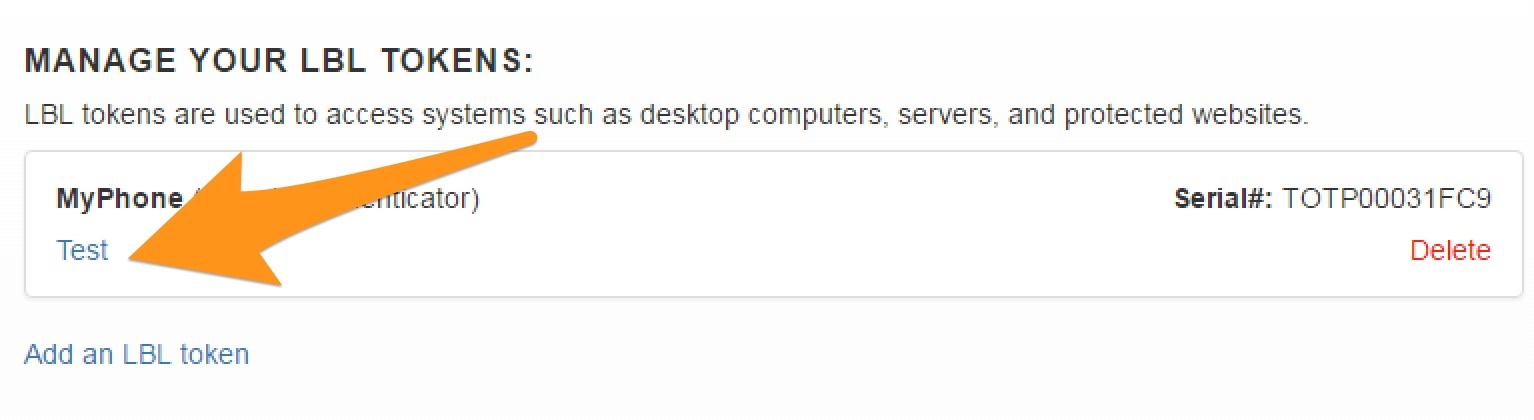
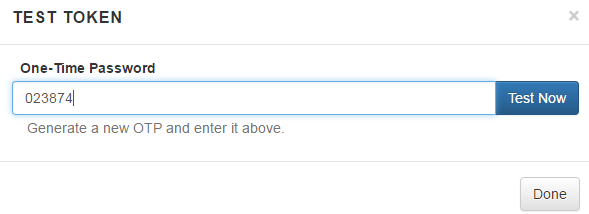
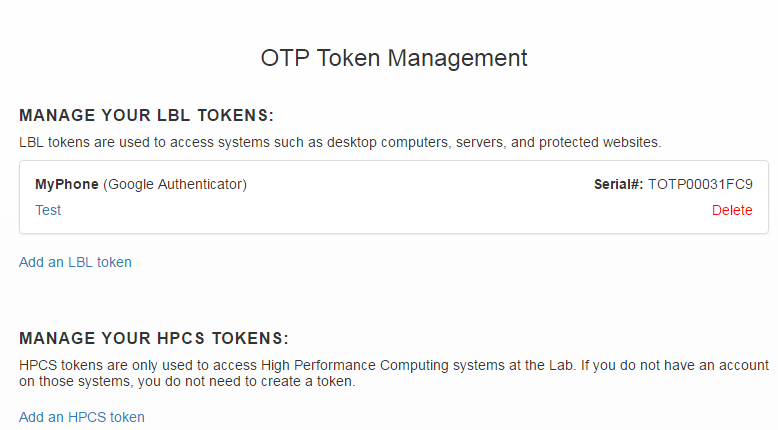
| | 1 | Go to https://identity.lbl.gov/mfa/ to verify if your OTP is working by clicking on the "Test" link below your device's nickname. | | | 2 | Enter the Google Authenticator's OTP from your device into the "One-Time Password" field and click "Test Now". | Note |
|---|
Only the newest OTP should be entered into the field for verification, expired codes will not work. |
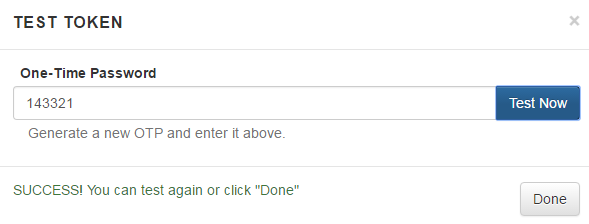
| | | 3 | You should see a Success! You can test again or click "Done" message if successful. If there is a problem, you may restart the registration or call the help desk at x4357. | |
|
| Card |
|---|
| label | Remove Google Authenticator |
|---|
| | Warning |
|---|
Ensure you have another form of MFA setup before removing a token. |
| 1 | Go to https://identity.lbl.gov/mfa/ and identify the device that you want to permanently stop using. | Note |
|---|
Ensure you have another form of OTP to use before removing your device. This does not remove the requirement for OTP on certain logins. |
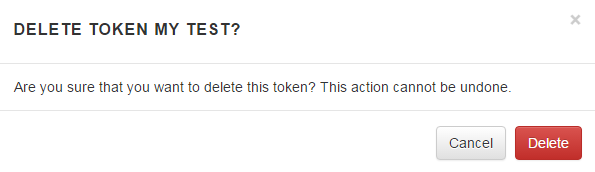
| | | 2 | Click "Delete" to confirm the deletion. | |
|
|