Find the Google Authenticator application in the Google Play Store.
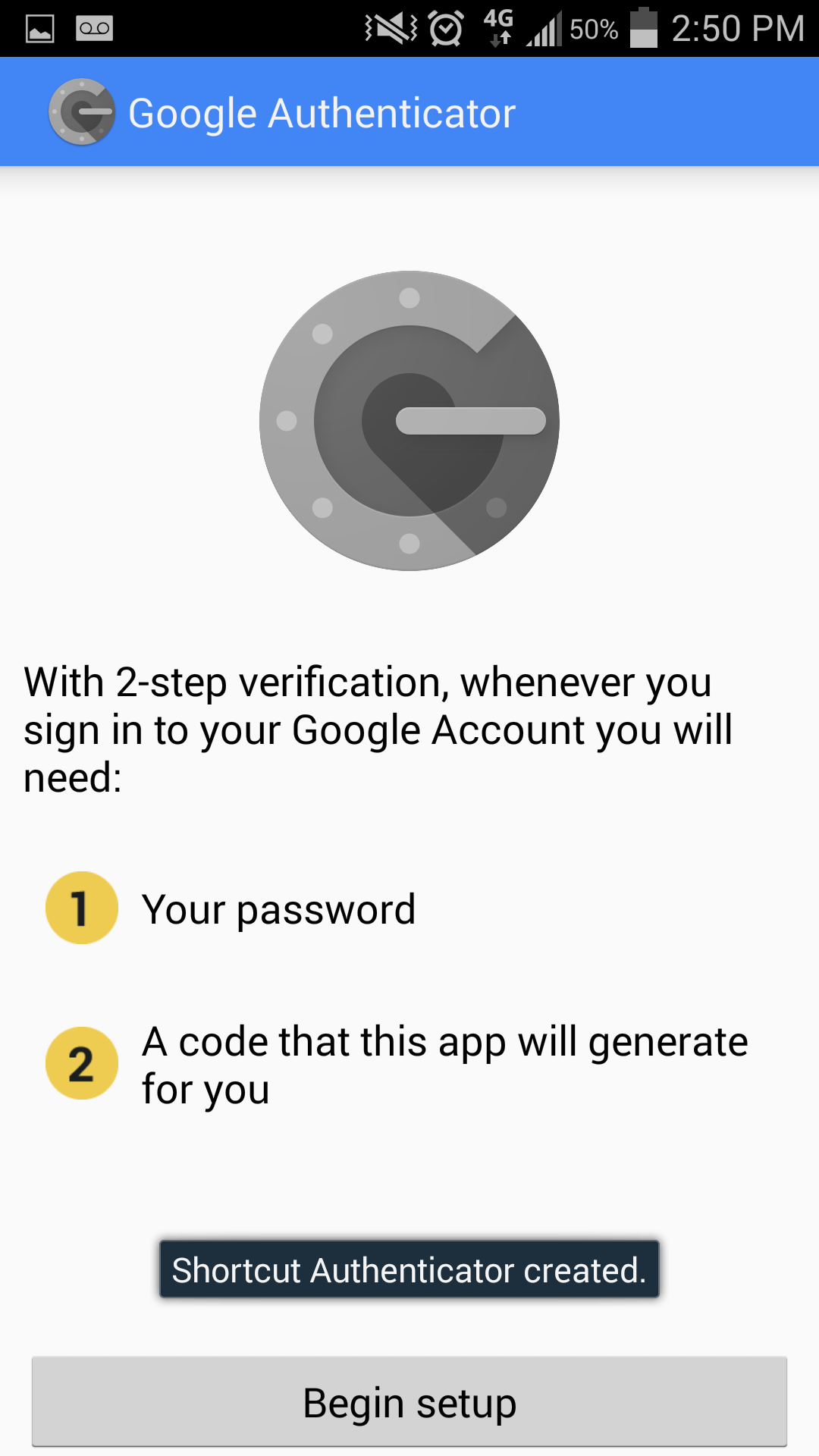
Install and open the app.
2
Tap "Begin setup".
3
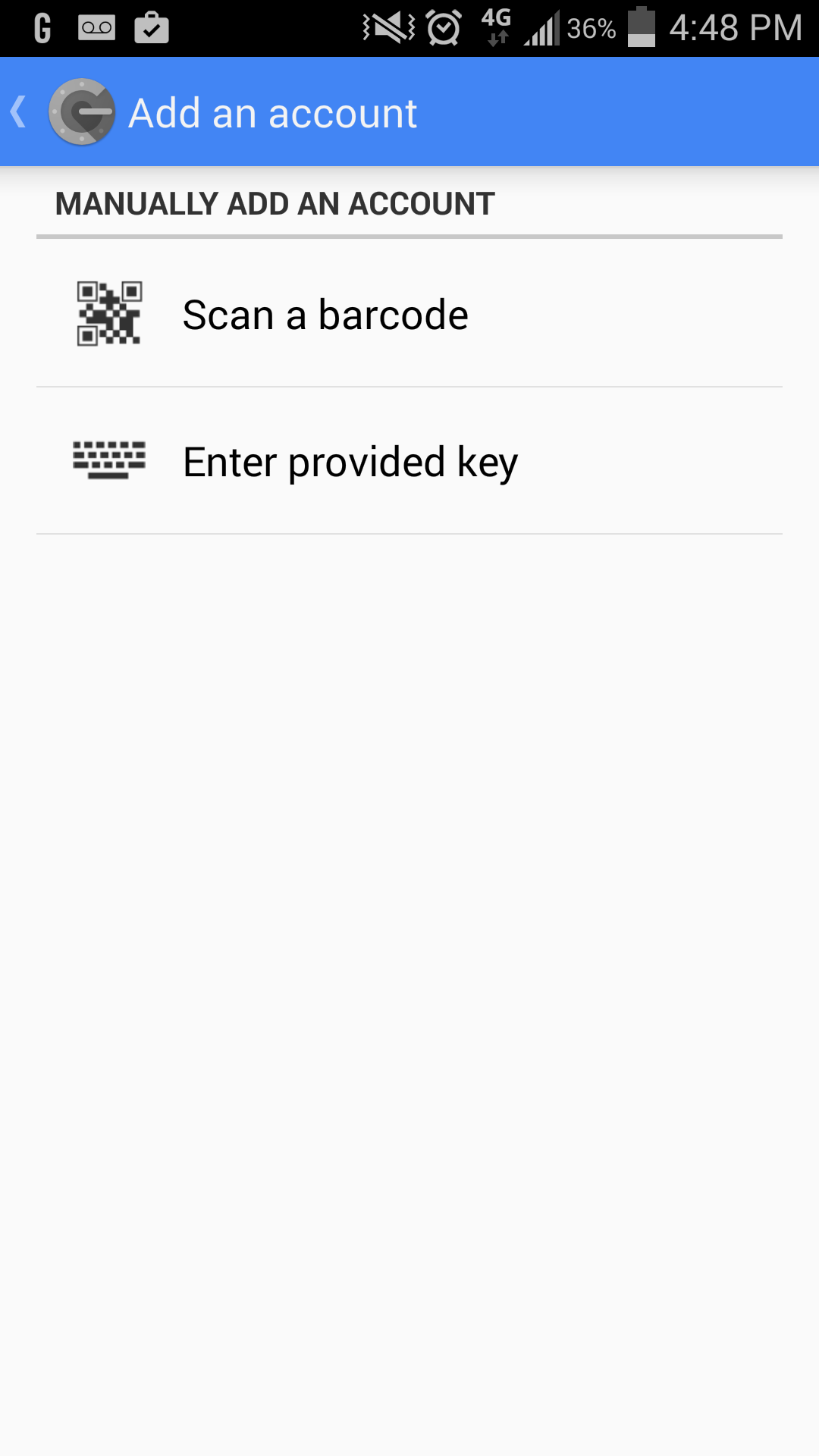
Tap "Scan a barcode".
Tip
If you are missing a "Barcode Scanner", the app will prompt you to install a suggested app. Tap "Install" to install. After installation has completed, click "Scan a barcode" once more on Google Authenticator.
You must generate a barcode at the above link to continue installation. This step must be done on a computer, as you will need to scan the barcode with your phone.
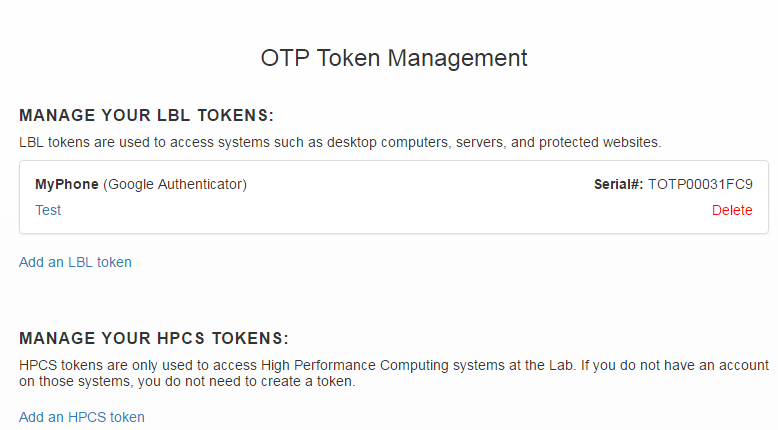
Click the "Add an LBL token" link.
4a
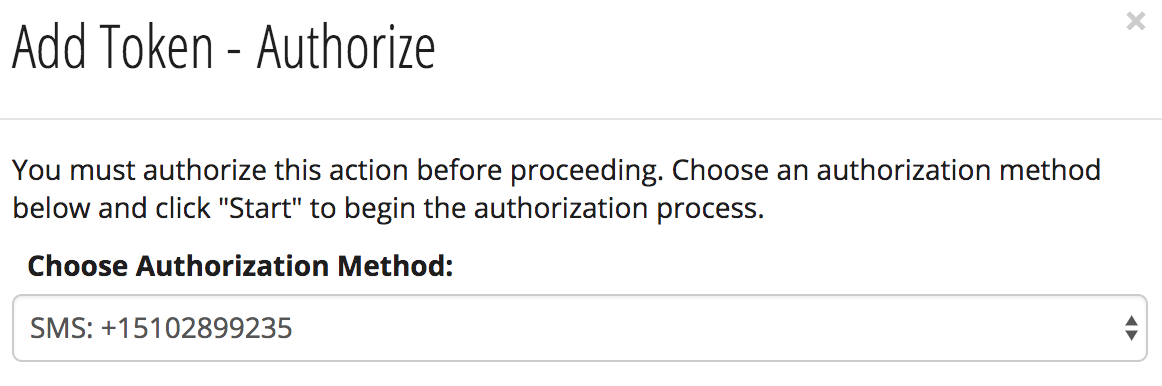
Select the method by which you can receive an authorization code.
Select either:
Email: <personal email address on record>
SMS (text message): <personal phone number on record>
Click the "Start" button to receive a text or email with the authorization code.
4b
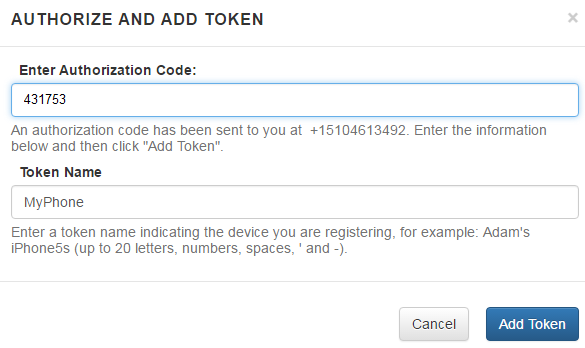
Type the authorization code into the "Enter Authorization Code" field and give the registered device a meaningful nickname in the "Token Name" field. We recommend including the month, year, and model number to easily identify the device. Example: Jay's iPhone 11, August 2020
Click "Add Token." Note, there is a time limit that you must complete this step by.
If time has expired, "Cancel" and retrieve a re-issued token.
4c
You will see a QR code code on the screen that you must scan with Google Authenticator on your device/phone.
Note
You only have ONE CHANCE to scan this code. Do not close this window until you have successfully scanned the code.
5
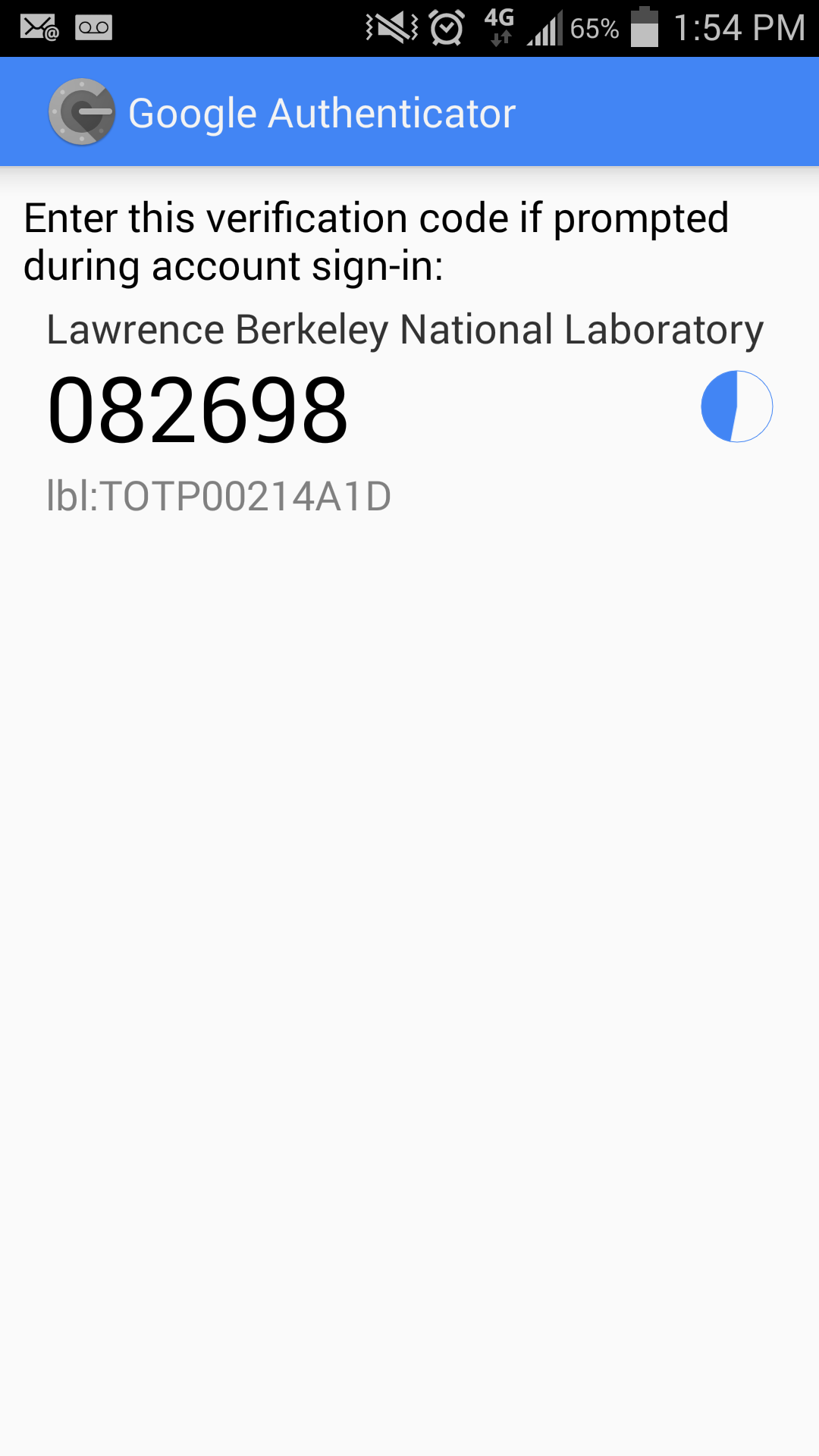
If the barcode scan is successful, you will see the 6-digit OTP (One-Time-Password) on your device.
This code is valid for 30-seconds only. As the time limit approaches, you may see the code turn red. If you cannot enter it immediately, then wait a few seconds until the next code appears.
Card
label
Install Google Authenticator on iPhone
1
Find the Google Authenticator application in the Apple App Store.
When you find the listing, tap on the "GET" button, then tap on the "INSTALL" button.
2
Open the Google Authenticator app, and tap "BEGIN SETUP".
3
Tap "Scan barcode", then tap "OK" to allow the app to access the camera.
You must generate a barcode at the above link to continue installation. This step must be done on a computer, as you will need to scan the barcode with your phone.
Click the "Add an LBL token" link.
4a
Select the method by which you can receive an authorization code.
Select either:
Email: <personal email address on record>
SMS (text message): <personal phone number on record>
Click the "Start" button to receive a text or email with the authorization code.
4b
Type the authorization code into the "Enter Authorization Code" field and give the registered device a meaningful nickname in the "Token Name" field. We recommend including the month, year, and model number to easily identify the device. Example: Jay's iPhone 11, August 2020
Click "Add Token." Note, there is a time limit that you must complete this step by.
If time has expired, "Cancel" and retrieve a re-issued token.
4c
You will see a QR code code on the screen that you must scan with Google Authenticator on your device/phone.
Note
You only have ONE CHANCE to scan this code. Do not close this window until you have successfully scanned the code.
5
If the barcode scan is successful, you will see the 6-digit OTP (One-Time-Password) on your device.
This code is valid for 30-seconds only. As the time limit approaches, you may see the code turn red. If you cannot enter it immediately, then wait a few seconds until the next code appears.
Card
label
Test Google Authenticator
1
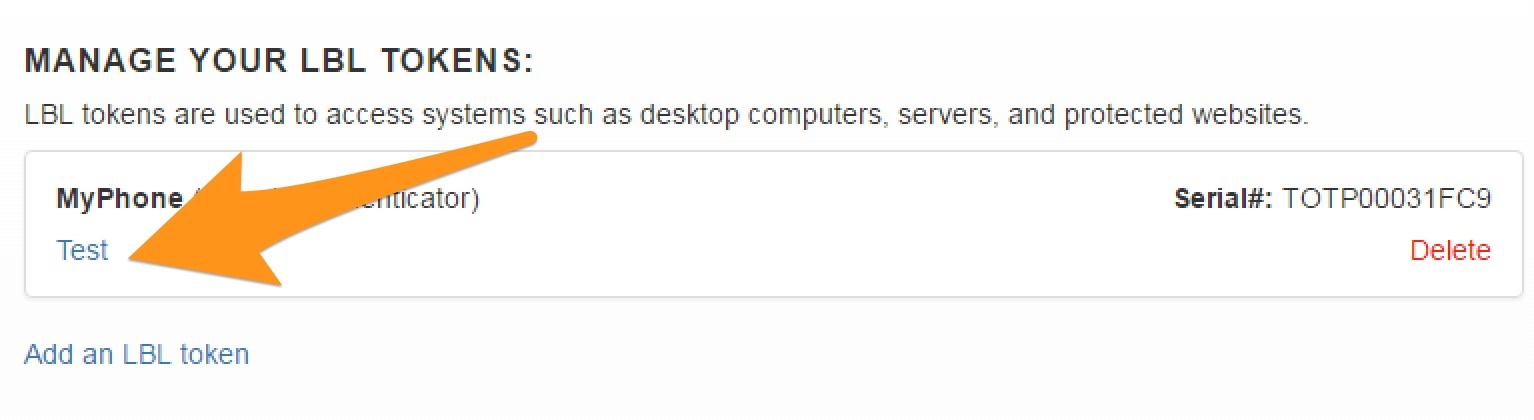
Go to https://identity.lbl.gov/mfa/ to verify if your OTP is working by clicking on the "Test" link below your device's nickname.
2
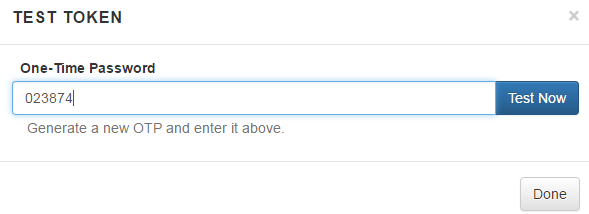
Enter the Google Authenticator's OTP from your device into the "One-Time Password" field and click "Test Now".
Note
Only the newest OTP should be entered into the field for verification, expired codes will not work.
3
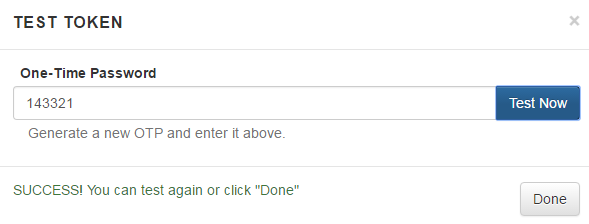
You should see a Success! You can test again or click "Done" message if successful.
If there is a problem, you may restart the registration or call the help desk at x4357.
Card
label
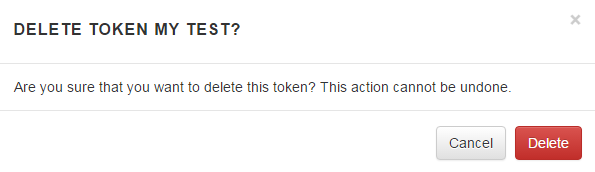
Remove Google Authenticator
Warning
Ensure you have another form of MFA setup before removing a token.