Versions Compared

Key

  • This line was added.
  • This line was removed.
  • Formatting was changed.

...

Warning

If you use Google Authenticator on your personal or Lab issued mobile device, Lab policy requires that the device must be configured to use a lock screen (PIN, pattern, fingerprint, etc.).

...

Device

...

...

Deck of Cards
idInstall Google Authenticator
Card
labelInstall Google Authenticator on Android
1To install Google Authenticator app, go to the Google Play Store on your phone. Find the Google Authenticator application and install it. Then open the app.

Google Authenticator for Android icon.pngImage Added

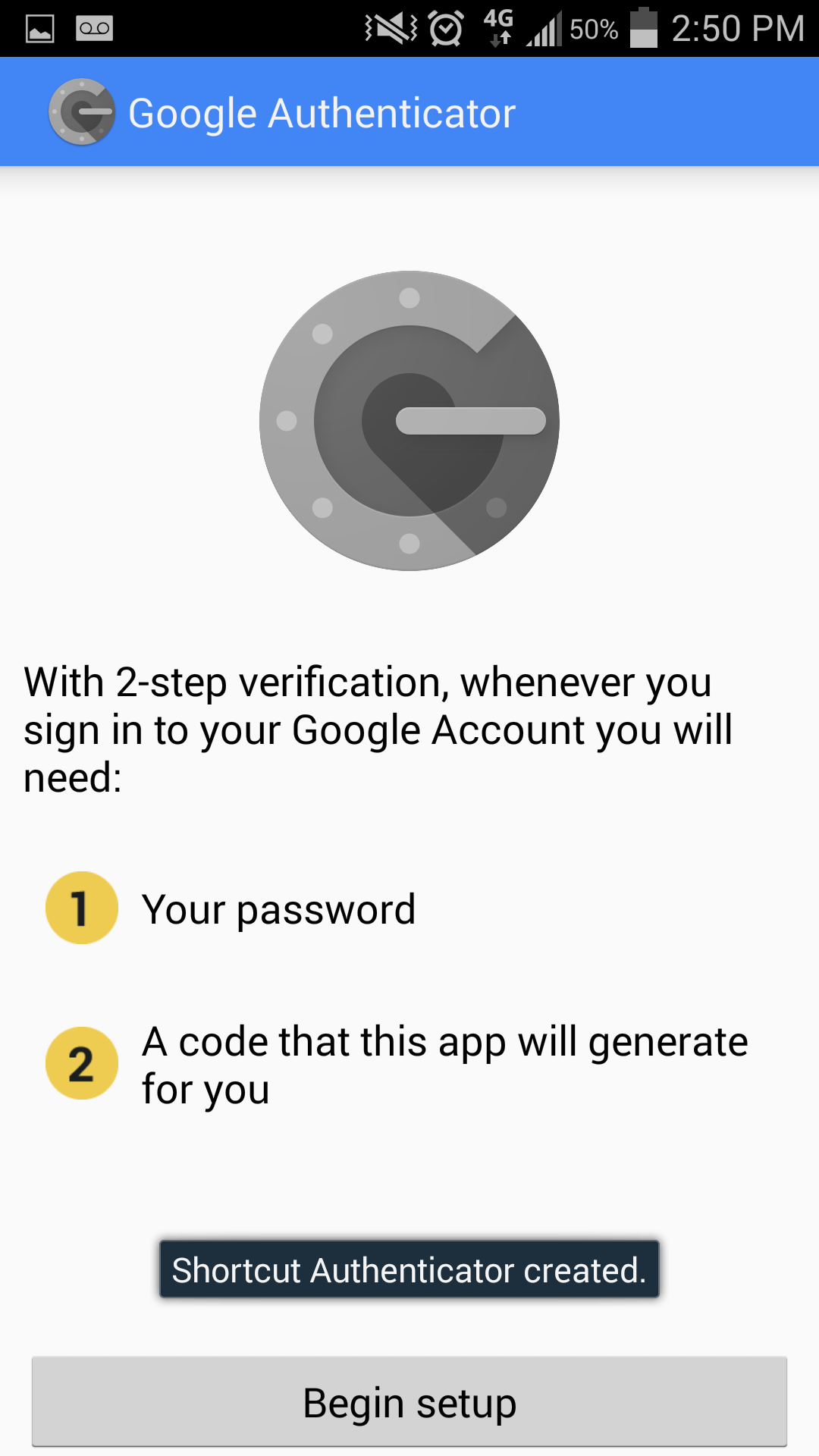
2Tap "Begin setup".
Image Added
3

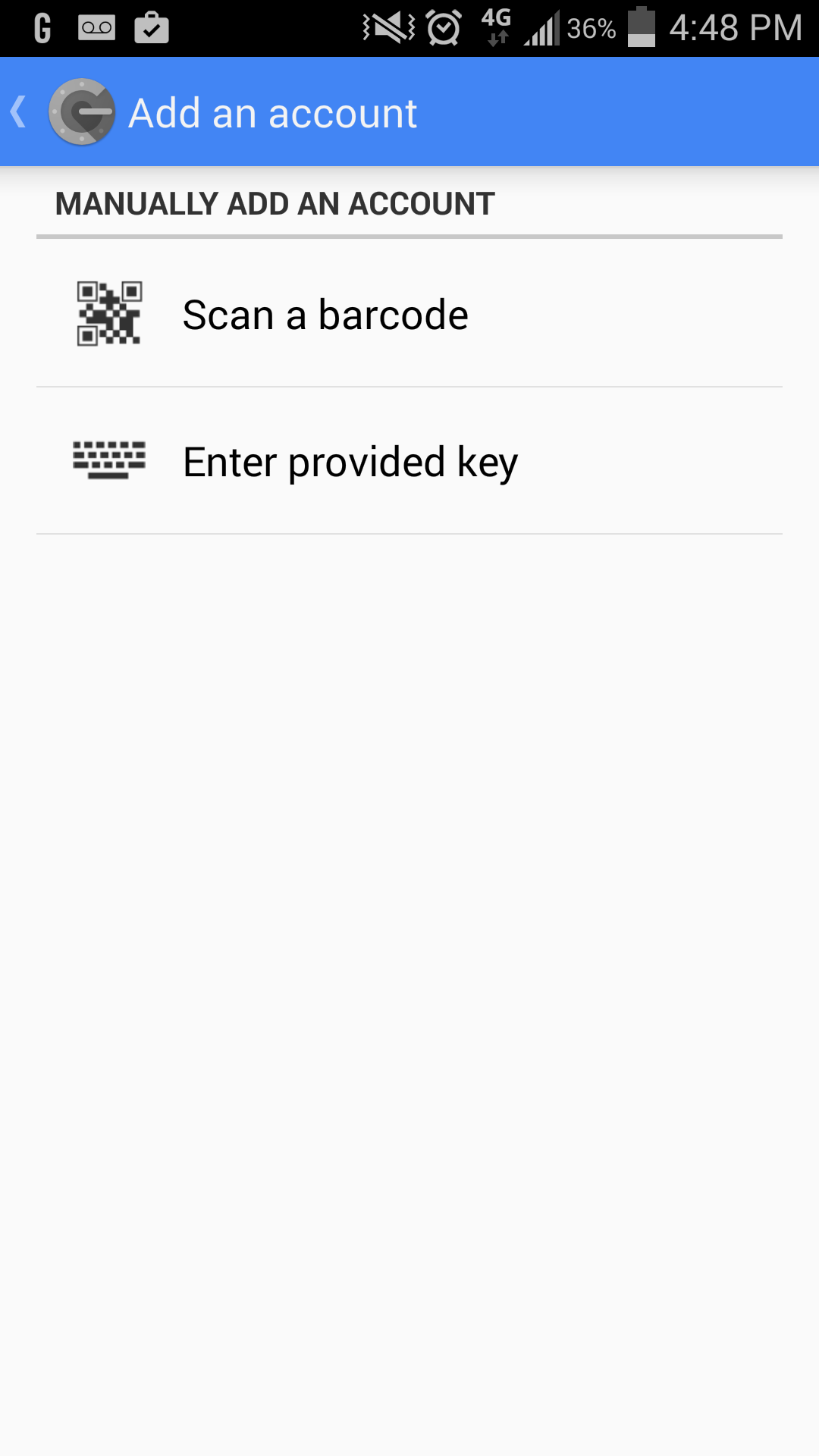
Then, tap "Scan a barcode".

Tip

If you are missing a "Barcode Scanner", the app will prompt you to install a suggested app. Tap "Install" to the suggested "Barcode Scanner" app. After installation has completed, click "Scan a barcode" once more on Google Authenticator.

Image Added
4

Generate a barcode here: How do I add/remove a Google Authenticator token?

You must generate a barcode at the above link to continue installation.

You will only have ONE CHANCE to scan the code generated at the link above.


5

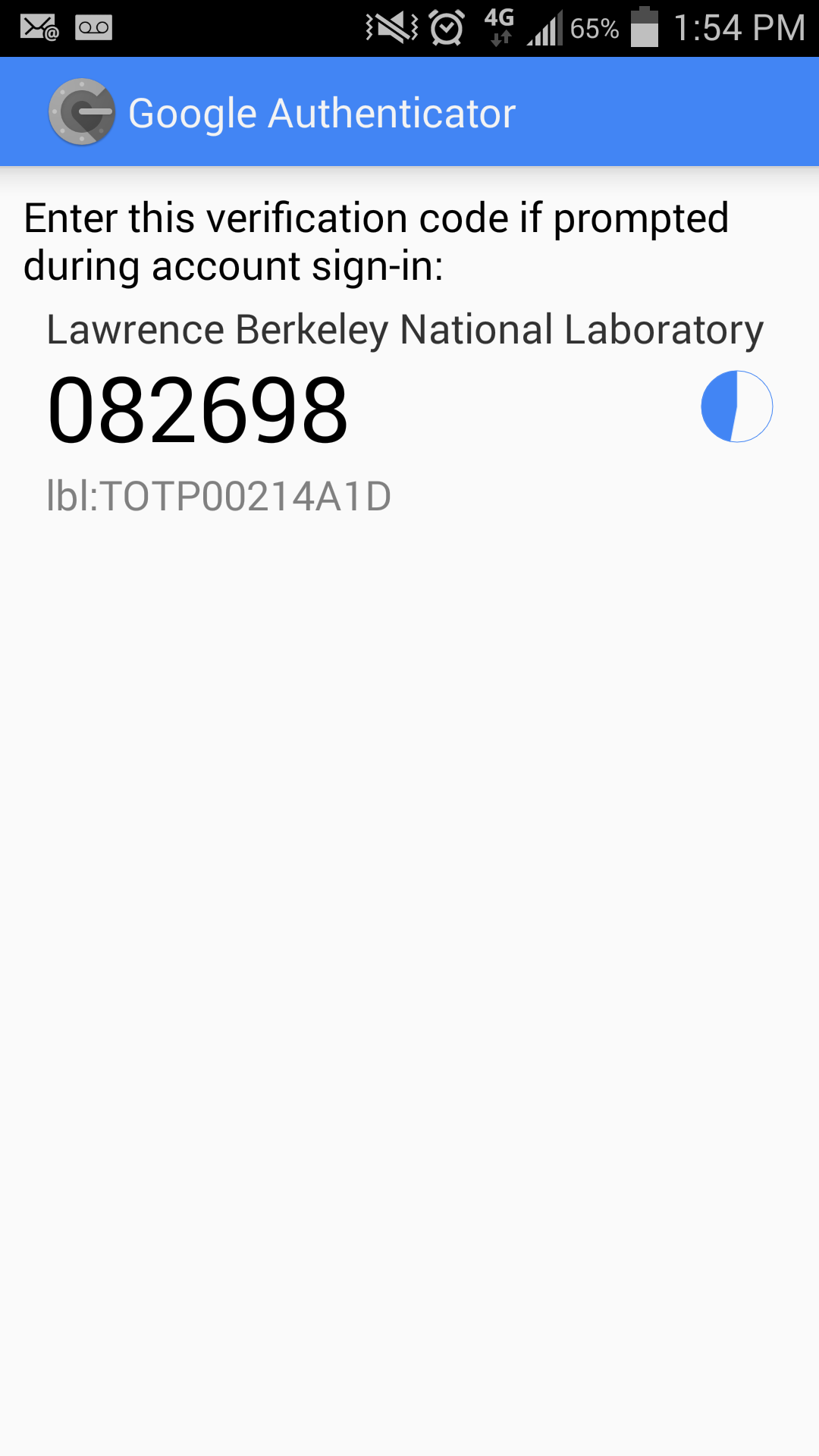
If the QR Code scan is successful, you will see the 6-digit OTP (One-Time-Password) on your device. This code is valid for 30-seconds only. You must enter the token when you log in with your username and password. If you happen to take longer than 30 seconds, then use the most current auto-generated OTP.

Image Added

Card
labelInstall Google Authenticator on iPhone

Pop away


InstructionsView
1

Find the Google Authenticator application in the Apple App Store on your phone by using the Search bar (type in "authenticator").

When you find the listing, tap on the "GET" button, then tap on the "INSTALL" button.


Image Added

3Open the Google Authenticator app, and tap "BEGIN SETUP".
Image Added
4Tap "Scan barcode", then tap "OK" to allow the app to access the camera.

Image Added

5

Generate a barcode here: How do I add/remove a Google Authenticator token?

You must generate a barcode at the above link to continue installation.

You will only have ONE CHANCE to scan the code generated at the link above.


6

If the barcode scan is successful, you will see the 6-digit OTP (One-Time-Password) on your device. This code is valid for 30-seconds only. As the 30-second time limit approaches, you may see the code turn red. If you cannot enter it immediately, then wait a few seconds and enter the next valid code that will automatically appear.

Image Added

...

...


Pop away